Introduction
Looking for the complete AI content creation framework? This guide focuses on mobile-first workflows. For the broader overview, see AI Content Creation: Complete Guide 2026.

Mobile devices now account for over 60% of all internet traffic worldwide, and creative workflows are following the same trajectory. In 2026, the smartphone in your pocket carries more processing power than the desktop workstations that dominated creative production a decade ago. More importantly, cloud-based ai to make image and video generation has rendered local hardware almost irrelevant for the generation step itself - your phone is not running the model, it is directing the model. The result is that professional-grade AI content creation is now fully portable.
This shift is not theoretical. A growing cohort of professional creators - social media managers, freelance designers, e-commerce sellers, and content marketers - now produce the majority of their AI-generated visual assets on mobile devices. They draft prompts during commutes, generate thumbnail variants between meetings, queue video generations from coffee shops, and review outputs on train platforms. The constraint is no longer hardware access; it is workflow optimization for touch-first interfaces and smaller screens.
Yet mobile AI creation presents unique challenges that desktop guides gloss over. Typing long prompts on a phone keyboard is slower and more error-prone. Screen real estate limits the number of outputs you can compare simultaneously. Battery management becomes a production consideration during intensive sessions. Network connectivity affects generation queue times. And the touch interface demands different interaction patterns than mouse-driven desktop workflows.
This guide addresses all of these challenges systematically. It covers platform selection, model matching for mobile use cases, iOS and Android optimization, prompt engineering adapted for mobile, credit management, troubleshooting, and - critically - the workflow patterns that make mobile AI creation not just possible but genuinely productive. Platforms like Cliprise, which provide mobile-optimized access to 47+ AI models, make the multi-model approach work on any device. By the end, you will have a complete framework for creating professional AI content from anywhere, on any phone.
Why Mobile AI Generation Matters in 2026
The Anywhere-Creative Economy
The creator economy is projected to exceed $500 billion by 2027. A significant and growing portion of that value is generated by creators who operate primarily or entirely from mobile devices. Instagram influencers, TikTok creators, Etsy sellers, and freelance content producers do not sit at desks eight hours a day - they create in the spaces between other activities. For these creators, mobile AI generation is not a nice-to-have; it is the primary production environment.
The economic argument is reinforced by speed-to-market. A trending moment on TikTok has a 48-hour peak window. A creator who can generate AI video content from their phone within minutes of spotting a trend captures that window. One who needs to get back to their desktop first loses it. In social media content creation, responsiveness is revenue.
Cloud AI Erases the Hardware Gap
Traditional creative software (Photoshop, Premiere, After Effects) demanded powerful local hardware - beefy GPUs, 32GB+ RAM, fast storage. Mobile devices could not compete. AI generation inverts this paradigm. The heavy computation happens on remote GPU clusters. Your device simply sends prompts and receives outputs. A $300 Android phone accesses the exact same Flux 2 Pro, Veo 3.1, or Sora 2 models as a $3,000 desktop workstation. The outputs are identical. The generation times are identical. The quality is identical.
This hardware democratization means that a creator in Lagos generating images on a mid-range Samsung has access to the same AI capabilities as a studio in Los Angeles running a dual-monitor Mac Pro setup. The creative playing field has never been more level.
Mobile-First Content Distribution
Here is the often-overlooked insight: the content you create on mobile is consumed on mobile. When you generate an Instagram Reel on your phone, you are seeing it exactly as your audience will see it - same screen size, same aspect ratio, same scroll behavior. This WYSIWYG advantage is real. Desktop creators frequently produce content that looks stunning on a 27-inch monitor and awkward on a 6.1-inch phone screen. Mobile creators avoid this disconnect entirely.
Platform Selection: Choosing Your Mobile AI Tool
The Multi-Model Advantage on Mobile
Single-model mobile apps lock you into one provider's strengths and weaknesses. Midjourney excels at aesthetic imagery but cannot generate video. Sora produces impressive video but lacks image editing. DALL-E integrates with ChatGPT but offers limited model variety.
Multi-model platforms like Cliprise aggregate 47+ models under one mobile interface - the same interface across iOS and Android, web, and desktop. This means you can generate a thumbnail with Flux 2 Pro, extend it to video with Veo 3.1, and upscale the result with Real-ESRGAN - all without switching apps, re-uploading assets, or managing multiple subscriptions. The complete platform comparison breaks down how desktop, web, and mobile interfaces compare for different workflow types.
iOS vs Android: Platform-Specific Considerations
Both platforms provide excellent AI generation experiences in 2026, but with nuanced differences.
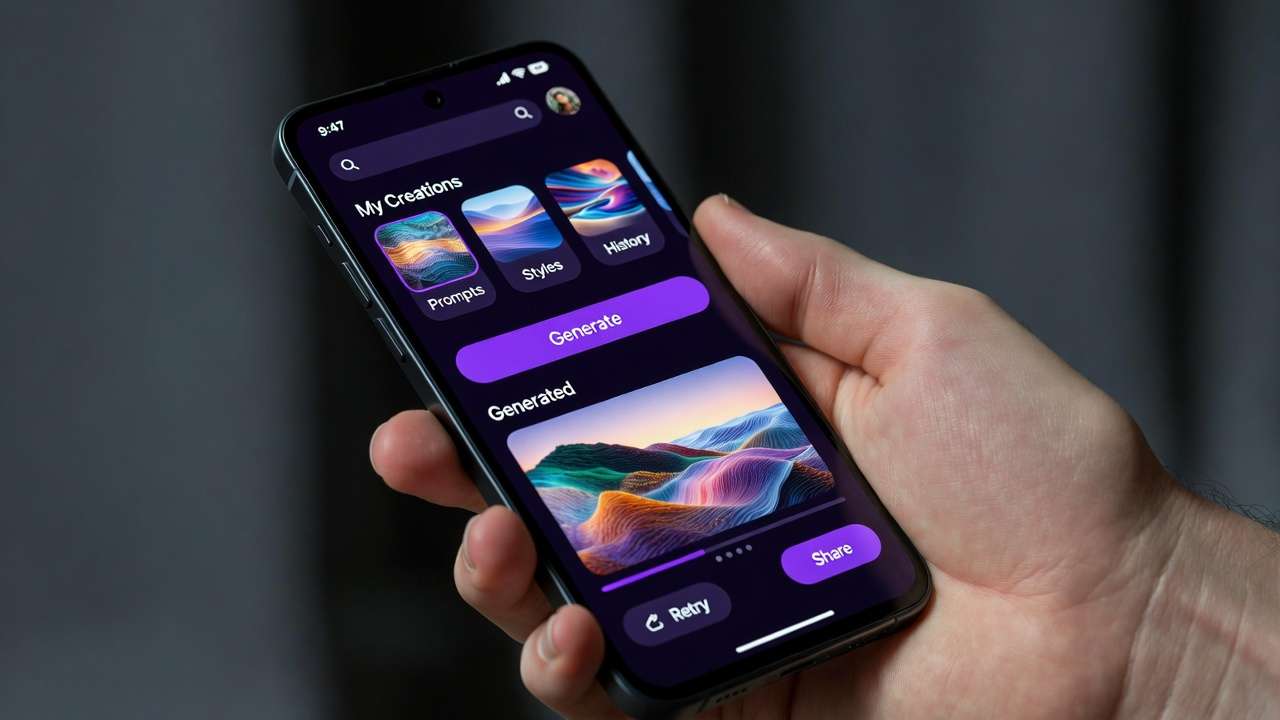
iPhone (iOS): Safari and iOS PWAs handle multi-model platforms smoothly. The Cliprise mobile web app is optimized for iOS Safari with smooth scrolling, native-feeling interactions, and efficient image gallery browsing. iPhones from the 14 series onward handle generation previews, prompt management, and output galleries without performance issues. AirDrop integration makes transferring generated assets to Mac for final editing seamless. The complete iOS workflow is in Generate AI Videos on Your iPhone.
Android (Samsung, Pixel, OnePlus): Chrome-based access works reliably across all major Android manufacturers. Samsung Galaxy devices benefit from DeX mode for a hybrid desktop-mobile workflow. Pixel phones offer tight Google ecosystem integration for those using Google Drive for asset management. The direct-share functionality in Android makes distributing generated content to social platforms faster than iOS in many cases. The Android-specific guide is Android AI Art: Complete Guide for Samsung and Pixel.
Progressive Web Apps vs Native Apps
Most serious multi-model platforms in 2026 deliver their mobile experience through Progressive Web Apps (PWAs) rather than native App Store / Play Store apps. The reason is practical: native app review processes create a bottleneck when platforms add new AI models weekly. PWAs update instantly, support offline prompt drafting, send push notifications for completed generations, and access device cameras for reference image capture.
Cliprise's PWA approach means you get the latest model additions (like Veo 3.1 or Flux 2 Pro updates) the moment they go live - no app store update required.
Mobile Image Generation: Complete Workflow
Choosing the Right Model on Mobile
Model selection on mobile follows the same principles as desktop - match the model to your use case - but with an additional consideration: generation speed matters more on mobile because you are often working in shorter, more frequent sessions.
For fast iteration (social media, thumbnails): Flux 2 Pro delivers high-quality images in 5 to 15 seconds. Imagen 4 produces consistent results with minimal prompt refinement. Seedream 3 offers budget-friendly generation for high-volume testing. These fast models maximize productivity in mobile sessions where you might only have 10 to 15 minutes.
For maximum quality (portfolio pieces, client work): Midjourney excels at aspirational aesthetics. Flux 2 Pro Ultra pushes photorealism to its peak. Ideogram v3 handles text-in-image better than any alternative - critical for thumbnails and social graphics where text readability is essential.
The complete mobile model selection guide maps every available model to its optimal mobile use case, including credit costs and typical generation times.
Mobile Prompting: The Touch-Screen Challenge
Desktop users type 100+ word prompts effortlessly with a full keyboard. Mobile users face a fundamentally different input experience: smaller keyboard, autocorrect interference, and the cognitive overhead of composing detailed prompts on a small screen.
The solution is prompt templates. Build a library of proven prompts (organized by use case) that you can copy-paste and modify with minimal typing. Effective mobile prompting follows the "skeleton + swap" method: maintain a detailed template and only change the variable elements (subject, color, setting) for each generation.
Example mobile prompt template:
[SUBJECT] in [SETTING], professional studio lighting,
sharp focus, 8K resolution, photorealistic, Canon R5,
85mm f/1.4, shallow depth of field, [COLOR MOOD]
You only need to type the bracketed variables - the rest stays constant. This approach, detailed in Mobile Prompting Mastery, reduces mobile prompt input time by 60 to 70% while maintaining quality.
The Mobile Image Generation Pipeline
Step 1: Quick-draft prompts. Use your phone's notes app or the platform's prompt history to store and refine templates. Draft 5 to 10 prompt variations during downtime.
Step 2: Batch-queue generations. Open your mobile AI platform and queue all variations at once. Multi-model platforms allow you to queue generations across different models simultaneously - three Flux renders and two Imagen renders running in parallel.
Step 3: Review and select. Mobile gallery views are optimized for swiping through results. The smaller screen actually helps with quick accept/reject decisions - if an image does not look good at phone size, it will not look good in your audience's phone-sized feed either.
Step 4: Quick-edit and distribute. Apply any necessary adjustments (crop, minor color shifts) using the platform's mobile editing tools, then share directly to social platforms using the native share sheet.
For AI image generation fundamentals that apply across all devices, see the complete image generation pillar.
Mobile Video Generation: From Concept to Upload
Video Generation on Small Screens
Video is where mobile AI creation truly shines, because the output format (vertical video for social platforms) is native to the device you are creating on. When you generate a 9:16 Reel or TikTok on your phone, the preview shows you exactly what the final product looks like - no guessing about how horizontal desktop content will translate to vertical mobile consumption.
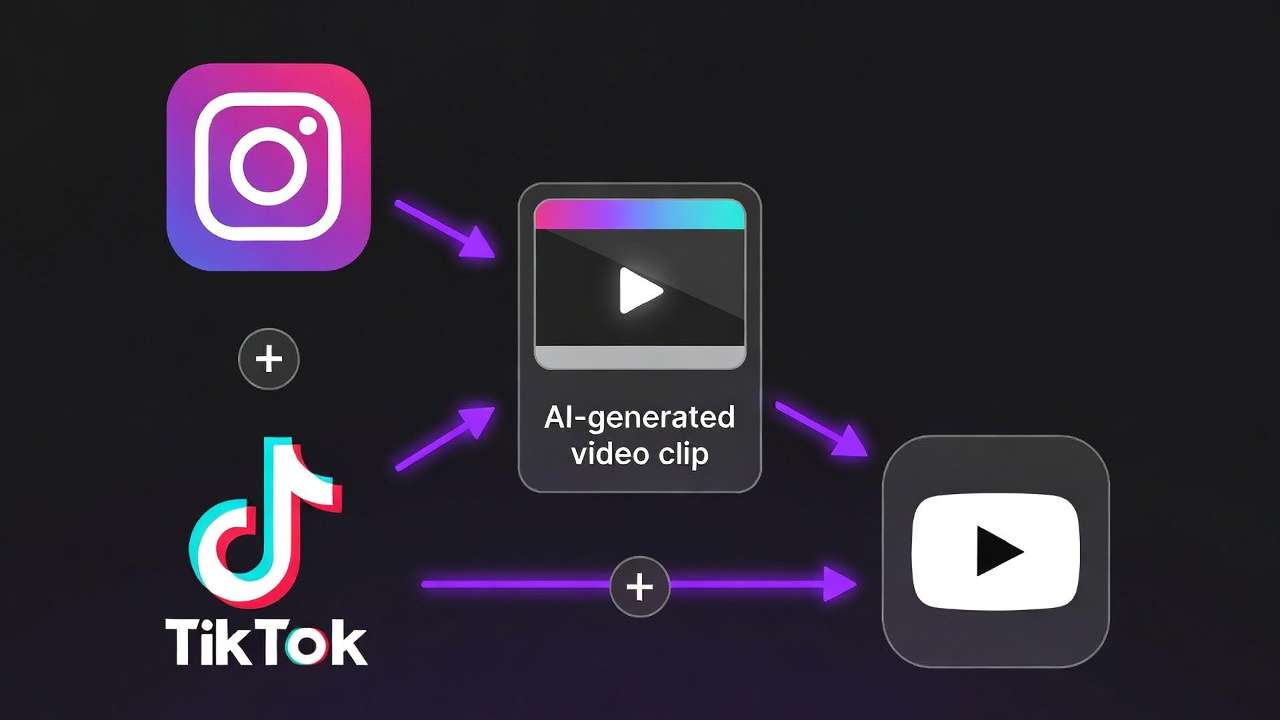
The mobile video generation guide covers the complete workflow, but here is the strategic overview. If you are choosing a phone-first tool setup, the AI video generator app guide explains what to check before building your mobile production habit.
Image-to-video is the power move. The most efficient mobile video workflow starts with a strong AI-generated image (or a photo from your camera roll), then extends it to video using image-to-video models. This gives you precise control over the opening frame - the most important frame for social media engagement - while letting the AI handle motion and extension.
Model recommendations for mobile video:
| Model | Strength | Best For | Typical Wait |
|---|---|---|---|
| Veo 3.1 Fast | High quality, faster queue | YouTube Shorts, Reels | 30-90s |
| Kling 2.6 | Dynamic motion, physics | TikTok, product demos | 45-120s |
| Sora 2 | Narrative coherence | Story-driven content | 60-180s |
| Wan 2.5 | Stylized output | Artistic, animation | 30-90s |
| Hailuo 02 | Consistent motion | Social media content | 30-60s |
Mobile Video Workflow: Step by Step
Step 1: Capture or generate your key frame. Use your phone's camera to snap a reference photo, or generate an AI image that will serve as frame one. The image-to-video workflow applies identically on mobile.
Step 2: Select your video model and settings. On mobile, prioritize models with faster generation times for iterative work. Use Fast mode for drafts, Quality mode for finals. Set your aspect ratio to match your target platform - 9:16 for vertical social, 16:9 for YouTube horizontal.
Step 3: Write your motion prompt. Describe the motion you want: "slow camera dolly forward," "product rotating 180 degrees," "person walking toward camera." Keep motion prompts concise - 20 to 40 words works better than longer descriptions for most video models. Motion control techniques apply across all devices.
Step 4: Queue and monitor. Submit your generation and monitor progress. Multi-model platforms show queue position and estimated completion time. Use the wait time to draft your next prompt or prepare your post caption.
Step 5: Review and post. Preview the generated video at full screen on your phone. If it meets your standard, post directly to your target platform. If not, refine your motion prompt and regenerate - iteration on mobile is cheap and fast.
Platform-Specific Mobile Workflows
Instagram and TikTok (Vertical-First)
These platforms are inherently mobile-first, making phone-based AI generation the most natural production workflow. Generate 9:16 vertical content natively. Preview it on the same device your audience uses. Post it directly through the platform's native sharing.
The 60-second Instagram Reel workflow:
- Open Cliprise on your phone (2 seconds)
- Select Veo 3.1 Fast, set 9:16 aspect ratio (5 seconds)
- Paste your saved prompt template, swap the subject (15 seconds)
- Queue generation (2 seconds)
- Wait for generation (30 to 90 seconds)
- Review output, direct-share to Instagram (10 seconds)
Total: under 2 minutes from idea to posted Reel. Try achieving that from a desktop workflow.
YouTube (Thumbnail + Shorts)
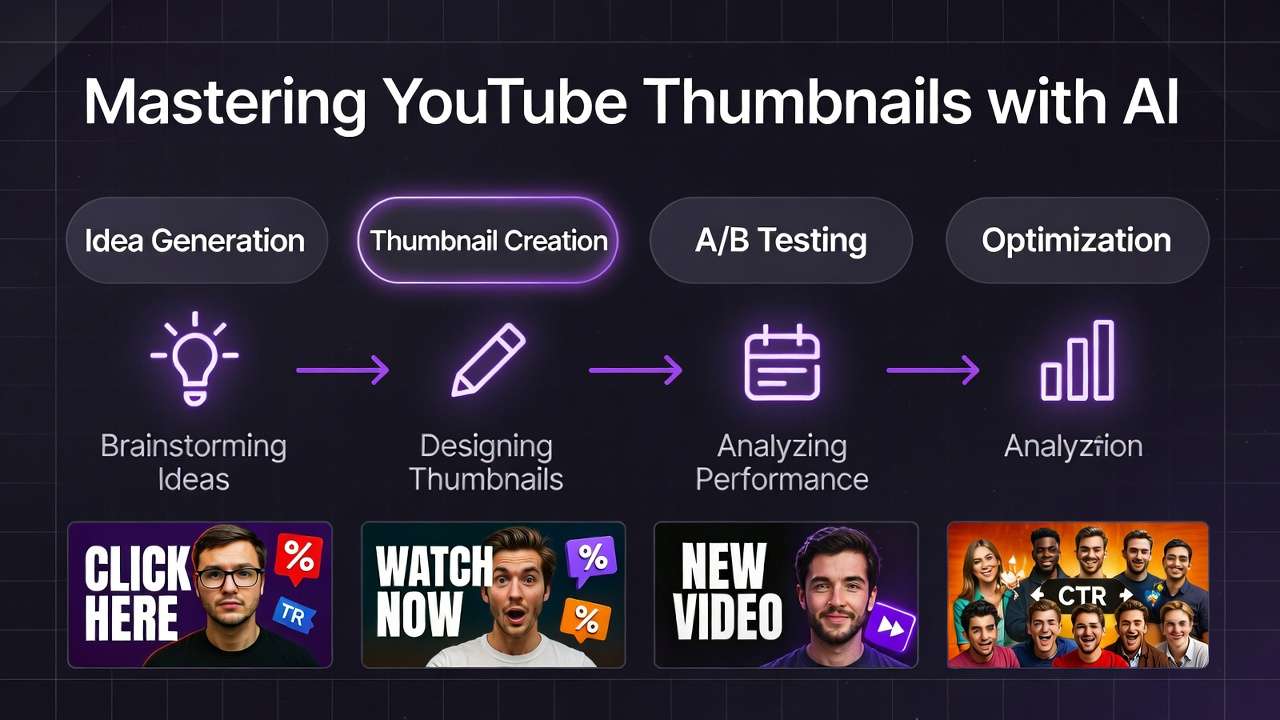
YouTube creators benefit enormously from mobile AI generation for thumbnails. You can generate 10 thumbnail variants on your phone, review them at the size your audience sees them (small phone screens are closer to YouTube's thumbnail display size than large desktop monitors), and identify which designs have the strongest visual impact at reduced size.
For YouTube Shorts, the vertical format aligns perfectly with mobile generation. The complete YouTube mobile workflow, from thumbnail generation through Shorts creation, is mapped in the YouTube creator workflow.
E-commerce Product Content
Mobile AI generation for e-commerce enables product photography on the go. Photograph your product with your phone's camera, then use AI to place it in lifestyle environments, generate background variations, and create product videos - all from the same device. This is especially valuable for Etsy sellers, Amazon FBA operators, and dropshippers who manage inventory from various locations.
Credit Management on Mobile
Understanding Mobile Credit Economics
AI generation costs credits whether you generate from mobile or desktop - the models, quality, and pricing are identical. But mobile usage patterns differ: shorter, more frequent sessions mean you are more likely to make impulsive generation decisions. Without the deliberate workflow structure of a desktop session, it is easy to burn through credits on unfocused experimentation.
The mobile credits guide covers pricing details, but the strategic insight is: plan your generations before opening the app. Draft prompts in your notes app first. Decide which models to use. Set a credit budget per session. This discipline transforms mobile generation from expensive experimentation to efficient production.
Budget Models for High-Volume Mobile Work
Not every mobile generation needs a premium model. For rapid iteration and social media testing, budget models deliver excellent cost efficiency:
- Seedream 3: Strong photorealism at a fraction of Flux 2 Pro's credit cost
- Nano Banana: Adequate quality for drafts and concept testing
- Qwen Edit: Budget-friendly image editing for quick adjustments
The budget model comparison helps identify where premium spend is justified and where budget models are sufficient.
Advanced Mobile Techniques
Chaining Generations on Mobile
The most powerful mobile workflow involves chaining: generate an image, extend it to video, then upscale the result. Multi-model platforms make this seamless - the output of one generation becomes the input for the next, all within the same mobile interface.
A typical chain: Flux 2 Pro image (10 seconds) followed by Kling 2.6 video extension (60 seconds) followed by 4K upscale (30 seconds). Total production time: under 2 minutes for a high-quality, upscaled product video generated entirely from your phone. This chaining approach is detailed in Chaining Image, Video, and Upscaling.
Using Phone Camera as AI Input
Your phone's camera is an AI input device. Photograph a real product, scene, or sketch, then use image-to-image or image-to-video models to transform it. This is especially powerful for:
- Product sellers: Photograph your product, generate lifestyle backgrounds
- Architects and designers: Photograph a space, generate AI-rendered redesigns
- Fashion creators: Photograph an outfit, generate styled variations
The camera-to-AI pipeline turns every physical environment into a creative starting point. See image reference uploads for consistency for best practices.
Offline Prompt Preparation
Mobile AI generation requires internet connectivity for the actual generation step, but prompt preparation can happen anywhere - including offline. Build the habit of drafting prompts in your notes app during airplane mode, subway commutes, or any dead time. When you regain connectivity, paste your prepared prompts and batch-submit them.
This offline-prep, online-execute pattern is the most productive mobile AI workflow because it separates the creative (prompting) and mechanical (generating) phases. Your creative time is not limited by connectivity; only the submission step requires a network.
Troubleshooting Mobile AI Generation
Common Issues and Solutions
Slow generation times: Usually a network issue rather than a platform issue. Switch from mobile data to Wi-Fi where available. Close other bandwidth-heavy apps. The mobile troubleshooting guide covers connection optimization in detail.
Battery drain during intensive sessions: AI generation itself happens in the cloud, so battery usage comes from screen-on time and network activity. Reduce screen brightness during long generation queues. Close background apps. Consider a portable battery pack for extended creation sessions.
Autocorrect mangling prompts: Disable autocorrect for your AI prompting app, or use a notes app with autocorrect disabled for prompt drafting. Autocorrect routinely changes model-specific terminology ("photorealistic" to "photoelectric," "bokeh" to "broke") in ways that silently degrade output quality.
Image gallery loading slowly: Large generation histories can slow mobile gallery performance. Periodically archive or delete older generations you no longer need. Favorite your best outputs for quick access.
Touch-target precision: On smaller screens, precise parameter adjustments (CFG scale sliders, seed number input) can be frustrating. Use numerical keyboard input for exact values rather than trying to drag sliders to precise positions.
Mobile vs Desktop: When to Use Which
The honest answer is that mobile and desktop are complementary, not competitive. Here is the decision framework:
| Task | Best On | Why |
|---|---|---|
| Quick social content | Mobile | WYSIWYG preview, direct posting |
| Batch thumbnail generation | Mobile | Swipe-review workflow is faster |
| Long-form video production | Desktop | Multi-window comparison, editing tools |
| Detailed prompt engineering | Desktop | Full keyboard, reference materials open |
| On-the-go client content | Mobile | Portability, real-time delivery |
| Large catalog generation | Desktop | Multi-tab management, spreadsheet integration |
| Trend-reactive content | Mobile | Speed, always-available |
| Complex multi-step pipelines | Desktop | Better multi-window workflow management |
The ideal workflow uses both: draft on mobile during commute, refine on desktop during focused work time, generate on whichever device is available when inspiration strikes. The key is using a platform that syncs your prompt history, generation library, and credit balance across all devices - which multi-model platforms like Cliprise provide natively.
For a detailed platform-by-platform comparison, see Desktop vs Web vs Mobile: Which Platform Fits Your Workflow.
The Future of Mobile AI Creation
On-device AI processing is accelerating. Apple's Neural Engine, Google's Tensor chips, and Qualcomm's AI Engine are adding on-device inference capabilities. While cloud generation will remain dominant for high-quality outputs, on-device processing will enable instant previews, real-time prompt suggestions, and offline generation for simpler models.
AR-integrated AI generation will merge the physical and digital creation spaces. Point your phone camera at a room and generate AI-designed furniture placed in the actual space. Photograph a person and generate AI wardrobe variations overlaid in real-time. The camera becomes an AI creative lens, not just an input device.
Voice-to-generation is emerging as a mobile-native interaction pattern. Instead of typing prompts on small keyboards, describe your vision aloud. Natural language processing converts your verbal description to optimized generation prompts. This could eliminate the mobile prompting bottleneck entirely.
Wearable-triggered generation through smartwatches and AR glasses will push AI creation beyond even the phone. Spot an inspiring scene, tap your watch, and trigger a generation based on your saved templates. Review the output on your phone or glasses later.
The trajectory is clear: AI content creation is becoming ambient - always available, always portable, always ready. Mobile is not the future of AI generation; it is the present. The creators who build mobile-optimized workflows now are building habits and systems that will compound as the tools become even more capable and accessible.
Related Articles
- AI Video Generator: Complete Guide 2026 →
- AI Content Creation: Complete Guide 2026
- AI Image Generation: Complete Guide 2026
- AI Video Generation: Complete Guide 2026
- AI Prompt Engineering: Complete Guide 2026
- AI Social Media Content Creation: Complete Guide 2026
- AI for E-commerce: Complete Guide 2026
- AI Video Editing and Post-Production: Complete Guide 2026
- Desktop vs Web vs Mobile: Which Platform Fits Your Workflow
- Using Cliprise on Mobile: Your Portable AI Studio