Part of the Mobile AI Content Creation: Complete Guide 2026 pillar series.
Your Creative Studio, Anywhere
Cliprise transforms your smartphone into a professional AI creative studio. Whether you're waiting for coffee, commuting, or capturing inspiration in the moment, the full power of a state-of-the-art ai photo editor and video generation lives in your pocket.

This isn't a watered-down mobile ai photo editing free experience. It's the complete Cliprise ai image editor platform, optimized for touch, designed for speed, and built to create anywhere inspiration strikes.
What Makes Cliprise Mobile Different
Most AI generation platforms treat mobile as an afterthought. Cliprise was designed mobile-first from day one, with an interface that feels native to iOS and Android while maintaining the depth and control that serious creators demand.
Real-Time Generation at Your Fingertips
No browser tabs. No desktop required. Launch the app, describe your vision, and watch AI models render your ideas in real-time. Your phone's notification system keeps you updated on progress, so you can start a generation and continue with your day.
Your Personal Library, Synced Everywhere
Every creation you generate lives in your personal library, organized by type and accessible instantly. Images, videos, and audio files sync seamlessly, ready to download, share, or refine whenever you need them.
Professional Models on Consumer Hardware
Access the same best video generation models powering professional creative studios. FLUX for photorealistic images. Kling and Wan for cinematic video. ElevenLabs for pristine audio. All from your smartphone, with quality that rivals desktop generation.
Supported Platforms and Requirements
iOS Requirements
- iOS 13.0 or later
- Compatible with iPhone, iPad, and iPod touch
- Works optimally on devices from iPhone 8 and newer
- Requires stable internet connection for generation
Download from the App Store with a single tap. The app is optimized for modern iOS devices, with support for the latest interface paradigms including dark mode, haptic feedback, and dynamic type.
Android Requirements
- Android 7.0 (Nougat) or higher
- Works across devices from major manufacturers
- Optimized for both phones and tablets
- Requires stable internet connection for generation
Available on Google Play Store. The Android version leverages Material Design principles while maintaining feature parity with iOS, ensuring a consistent experience regardless of platform.
The Five Core Screens You'll Master
Home: Community and Inspiration
Your gateway to the Cliprise creative community. Browse featured creations, discover trending AI-generated content, and see what fellow creators are building. Every scroll reveals new techniques, prompts, and artistic approaches.
Tap any creation to view full details, see the prompt that generated it, learn which model was used, and connect with the creator. The Home feed is curated to showcase the platform's creative diversity while inspiring your next project.
Generate: Your Creative Command Center
This is where imagination becomes visual reality. The Generate screen is organized by creation type - Images, Videos, and Audio - with each category revealing specialized AI models tailored for that medium.
The interface shows you everything you need before committing to generation:
- Available models with brief descriptions
- Current credit cost per generation
- Your remaining credit balance
- Model-specific settings and parameters
- Optional reference uploads for image-to-image or image-to-video feature workflows
Every detail is designed to help you make informed creative decisions without overwhelming complexity.
Library: Your Growing Creative Archive
Your personal collection of generated content, organized chronologically and filterable by type. Each item displays its generation status - completed, in-progress, or failed - with clear visual indicators.
Tap any creation to view it full-screen, see generation details including the exact prompt used, download in original or compressed quality, adjust visibility settings, or delete if needed. The Library is your creative portfolio, always accessible and ready to share.
Pricing: Transparent Access to Credits and Plans
View all available subscription tiers and one-time credit booster packs. The pricing screen displays exactly what you get with each plan, how many credits are included, and which models become available at each tier.
No hidden fees. No confusing credit math. Just transparent pricing that scales with your creative ambitions.
Settings: Control Your Experience
Manage your profile, view your subscription status, check remaining credits across different sources, explore the app changelog to see what's new, and access privacy policies and support resources.
Settings also houses critical account actions like email verification status, subscription management, and account deletion if needed. Everything important, nothing cluttered.
Understanding the Mobile Generation Workflow
Creating with Cliprise mobile follows a streamlined, intuitive process designed to minimize friction between inspiration and execution.
Step 1: Choose Your Medium
Select whether you're generating an image, video, or audio. Each medium opens a curated list of specialized AI models, each with strengths for different creative goals.
Step 2: Select Your Model
Browse available models or search by name. Each model card displays its name, a brief description of its strengths, credit cost, and whether it requires a paid plan. Models marked with a lock icon require upgrading to access.
Step 3: Craft Your Prompt
Describe your vision using natural language. The more specific and detailed your prompt, the more precisely the AI can interpret your creative intent. Mobile keyboards support voice-to-text for hands-free prompting.
Step 4: Configure Optional Settings
Depending on the model, you may have access to advanced parameters:
- Aspect ratio and resolution selection
- Style presets (Flowstates) that apply aesthetic keywords automatically
- Guidance strength to control how strictly the AI follows your prompt
- Seed values for reproducible variations
- Reference image or audio uploads
Tap the settings icon to reveal these options. They're hidden by default to keep the interface clean but always accessible when you need granular control.
Step 5: Review Credit Cost and Generate
The Generate button displays the exact credit cost before you commit. Your remaining credit balance is shown at the top of the screen, so you always know where you stand.
Tap Generate when ready. The app shows real-time progress updates and sends a notification when generation completes, allowing you to multitask or even close the app while processing continues server-side.
Step 6: View, Download, and Share
Completed creations automatically appear in your Library. Tap to view full-screen, download to your device's camera roll or downloads folder, or share directly to social media and messaging apps.
Toggle visibility to make creations public, allowing them to appear in the community Home feed for others to discover and appreciate.
Mobile-Specific Features That Enhance Creativity
Voice Input for Hands-Free Prompting
Long prompts feel cumbersome on mobile keyboards. Use your device's built-in voice-to-text feature to dictate complex, detailed prompts naturally. Speak your vision, then refine the text before generating.
Optimized for Portrait and Landscape
The interface adapts seamlessly to device orientation. Generate in portrait for social-first vertical content, or rotate to landscape for cinematic widescreen compositions. The app responds instantly to orientation changes.
Low-Data Mode for Slower Connections
Cliprise intelligently manages bandwidth, compressing preview thumbnails and prioritizing essential data when connection speeds drop. You can still create on slower networks, though generation times may vary based on server load.
Background Generation with Notifications
Start a generation and immediately return to other apps. Cliprise continues processing server-side and sends a push notification when your creation is ready. Check the notification to jump directly into your completed work.
Integrated Image Editor for Quick Refinements
After generating an image, tap the edit icon to access a built-in editor with cropping, rotation, brightness and contrast adjustments, and basic filters. Make quick refinements before downloading or sharing.
Credit System: How It Works on Mobile
Cliprise uses a credit-based system where each generation consumes a certain number of credits depending on the model, quality settings, and output duration. Understanding credit types helps you maximize your creative budget.
Three Credit Sources
-
Free Daily Credits - Every user receives a daily allocation of free credits that reset every 24 hours. Use them or lose them; they don't accumulate.
-
Subscription Credits - Monthly or yearly credit allocations from paid plans (Starter, Pro, Business). These renew on your billing cycle and scale with plan tier.
-
Booster Credits - Extra credit packs purchased while you have an active paid subscription. They remain available while your account is active. Not sold on the Free plan.
Cliprise provides three credit sources: Free-plan daily credits, subscription credits, and credit boosters. Free-plan daily credits reset every 24 hours. Subscription credits refresh with each billing cycle. Credit boosters remain available while your account is active. Check your in-app wallet for your current balance and applicable availability.
Credit Costs Vary by Complexity
Different models and settings consume different credit amounts:
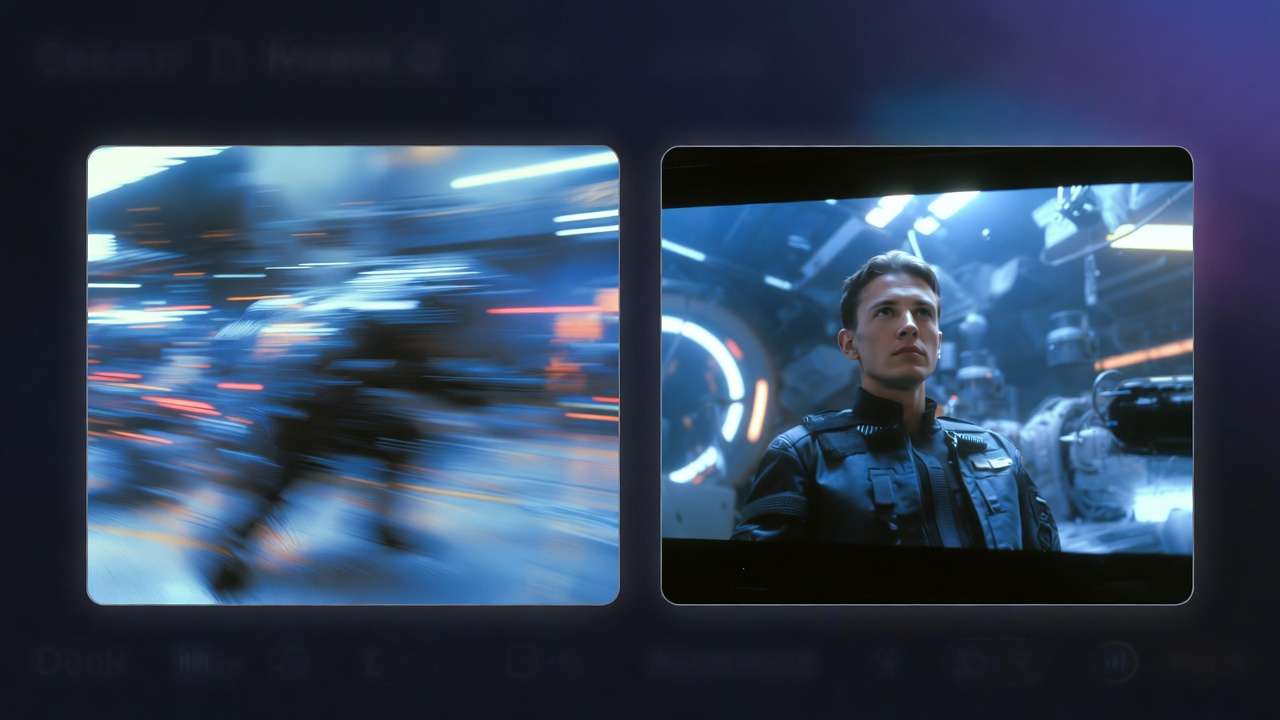
- Images typically cost the least, ranging from 15-100 credits depending on model and resolution
- Videos cost significantly more due to computational intensity, ranging from 60-630 credits depending on length, resolution, and model
- Audio costs vary based on duration and model, generally falling between images and videos
The exact cost is always displayed on the Generate button before you commit, so you're never surprised.
Checking Your Balance
Your total credit balance appears at the top of the Generate screen. Tap it to see a detailed breakdown by credit type, showing exactly how many credits you have from each source and when they expire.
Free vs. Paid: What Changes as You Upgrade
Cliprise offers a generous free tier with daily credits and access to select models. Paid plans unlock additional capabilities, priority processing, and access to premium models.
What's Always Free
- Daily credit allocation (resets every 24 hours)
- Access to select image, video, and audio models
- Full library management with unlimited storage
- Community browsing and profile creation
- Standard generation queue
What Paid Plans Add
Starter Plan:
- Significantly larger monthly credit allocation
- Access to most AI models
- Limited HD video generation
Pro Plan:
- Substantial monthly credits for serious creators
- Access to all AI models including premium options
- Unlimited HD video generation
- Priority generation queue (faster processing)
Business Plan:
- Highest credit allocation for professional use
- All features from Pro
- Priority queue with highest processing priority
- Dedicated support options
Some premium models display a lock icon for free users. Upgrading your plan immediately unlocks these models without requiring app restart.
File Formats and Download Quality
Cliprise generates content in industry-standard formats optimized for compatibility and quality.
Image Formats
- PNG - Lossless quality, larger file size, supports transparency
- WebP - Compressed format with excellent quality-to-size ratio
Both formats support full resolution output. Choose PNG for maximum quality or WebP for faster downloads and easier sharing.
Video Formats
- MP4 - Universal compatibility across all platforms
- WebM - Modern format with efficient compression
Videos are encoded with H.264 (MP4) or VP9 (WebM) codecs for broad playback support.
Audio Formats
- MP3 - Universal audio format, widely supported
- WAV - Uncompressed audio for maximum fidelity
Select based on your use case: MP3 for general sharing, WAV for professional audio production.
Original vs. Compressed Downloads
When downloading, you may see two options:
- Original - Full-resolution, uncompressed output exactly as generated
- Compressed - Optimized for faster download and easier sharing, with minimal perceptible quality loss
Compressed versions are perfect for social media and web use, while originals are ideal for print, editing, or archival purposes.
Privacy and Content Ownership
Your creations belong to you. Cliprise operates on a simple principle: you create it, you own it.
Default Privacy
All generated content is private by default. Only you can see your creations unless you explicitly choose to make them public.
Making Content Public
To share with the Cliprise community, open any creation in your Library, tap the three-dot menu, and select "Make Public." Your creation will appear in the Home feed with your username attached.
Public creations can be liked, commented on, and discovered by other users. You can revert to private at any time.
Reported Content and Community Standards
The Cliprise community maintains standards for appropriate content. If you encounter content that violates guidelines, tap the three-dot menu on any public creation and select "Report."
Reported content is reviewed by moderators. Violations may result in content removal or account restrictions.
Data Security
Cliprise uses industry-standard encryption for data transmission and secure cloud storage for generated content. Your login credentials are protected via Firebase Authentication, and payment processing is handled securely through Apple and Google's respective payment systems.

Getting Support on Mobile
In-App Support
Navigate to Settings > Support to submit bug reports, request features, or ask questions. Include as much detail as possible: what you were doing, what you expected to happen, and what actually occurred.
Attach screenshots when relevant to help support staff understand your issue quickly.
Community Resources
Join the Cliprise Discord server (link in Settings) to connect with fellow creators, share work, troubleshoot issues, and discover tips from experienced users. The Discord community is active, supportive, and knowledgeable.
Response Times
Support requests are typically addressed within 24-48 hours. Urgent issues affecting account access or billing receive priority attention.
Mobile App Updates and New Features
Cliprise updates regularly to introduce new AI models, improve performance, fix bugs, and add features based on user feedback.
Checking for Updates
- iOS: Open the App Store, tap your profile icon, and scroll to see available updates
- Android: Open Google Play Store, tap your profile icon, select "Manage apps & device," and check for Cliprise updates
Viewing Changelog
In-app, navigate to Settings > Changelog to see a detailed list of recent updates, new features, and improvements. The changelog is updated with each release to keep you informed about what's new.
Enabling Auto-Updates
Configure your device to automatically install app updates:
- iOS: Settings > App Store > App Updates toggle
- Android: Google Play Store > Settings > Network preferences > Auto-update apps
Auto-updates ensure you always have the latest features and security improvements.
Best Practices for Mobile Creation
Use Wi-Fi for Large Generations
Video generation and HD image output consume bandwidth. Connect to Wi-Fi when possible to avoid cellular data charges and ensure faster upload speeds for reference images.
Save Battery During Long Generations
Video generation can take several minutes. To preserve battery, start the generation and lock your phone or switch to another app. Cliprise will notify you when complete.
Organize with Folders (Coming Soon)
While the current Library is chronological, future updates may introduce folder organization for better content management. For now, use download and share features to move important creations off-device for long-term storage.
Experiment with Voice Prompting
Typing detailed prompts on mobile can be tedious. Use voice-to-text to dictate complex, nuanced prompts naturally, then make minor text edits before generating.
Download Before Deleting
If you delete a creation from your Library, it's permanently removed from Cliprise servers. Always download important creations to your device or cloud storage before deleting.
Related Articles
- AI Video Generator App: Create AI Videos on Mobile
- Desktop vs Web vs Mobile: Which Fits Your Workflow →
- Mobile Credits Guide
- Mobile Image Generation
- Mobile Video Generation
- Mobile Prompting Tips
- Android AI Art: Complete Mobile Guide for Samsung & Pixel Users
- Mobile App Tutorial: Generate AI Videos on Your iPhone
What's Next
Now that you understand the Cliprise mobile experience, dive deeper into specific creation types:
- Learn Android AI Art: Complete Mobile Guide for Samsung & Pixel Users with detailed walkthroughs
- Explore Mobile App Tutorial: Generate AI Videos on Your iPhone for cinematic content
- Master Using Cliprise on Mobile: Your Portable AI Creative Studio
- Troubleshoot common issues with our mobile FAQ
Your portable AI creative studio awaits. Download Cliprise and start creating anywhere inspiration finds you.