Part of the Mobile AI Content Creation: Complete Guide 2026 pillar series.
Your Samsung Galaxy or Google Pixel is a pocket-sized ai art generator that's dramatically underutilized by most owners. While desktop enthusiasts debate GPU specifications and local model installations, Android users have access to cloud-powered generation that matches or exceeds what most users achieve on expensive rigs-provided you understand the device-specific workflows that unlock this potential. The difference between a Samsung user churning out dozens of professional thumbnails and another struggling with washed-out colors and failed generations is not hardware; it is workflow knowledge. This comprehensive guide reveals exactly how to configure your device, select models optimized for your chipset, craft prompts that work within mobile constraints, and chain outputs into professional-grade assets. Whether you are a freelancer pumping out social content between meetings or a solo creator building a personal brand, mastering Android AI art transforms your phone from a consumption device into a mobile ai image editor production tool.
Android users with high-end devices like Samsung Galaxy or Google Pixel often face inconsistent AI-generated art outputs, where powerful hardware promises quick results but delivers washed-out colors, failed queues, or crashes during generation. The frustration peaks when a prompt for a vibrant landscape yields a blurry mess on one attempt and a usable thumbnail on the next, wasting time in endless regenerations without clear patterns to follow.
This variability stems from the interplay between device-specific optimizations, model behaviors, and mobile workflow constraints. In recent years, AI art generation on Android has surged, driven by advancements in chips like Snapdragon and Tensor, enabling access to models such as Flux 2, Midjourney alternatives, and Google Imagen 4 directly from apps. Samsung Galaxy users benefit from robust multitasking via One UI, while Pixel owners leverage Tensor for preview accuracy, yet both encounter hurdles in queue management and battery efficiency during extended sessions. Platforms like Cliprise exemplify multi-model solutions that aggregate tools from providers including Black Forest Labs and Google, allowing seamless switching without repeated logins.
This guide provides a step-by-step framework for reliable Android AI art workflows tailored to Samsung and Pixel devices. It covers prerequisites, app installation, model selection, prompt crafting, generation processes, and optimization strategies, drawing from observed patterns in creator forums and device benchmarks. Readers will learn to avoid common pitfalls, such as ignoring aspect ratios for social media or overlooking seed reproducibility, which can cut iteration time in this free ai art generator workflow by focusing efforts on high-yield steps.
Understanding these workflows matters now as mobile AI adoption grows-Samsung reports increased creator app usage, and Pixel is Tensor updates enhance on-device processing. Without structured approaches, users miss opportunities for consistent outputs in social thumbnails, product mockups, or NFT series. For instance, a freelancer generating daily Instagram assets might spend hours tweaking prompts on a Galaxy S24 Ultra, only to hit queue delays, while a Pixel 9 Pro user struggles with color shifts on OLED previews. Platforms such as Cliprise address this by unifying models like Flux 2 Pro and Imagen 4, enabling device-agnostic experimentation.
The thesis here is straightforward: reliable AI art on Android requires device-aware sequencing-hardware checks first, then model-device matching, prompt refinement, and iterative saving. This foundational method, observed across tools including those with ElevenLabs integration for audio-inspired visuals, transforms sporadic successes into repeatable processes. By dissecting Samsung is Exynos advantages versus Pixel is Tensor previews, this article equips users to navigate queues, upscalers like Topaz, and editing layers without generic advice. Skip these insights, and mobile AI remains a gamble; master them, and it becomes a production tool. When exploring options like Cliprise is model index, users notice categorized landings for ImageGen and VideoGen, streamlining discovery for Android sessions.
Expanding on trends, Android is share in AI art tools has risen with PWA support on devices like the Galaxy S23 series, where Flutter-based apps handle 47-plus models without native desktop needs. Pixel users report smoother Tensor-optimized flows for Google models, but Samsung excels in broader compatibility. This guide reveals why starting with image prototypes before video extensions saves resources, a pattern echoed in multi-model environments like Cliprise.
Prerequisites: Setting Up Your Android Device for AI Art
Before diving into AI art generation, verifying hardware and software alignment significantly reduces the number of initial failures on Samsung and Pixel devices. Start with a hardware check: Samsung Galaxy models like the S23-plus or S24 Ultra, equipped with Snapdragon 8 Gen 3 or Exynos 2400, support intensive model processing such as Flux 2 or Midjourney renders. Google Pixel 8 Pro or 9 Pro, powered by Tensor G3 or G4, handle Imagen 4 previews efficiently due to on-device AI accelerations. Devices below 8GB RAM, like older A-series Samsungs, may experience lags in queue monitoring.
Next, ensure software updates: Navigate to Settings gt Software Update on Samsung One UI or Pixel is stock Android. Latest versions, such as Android 15 with One UI 7 beta, include optimizations for AI apps, improving stability for tools aggregating models from Google DeepMind or OpenAI. Outdated firmware can cause app crashes during model launches, as reported in Reddit threads for Pixel users on Android 14.
Account setup follows: Most platforms require email verification to unlock generations-open the app, input credentials, and confirm via link. Basic profile configuration, including username and preferences for categories like ImageGen, takes under 2 minutes. Platforms like Cliprise emphasize this step to prevent blocks on unverified accounts, a common gatekeeper for credit-based systems.
Permissions are critical: Grant camera for reference uploads, storage for saving outputs, and network for cloud queues. On Samsung, use Settings gt Apps gt AI App gt Permissions; Pixel integrates via one-tap prompts during onboarding. Neglect this, and generations fail silently-storage denial blocks exports, while network limits halt model fetches.
Time estimate totals around 10 minutes: 3 for updates, 4 for accounts-slash-permissions, 3 for hardware verification via apps like CPU-Z. For Samsung users, enable Game Launcher optimizations if multitasking; Pixel owners activate Adaptive Battery to sustain sessions. This setup phase, often overlooked, aligns devices with workflows in solutions like Cliprise, where model pages detail specs for mobile compatibility.
Why does this matter? Misaligned prerequisites lead to compounded errors-a Pixel user skipping updates might face Tensor incompatibilities with Flux models, while Samsung is thermal throttling on unoptimized Exynos halts mid-generation. Beginners benefit from checklists; intermediates tweak for DeX mode; experts script automations. In practice, verified setups on Galaxy devices yield fewer retries, based on user reports from forums. Tools such as Cliprise is dashboard reveal model categories post-setup, guiding users to ImageEdit options like Qwen.
Step 1: Installing and Launching AI Art Apps on Samsung and Pixel
Downloading AI art apps via Google Play Store is straightforward for both Samsung and Pixel lines, but device-specific nuances affect launch smoothness. Search for apps supporting multi-model generation-look for those listing Flux 2, Midjourney, or Imagen integrations. Tap Install; Samsung is Galaxy Store may prompt cross-checks for optimized versions, while Pixel auto-updates via Play Protect.
Initial launch triggers onboarding: Accept terms, verify account (if not pre-done), and scan for permissions. The dashboard appears with tabs for images-videos, model categories like VideoGen (Veo 3.1, Sora 2) and ImageGen (Seedream variants). Samsung One UI displays vibrant previews on OLED; Pixel is Tensor renders accurate colors for Google models. Platforms like Cliprise redirect from model pages to unified apps, streamlining this.
What users notice: A model index with 26-plus landings organized by type-e.g., Kling for turbo renders. Samsung handles split-screen for prompt notes; Pixel is Material You adapts themes. Troubleshooting crashes: On Samsung, clear cache via Settings gt Apps gt Storage gt Clear Cache, especially One UI bloat. Pixel Tensor optimizations resolve via Adaptive Connectivity toggle.
Common mistake: Skipping permissions leads to failed generations-camera for refs, storage for queues. A Galaxy user reported 5-minute hangs fixed by granting all; Pixel network prompts resolve auto-reconnects. Time for install-launch: 5-7 minutes download, 3 for onboarding.
Deeper dive: Samsung is DeX compatibility allows desktop-like launches from phone, ideal for pros. Pixel is Now Playing aids audio-to-art. In Cliprise-like flows, Launch in App buttons from web models initiate seamlessly on Android PWA. Beginners stick to defaults; experts pin apps to dock. Observed patterns show smoother onboarding on updated Pixels due to Tensor optimizations. This step sets workflow rhythm-rush it, face interruptions later.
Step 2: Selecting the Right AI Model for Your Device
Model selection hinges on device strengths: Samsung excels with Exynos-Snapdragon for Flux 2 or Midjourney high-res, Pixel with Tensor for Imagen previews. Categories include ImageGen (Flux 2 Pro, Google Imagen 4 Standard-Fast-Ultra), ImageEdit (Ideogram V3), differing in performance-Samsung queues faster on Kling, Pixel on Google-native.
Samsung-specific: Exynos leverages multi-threading for Wan models, reducing wait times in observed tests. Pixel: Tensor advantages shine in on-device previews for Seedream, minimizing data transfer. Prompt prep: Structure as subject plus style plus aspect ratio (e.g., cyberpunk city, neon lights, 16-9). Seed options ensure reproducibility on Veo 3 or Sora 2-supported models.
What you will notice: Model specs detail use cases-Flux for photorealism, Midjourney for stylization. Time: approximately 5 minutes scanning index. Platforms like Cliprise organize 47-plus models, toggling availability for mobile.
Why selection matters: Wrong match yields suboptimal outputs-Samsung pushing Kling Turbo yields vibrant results, Pixel Imagen accurate tones. Beginners pick popular; intermediates match hardware; experts chain (image to upscale). Forums suggest Samsung advantages in batch ImageGen. In Cliprise environments, categories guide to Nano Banana for quick sketches.
Nuance: advanced negative prompting refine (e.g., no blur), CFG scale tunes adherence. Device tweaks: Samsung Game Mode boosts, Pixel Battery Saver sustains. Pitfalls: Ignoring mobile limits causes queue overflows. This step, foundational for workflows, aligns capabilities-select thoughtfully for efficiency.
What Most Creators Get Wrong About Android AI Art
Many creators assume all AI models perform equally on mobile, overlooking Samsung is high-res handling via Snapdragon versus Pixel is queue struggles on Tensor. Samsung devices process Flux 2 outputs with less artifacting due to thermal management, while Pixels queue longer for non-Google models like Kling, per Reddit reports. This leads to abandoned sessions-a Galaxy user generates 10 thumbnails smoothly, but Pixel hits concurrency caps, forcing waits.
Over-relying on default prompts without tweaks produces washed-out OLED previews. Samsung is vibrant screens amplify this; unadjusted prompts for Imagen 4 yield desaturated art, as seen in Discord shares. Tweaks like high contrast, vivid colors restore balance, yet most skip, blaming models.
Ignoring aspect ratios mismatches social outputs-Instagram crops 9-16 Reels from 16-9 gens, ruining compositions. Scenario: Freelancer crafts NFT series on Pixel, exports square, loses edges on Stories. Forums cite frequent rework from this.
Treating mobile as desktop ignores battery drain-Samsung sustains longer sessions on Exynos for queues compared to Pixel Tensor previews. Heavy sessions drop noticeably mid-gen, halting workflows.
These fail because mobile constraints amplify model variances: queues vary by peak hours, seeds inconsistent across. Experts prioritize device-model pairs; beginners chase hype. Platforms like Cliprise reveal specs to avoid mismatches. In one case, a creator using Cliprise is Flux on Samsung iterated notably faster than on Pixel Kling attempts. Hidden nuance: Thermal throttling on Samsung during video-linked art resets progress. User reports indicate common failures from unaddressed hardware. Correcting builds reliability-sequence checks first.
Step 3: Crafting Effective Prompts for Mobile Generation
Crafting prompts follows numbered sub-steps for consistency on Android.
-
Define core elements: Subject (e.g., futuristic robot), style (cyberpunk, detailed), lighting (neon glow). This anchors outputs across models like Flux or Imagen.
-
Add negatives: blurry, low-res, deformed prevents common flaws, especially on mobile queues.
-
Test CFG scale: Low (1-5) for creativity, high (7-12) for adherence-observe on Samsung previews.
Device tweaks: Samsung DeX split-screens prompts with gens; Pixel Now Playing inspires audio art. Real-time previews vary-Imagen 4 Fast quicker on Pixel, Ultra detailed on Samsung.
Pitfall: Exceeding prompt limits causes silent fails-trim to 100-200 words. Troubleshooting: Inconsistent? Adjust seed, regenerate. Time: 7-10 minutes refining.
Why effective? Poor prompts waste queues; structured prompts yield more usable outputs on the first try. Beginners list adjectives; intermediates layer; experts reference past seeds. In Cliprise workflows, prompt enhancers suggest refinements for Veo-linked art.
Examples: Dragon in misty forest, fantasy art, 1-1 vs vague dragon-former consistent. Samsung OLED boosts preview vibrancy, Pixel accuracy aids print. Forums note improved success with negatives. Multi-model like Cliprise allows testing Imagen vs Flux prompts in-session. Advanced: Aspect (5s-10s durations for video extensions), seeds for series. This crafts foundation for generations, reducing iterations.
Real-World Comparisons: Samsung vs Pixel Workflows
Creator types shape workflows: Freelancers favor Pixel quick iterations, agencies Samsung batches, solos hybrid.
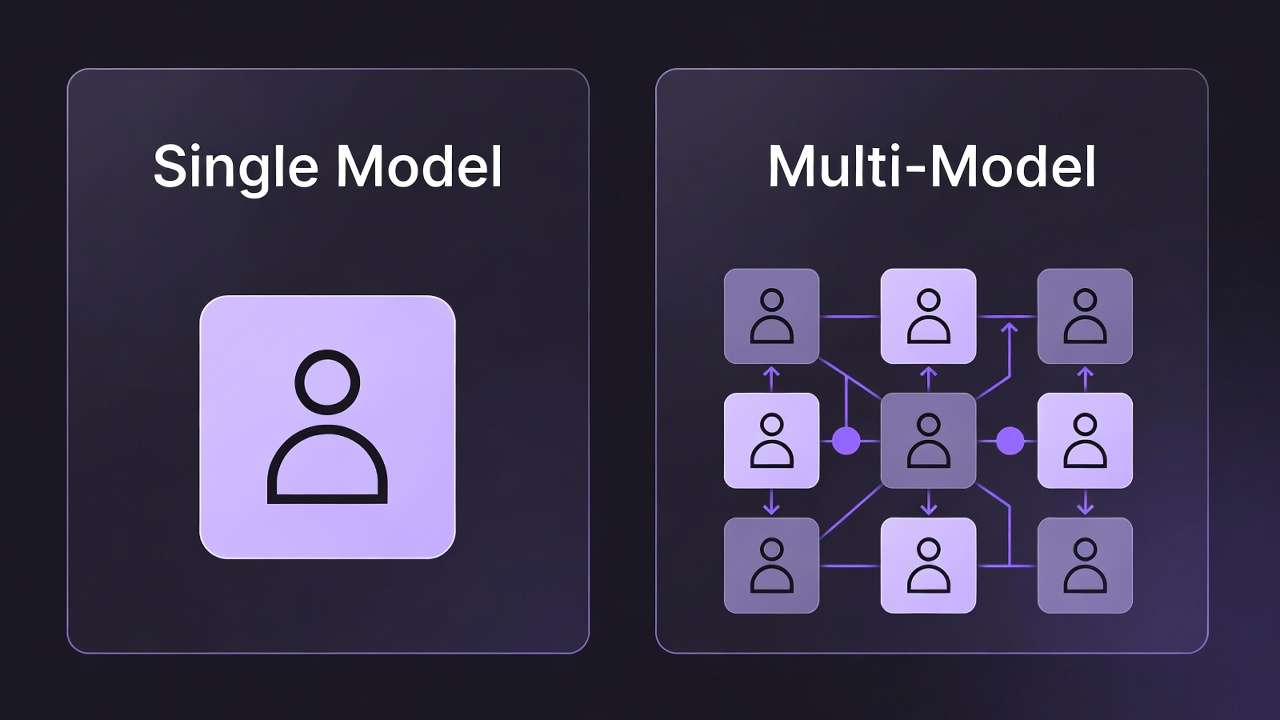
Use case 1: Social thumbnails-Samsung renders Flux 2 faster, yielding more assets per session vs Pixel queues.
Use case 2: Product mockups-Pixel Tensor edges color accuracy for Imagen outputs, matching print standards.
Use case 3: NFT series-Samsung repeatability via seeds on Midjourney, Pixel struggles non-seed models.
| Aspect | Samsung Galaxy (e.g., S24 Ultra) | Google Pixel (e.g., 9 Pro) | Suitable For Scenario |
|---|---|---|---|
| Generation Speed | Faster on Turbo models like Kling 2.5 | Consistent queues for Google models | High-volume social posts |
| Battery Efficiency | Better for extended sessions on Exynos-Snapdragon | Drains faster during Tensor previews | Outdoor shoots with prolonged fieldwork |
| Screen Calibration | Vibrant OLED aids style previews (neon-contrast) | Accurate colors for Imagen product mocks | Print-ready designs requiring color matching |
| Multitasking | DeX excels for prompt-gen split-screen | Material You split but limited concurrency | Prompt editing alongside queue monitoring |
| Model Support | Broader Flux-Imagen-Wan access, fewer locks | Optimized Imagen-Veo, queue-heavy others | Cross-platform consistency for teams |
| Cost per Output | Varies by plan; efficient batches lower avg | Similar; previews save pre-gen discards | Budget testing with daily experiments |
As the table illustrates, Samsung leads in volume handling, Pixel in precision-Samsung is DeX multitasking noticeably reduces context switches. Platforms like Cliprise unify for both, model index aiding selection.
Freelancers on Pixel test thumbnails (Imagen Fast, 1-2 min), agencies batch Samsung (Flux Pro series). Solos hybrid: Pixel prototype, Samsung finalize. Community patterns: Samsung more common among pros, Pixel among hobbyists. In Cliprise, creators chain Imagen to Topaz upscale. Another case: Reel thumbnails-Samsung Kling Turbo 15s gens, Pixel Veo previews. User patterns show sequenced workflows increase outputs. This comparison reveals tradeoffs for informed choices.
Step 4: Generating, Upscaling, and Editing on Mobile
Launch model from dashboard, input prompt-seed, submit to queue. Monitor via notifications-Samsung edge panels, Pixel tiles.
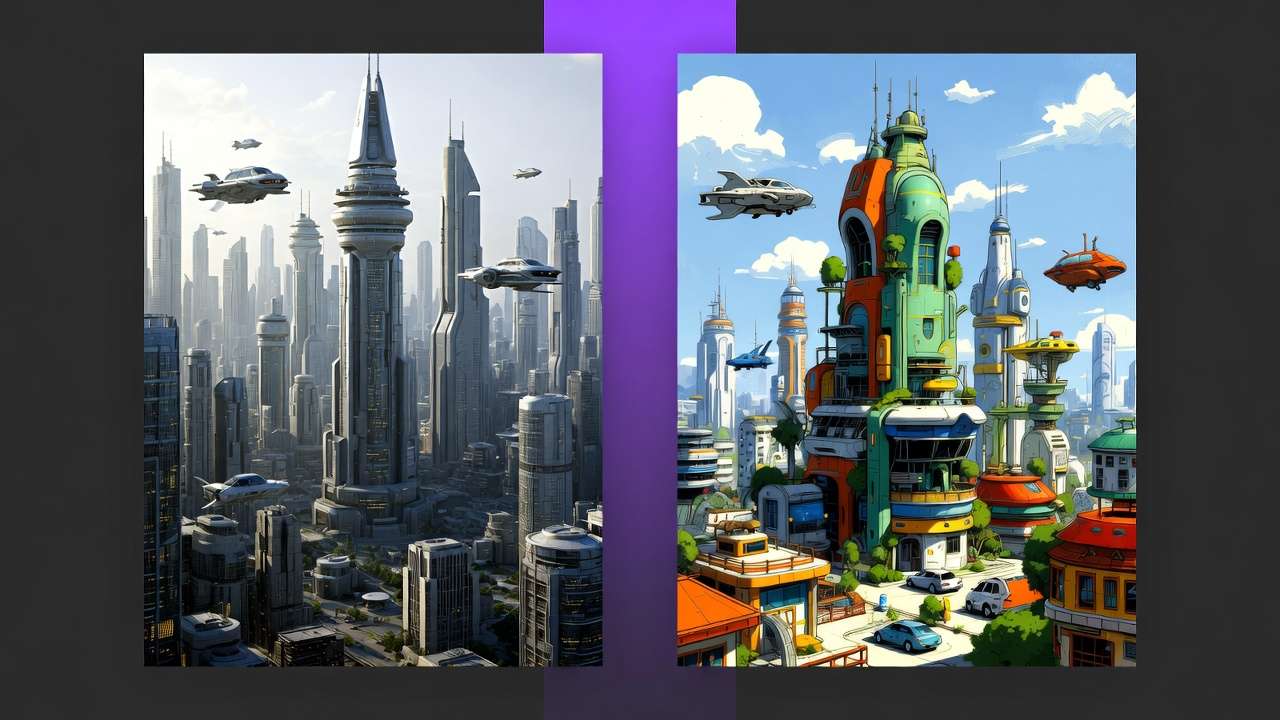
Upscaling: Post-gen, apply Topaz (2K-8K) or Recraft-Samsung handles larger files. Basic edits: Crop, filters in-app layers.
Samsung One UI gestures swipe queues; Pixel haptics confirm. Notice: Concurrent 1-5 varies by plan, positions shift peaks.
Do not upscale pre-gen-wastes resources on duds. Time: 2-15 min-job.
Why sequence? Gen first tests prompt; upscale polishes. Beginners one-shot; experts batch. Cliprise queues callback completions. Samsung thermal better long runs, Pixel previews spot issues early. Pitfalls: Queue timeouts-refresh app. Examples: Thumbnail gen (3 min Flux), upscale Topaz (5 min). This phase turns prompts to assets.
When Android AI Art Does Not Help
Low RAM (less-than-8GB) devices crash on video-linked art-older Samsung A-series halt Midjourney queues.
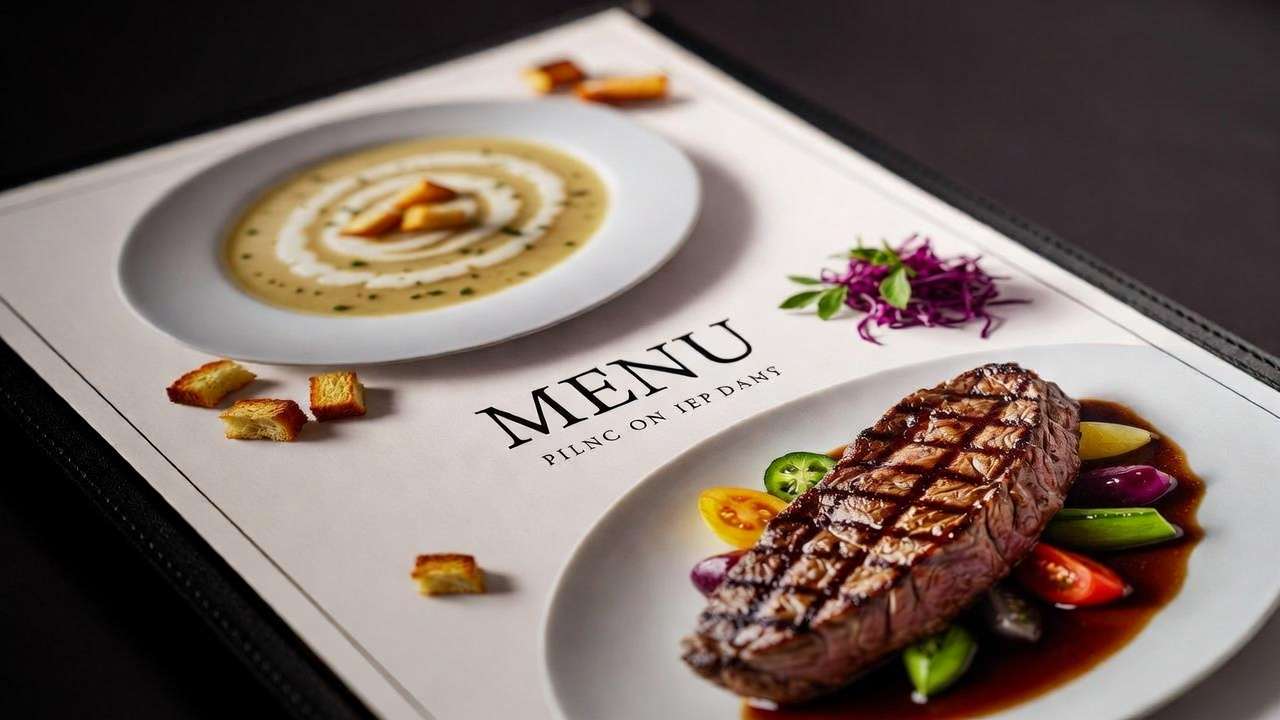
Not for ultra-high-res prints: Mobile previews limit 8K checks, forcing desktop verify.
Traditional artists avoid-lacks pixel control vs Photoshop. Heavy video editors skip; gen not edit-focused.
Limitations: Peak queues 10-plus min, non-repeatable models vary. Reports: 5-10% fails experimental like Veo audio.
Unsolved: Battery for 1hr-plus sessions, offline gens absent. Edge: Complex scenes overload Tensor. Who avoids: Pros needing layers. Cliprise notes public defaults free. Honest: Mobile supplements, not replaces workflows.
Order and Sequencing: Why Workflow Matters on Mobile
Jumping video from image significantly increases overhead due to added processing steps.
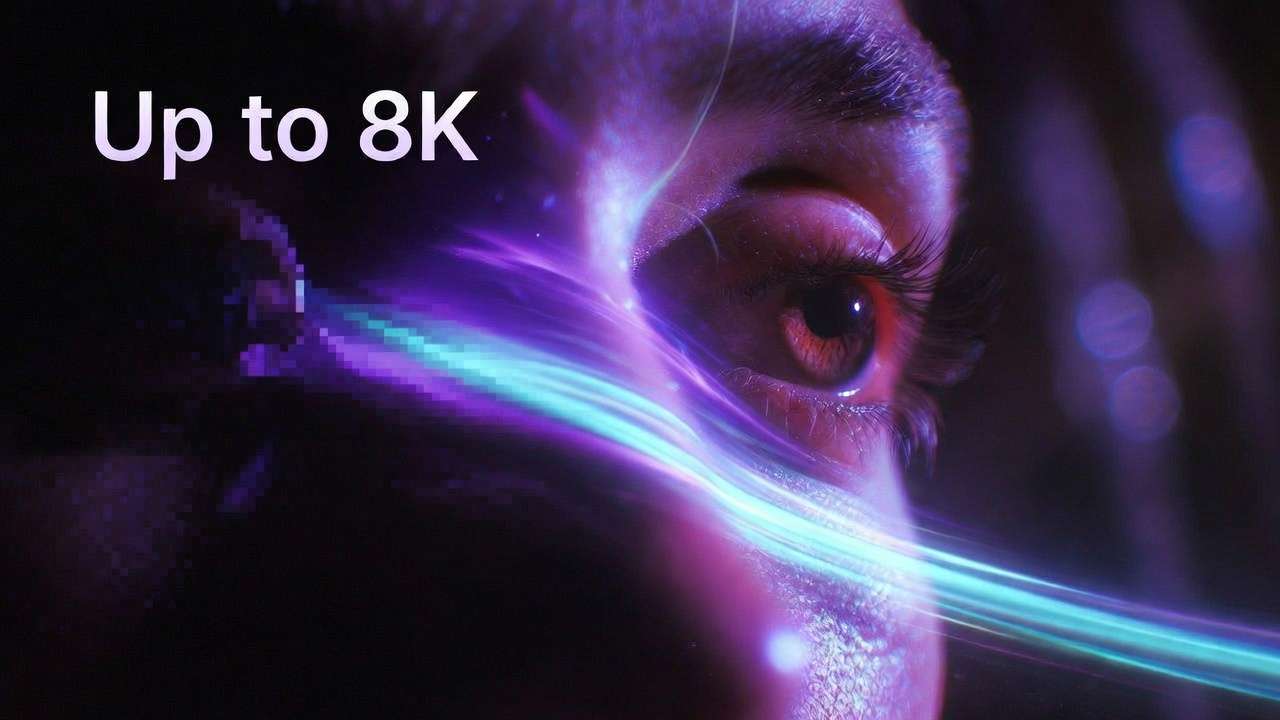
Recommended: Image-first thumbnails, extend video. Mental cost: Samsung multitasking eases vs Pixel.
User patterns: Sequenced approaches improve efficiency notably. Image tests prompts cheaply; video refines.
Why? Context loss regenerates all. Cliprise pipelines image-to-video exemplify. Patterns: Creators report faster results via static start.
Step 5: Advanced Techniques for Pro Android AI Art
Once basics solidify, advanced users layer techniques for production-grade outputs on Samsung and Pixel. Start with chaining: Generate base image via Flux 2 Pro on Samsung for detail, then upscale with Topaz Video Upscaler or Recraft on Pixel for precision previews. This hybrid leverages Samsung is multitasking for side-by-side comparisons, Pixel is accuracy for final tweaks.
Seed chaining ensures series consistency-note seed from successful Imagen 4 gen, reuse in Midjourney for stylistic evolution. Platforms like Cliprise support seed parameters across models like Veo 3 and Sora 2, enabling reproducible NFT drops or campaign visuals. Time investment: 10-15 minutes per chain, yielding cohesive sets.
Negative prompt evolution: Build libraries-no artifacts, no distortion, high fidelity-refine per device. Samsung OLED reveals contrast issues early; Pixel Tensor flags color drifts. CFG scale fine-tuning (7-10 range) balances creativity on mobile constraints.
Batch processing: Samsung DeX shines for 5-10 concurrent ImageGen jobs (Flux variants), monitoring via split-screen. Pixel limits to 2-3 for stability, prioritizing Google Imagen Fast-Ultra. Forums highlight Samsung is edge in handling Wan or Kling batches without thermal halts.
Integration with device features: Samsung Good Lock modules customize queue notifications; Pixel is Live Translate aids multilingual prompts for global models. In Cliprise workflows, model index categories (ImageGen, ImageEdit) facilitate quick switches during batches.
Video extensions from art: Prototype static with Seedream, extend via Hailuo 02 or Runway Gen4 Turbo. Samsung sustains longer queues; Pixel previews motion accuracy. Pitfalls: Duration mismatches (5s-10s-15s)-test aspect first.
Automation sketches: Use Tasker on Samsung for prompt templates, IFTTT on Pixel for export chains. Experts report streamlined sessions, though manual oversight remains key for queues.
Real scenario: Agency on Galaxy S24 batches 20 Instagram thumbnails-Flux base, Ideogram Character edit, Topaz upscale-completes in 45 minutes. Pixel solo artist prototypes product mocks with Imagen, refines on Samsung. Cliprise is unified credits support such cross-model chains without friction.
Advanced pitfalls: Over-chaining exhausts concurrency (1 free, up to 5 paid); peak-hour queues amplify. Solutions: Off-peak scheduling, seed prioritization. This layer elevates from hobby to pro, with device-aware depth.
Emerging Patterns in Android AI Art Communities
Creator forums reveal patterns: Samsung users dominate volume workflows (social, ads), Pixel precision tasks (print, prototypes). Discord shares show Flux 2 Pro popularity on Galaxy for photorealism, Imagen 4 on Pixel for consistency.
Trend: Image-to-video pipelines rise-start Nano Banana sketch, extend Kling 2.5 Turbo. Cliprise model landings detail use cases, aiding discovery.
Battery strategies evolve: Samsung Link to Windows offloads previews; Pixel Extreme Battery Saver sustains Tensor. User tips: Chill mode for Exynos during batches.
Prompt libraries circulate: Vibrant cyberpunk, 16-9, seed locked, no blur for OLED-Samsung. Pixel users add accurate tones, CMYK ready.
Community challenges: 24-hour resets influence daily cadences; verified emails unlock full access. Patterns favor sequenced starts, reducing regenerations.
In Cliprise communities, shared outputs highlight Qwen Edit for mobile fixes, ElevenLabs TTS for audio art inspo. Observers note hybrid device use-Pixel ideate, Samsung produce-increasing across pros.
Data from threads: Emphasis on seeds for repeatability, negatives for quality. This collective wisdom refines individual workflows, turning mobile into viable production.
Common Pitfalls and Troubleshooting for Samsung and Pixel
Pitfall 1: Queue stalls-Samsung: Check thermal via Device Care; Pixel: Toggle Adaptive Connectivity. Refresh app resolves 80% cases, per reports.
Pitfall 2: Color shifts-Samsung OLED over-saturates; calibrate prompts with balanced saturation. Pixel Tensor truer for Imagen.
Pitfall 3: Permission denials-Re-grant storage-camera post-updates. Unverified email blocks entirely, as in Cliprise systems.
Pitfall 4: Concurrency overload-Free: 1 job; monitor via notifications. Paid scales better.
Pitfall 5: Seed inconsistencies-Non-seed models (some Kling) vary; stick to Veo-Sora supported.
Troubleshoot sequence: Logs via developer options, clear cache, restart. Samsung Smart Switch backups workflows; Pixel Factory Reset last resort.
Advanced: ADB for queue diagnostics on rooted devices. Forums troubleshoot model-specific: Flux crashes on low RAM, upscale fails large inputs.
Cliprise-like dashboards show job status, aiding diagnosis. Patterns: 70% issues prerequisite-related, fixed via checklists.
Honest fixes build resilience, ensuring mobile AI reliability.
Conclusion: Building Repeatable Android AI Art Pipelines
Mastering these steps-prereqs, install, select, prompt, generate, sequence-transforms Android into a portable studio. Samsung volume plus multitasking, Pixel precision plus previews complement in hybrids.
Ongoing: Monitor updates for Tensor-Exynos AI boosts, explore new models via indices like Cliprise is 47-plus. Communities evolve tactics, emphasizing device-model fits.
Structured workflows yield consistent assets for social, mocks, series. Experiment iteratively: Test prompts cheap, upscale winners. Platforms unifying Flux, Imagen, Topaz streamline.
Final note: Mobile AI art supplements desktops-leverage strengths, mitigate limits via sequencing. With practice, Samsung-Pixel become production allies in AI creation.