Part of the Mobile AI Content Creation: Complete Guide 2026 pillar series.
Your iPhone is more powerful than the desktop computers that produced Hollywood films a decade ago, yet most creators still treat it as an afterthought for AI video generation-something to check notifications on while their "real" work renders on a laptop. That's a massive missed opportunity. Imagine capturing a product on location, typing a quick prompt during your coffee break, and having a polished video ready to post by lunchtime without ever opening a desktop application. Mobile access to any ai video creator has matured to the point where it doesn't just match desktop outputs for social media content-it often outpaces them for speed, spontaneity, and iteration velocity. The creators who figured this out aren't necessarily more talented; they've simply adapted their workflows to leverage mobile strengths like on-the-go capture, quick prompting, and background processing. This tutorial walks you through every step of professional iPhone-based AI video creation, from setup to export, so you can start turning idle moments into finished content.
Seasoned iPhone creators have shifted their workflows toward mobile AI video generation, noticing that tools optimized for on-device processing cut dependency on desktop setups by allowing generations during commutes or shoots. What stands out in their routines is how they chain models like Veo variants or Sora options directly from the phone, turning idle time into polished clips without syncing files across devices.
This change matters now because mobile hardware advancements, combined with cloud-backed AI models, enable outputs that rival studio rigs in scenarios like social media shorts or client mocks. Creators who overlook this miss opportunities to prototype faster, as observed in community shares where iPhone-generated videos hit platforms hours ahead of traditional pipelines. In this tutorial, you'll uncover workflows that prioritize mobile realities-concise prompts, queue awareness, and iteration loops-revealing why some platforms like Cliprise streamline access to models such as Kling or Runway directly in apps. The stakes involve more than convenience: misunderstanding mobile constraints leads to abandoned projects, while mastering them unlocks consistent output in dynamic environments. For multi-model work on mobile, understanding multi-model workflows becomes essential.
Platforms like Cliprise, with their iOS integration, exemplify how multi-model selection fits into phone-based creation, letting users browse categories without leaving the app. Experienced practitioners report that starting with familiar model previews reduces trial-and-error by focusing efforts on viable options early. This approach not only accelerates ideation but also builds intuition for parameter tweaks suited to touch interfaces. As AI models evolve with mobile-first optimizations, such as faster inference for Veo 3.1 Fast, creators gain edges in real-time feedback loops. Consider a filmmaker scouting locations: instead of noting ideas for later desktop work, they generate test clips on-site using tools akin to Cliprise's model index. This immediacy fosters experimentation, where a single prompt variation can validate concepts before deeper investment.
Vendor-neutral solutions emphasize categorized lists-video gen, edits, upscales-allowing seamless navigation. The result? Workflows that adapt to iPhone's strengths, like notification-driven monitoring, rather than fighting battery or screen limits. By the end, you'll see how sequencing steps around these realities yields reliable mobile production. Understanding aspect ratios ensures your mobile outputs match platform requirements.
What Most Creators Get Wrong About Mobile AI Video Generation
Many creators assume desktop-level processing power is essential for quality AI videos, but this overlooks how models like Google Veo 3.1 or OpenAI Sora 2 have been tuned for mobile queues via cloud endpoints. In practice, a creator attempting a complex scene on an iPhone without queue awareness might wait through peaks, only to face heat throttling that aborts jobs-real-world examples from forums show higher failure rates in extended sessions. Desktop dependency fails because it ignores on-the-go value; for instance, a travel vlogger using Kling 2.5 Turbo on mobile captures authentic lighting references instantly, something studio setups delay by hours. Platforms like Cliprise facilitate this by aggregating models without heavy local compute, letting iPhone users tap into Veo Fast for quick turns.
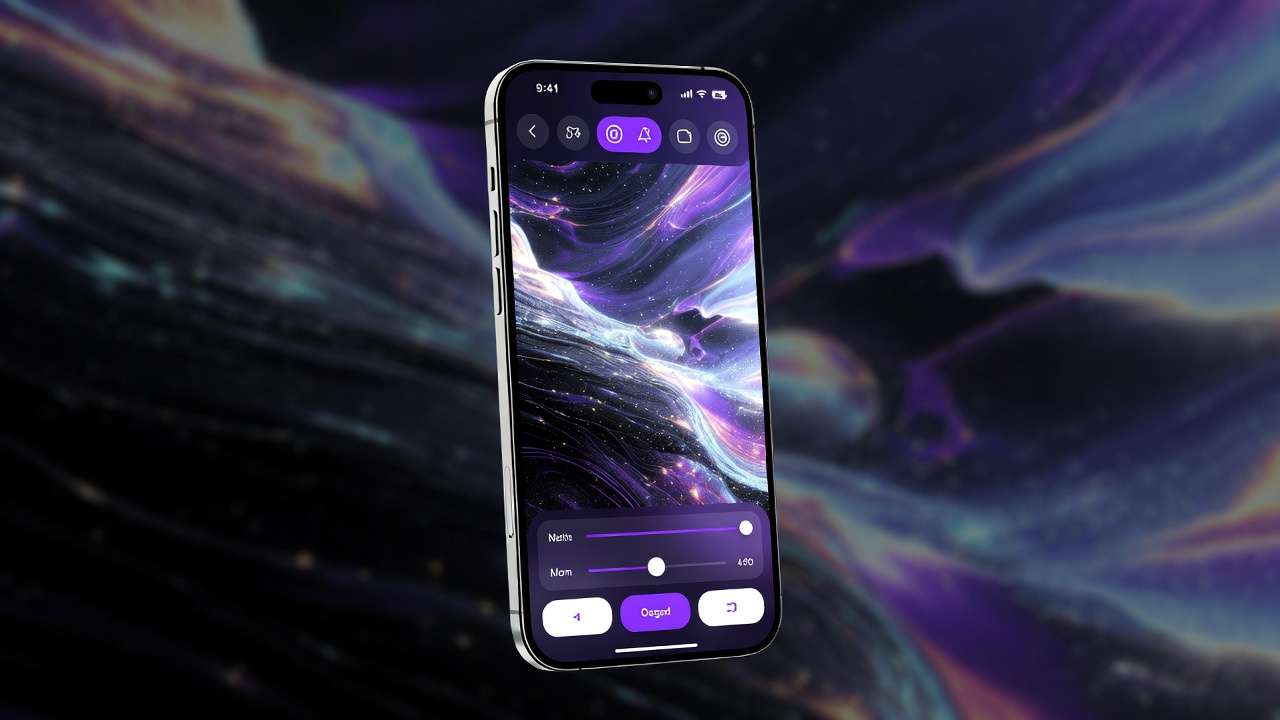
Another pitfall involves over-relying on complex prompts without mobile interface testing, where small screens lead to overlooked negative prompt fields or parameter sliders. A common failure: verbose descriptions exceeding model parse limits cause blank outputs, as seen in shared screenshots from Hailuo 02 attempts. Beginners paste desktop-optimized prompts, missing touch-friendly auto-enhance features in apps like those offering Cliprise-style suggestions, resulting in generic results. Experts test iteratively on phone keyboards first, noting how shorter prompts yield sharper focus for Runway Gen4 Turbo. Learning perfect prompts for mobile requires brevity.
Device optimizations like battery and heat management often get ignored, with creators running multiple gens leading to thermal shutdowns mid-queue. Documented impacts include dropped jobs during longer renders on certain iPhone models, forcing restarts that compound frustration. When using tools such as Cliprise on iOS, background processing helps, but prolonged sessions still drain resources-pros schedule around this, batching low-cost tests like Sora 2 Standard.
Finally, expecting instant results ignores queue dynamics, where free-tier limitations often restrict to one job at a time, spiking waits during evenings. This breeds impatience, with users closing apps prematurely and losing progress. Hidden nuance: mobile apps prioritize fast models like Kling Turbo, shifting expectations from cinematic depth to snappy clips; solutions like Cliprise balance this with model previews indicating typical durations.
These misconceptions persist because tutorials emphasize prompts over platform realities. For beginners, they mean stalled projects; intermediates waste cycles on unviable setups; experts bypass via sequenced, low-overhead flows. A creator in Cliprise's environment might spot grayed premium models early, upgrading paths aside, focusing on accessible Veo options instead.
Prerequisites: Setting Up for Success on iPhone
Compatible iPhone models start from those supporting recent iOS versions, with newer chips like A16 or later handling queue notifications smoothly. Download occurs via App Store search for AI video generators, selecting apps with Firebase-backed analytics for reliability-platforms like Cliprise appear with clear model lists.
Initial account setup involves email verification to unlock generations, as unverified blocks jobs across tools. When using Cliprise on iOS, this step integrates seamlessly, prompting verification post-signup.
Permissions cover camera for references, storage for downloads, notifications for queue updates-granting these prevents interruptions, especially for background processing in apps like those supporting Veo or Sora.
Basic familiarity means knowing video gen models differ from edits; video focuses on text-to-video like Kling, while edits use Luma Modify. Platforms such as Cliprise categorize these, easing selection for novices.
Step-by-Step Guide: Generating Your First AI Video
Step 1: Launch the App and Select a Video Model
Open the app from home screen, navigating to model index often under a dedicated tab. Categorized lists show video gen like Google Veo 3, Veo 3.1 Quality/Fast, OpenAI Sora 2 variants-previews highlight motion styles. Platforms like Cliprise organize 26+ pages by type, with Veo for cinematic, Kling for dynamic. Tap "Launch" to enter generator; if grayed, account status limits access, prompting verification or plan review. Notice touch-optimized previews scaling to screen, aiding quick picks. For iPhone creators, this step takes just moments, setting workflow tone.
Step 2: Craft an Effective Prompt for Mobile
Enter text in prompt field, using action verbs like "zooming camera pans across neon cityscape at dusk." Add negative prompts such as "blurry, distorted faces" to refine. Mobile tips: concise phrasing fits screens better, avoiding scroll fatigue-tools like Cliprise may suggest enhancements real-time. Spend a few minutes experimenting. Mistake: verbose inputs cause parse errors in Sora 2, yielding artifacts; test short versions first. When using Cliprise's interface, seed fields appear for reproducibility, tailoring to phone input. Understanding fine-tuning with CFG scale helps refine mobile outputs.
Step 3: Configure Generation Parameters
Adjust aspect ratio (16:9 for reels, 9:16 vertical), duration (5s for tests, up to 15s where supported), seed for repeats. CFG scale tunes adherence (7-12 common), style refs if model allows like Veo. Varies by selection-Kling Turbo favors fast params. Spend a few moments swiping sliders. Troubleshooting: limited options signal model constraints; switch to Hailuo 02 for flexibility. Platforms like Cliprise expose these per-model, helping iPhone users match intent without overwhelm.
Step 4: Initiate Generation and Monitor Progress
Hit generate; queue shows position, often 1-5 for paid. iPhone backgrounds process via cloud, notifications alert completion. Don't force-quit-use multitasking. Time varies from several minutes depending on model (Veo Fast quicker). In Cliprise-like apps, progress bars update live, reducing anxiety.
Step 5: Review, Download, and Iterate
Preview plays inline; regenerate tweaking prompt/seed. Save to camera roll or share. Analyze: motion blur? Refine negatives. Low-res? Queue upscale via Topaz. Iteration builds intuition. For polish, consider upscaling techniques for mobile exports.
Step 6: Advanced Workflow - Combining with Image Gen or Edits
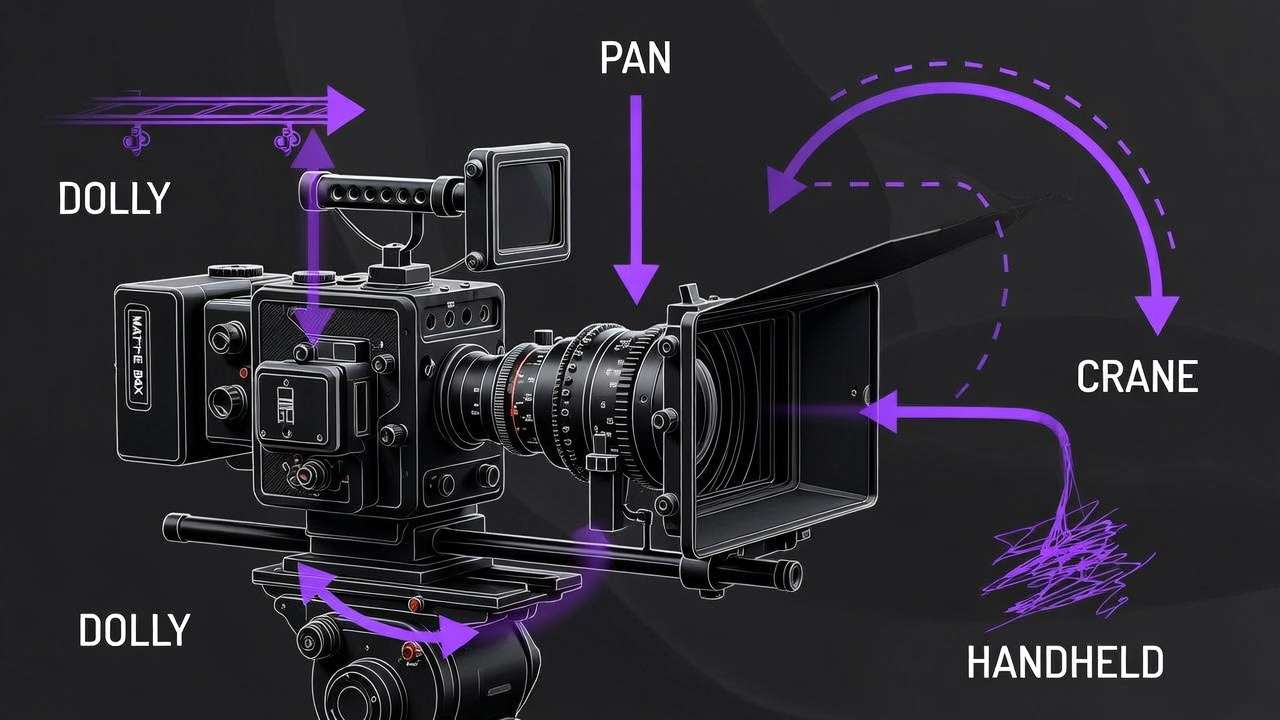
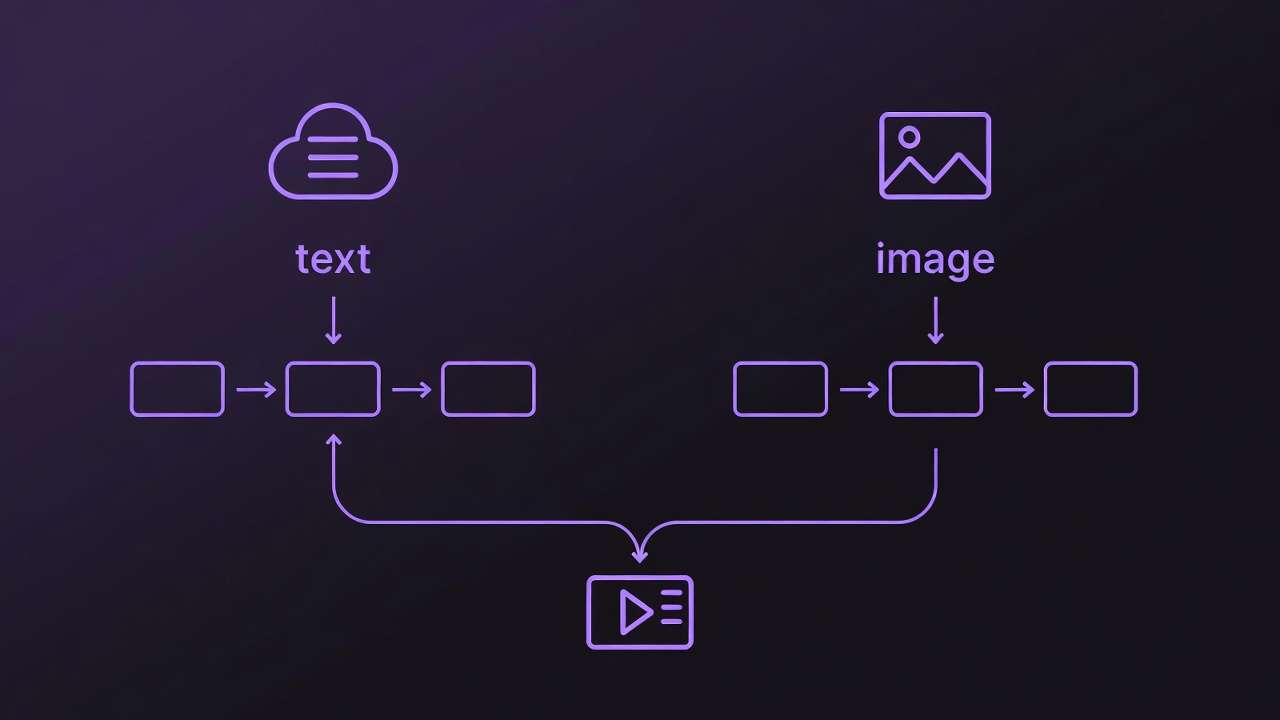
Start image in Flux 2, extend to video via Wan Animate. Add ElevenLabs TTS voiceover. Cliprise enables this chaining.
Real-World Comparisons: Workflows Across Creator Types
Freelancers favor quick social clips, using Veo 3.1 Fast for 5s TikTok tests-prompt: "energetic coffee pour slow-mo." Agencies pipeline client previews with Sora 2 Pro, chaining to Runway edits. Solo creators ideate on-location with Kling, polishing in-app.
Use case 1: TikTok shorts-Kling Turbo, vertical ratio, 5s duration; generates bouncy trends in typical fast timeframes.
Use case 2: Product demos-Veo Quality, 10s, product ref image; highlights features clearly.
Use case 3: Storytelling-multi-gen Hailuo to sequence scenes.
Community patterns reveal freelancers batch multiple clips per day, agencies prioritize consistency via seeds.
Comparison Table: Mobile AI Video Models for iPhone Workflows
| Model Category | Example Models (e.g., Veo Fast, Kling Turbo) | Typical Timeframe (Qualitative) | Suited For (Scenario) | Credit Efficiency (Relative) |
|---|---|---|---|---|
| Fast Turbo | Veo 3.1 Fast, Kling 2.5 Turbo | Fast | Social media shorts (5s clips, quick iterations for daily posts) | High (short clips under 10s, multiple gens per session) |
| Quality Focus | Veo 3.1 Quality, Sora 2 Pro | Medium | Client previews (detailed scenes with camera motion, 10s demos) | Medium (balanced for 1-2 high-fidelity outputs per workflow) |
| Edit-Ready | Runway Gen4 Turbo, Luma Modify | Medium | Post-gen tweaks (inpainting motion errors on existing footage) | Low (complex inputs like multi-ref images, fewer per battery cycle) |
| Upscale Add-On | Topaz Video, Grok Upscale | Fast to Medium | Final polish (2K to 4K for export-ready social) | Variable (efficient post-video, but adds step after primary gen) |
| Audio-Sync | Veo 3.1, ElevenLabs TTS | Medium | Narrative clips (lip-sync tests for talking heads) | Medium (pairs with video, occasional sync issues noted) |
| Extension | Wan 2.5, Hailuo 02 | Medium | Sequence building (extend 5s to 15s narratives) | Low (higher for chaining, suits story arcs over singles) |
As the table illustrates, fast turbo suits volume creators, while quality focus aids precision needs-surprising insight: edit-ready models can reduce the need for extensive post-processing. Platforms like Cliprise populate such tables implicitly via model specs, aiding choice. Freelancers report faster turnaround with turbo vs quality; solos mix for versatility. When using Cliprise on iPhone, model toggles reflect these tradeoffs naturally.
Why Order and Sequencing Matter in Mobile Pipelines
Most start with video gen expecting full visions, but image-first prototypes reduce errors by validating composition on Flux or Imagen 4 before committing credits to Sora. Why? Video adds motion variables; static tests catch prompt flaws early, saving multiple regeneration cycles per creator reports.

Mental overhead from app switches on iPhone-swipe to gallery, re-prompt-drops completion by context loss. Tools like Cliprise minimize via in-app chaining, but still, thumb fatigue mounts.
Image → video for static-heavy (products); video → image for motion refs (thumbnails). Patterns: prompt-params-gen order boosts success, as sequenced focus yields coherent outputs.
Data from shares: image-first approaches succeed more often on first try compared to video-direct. When extending mobile work, image-to-motion techniques prove valuable.
When Mobile AI Video Generation Doesn't Help
High-res demands (8K+) exceed iPhone queues, forcing desktop upscales-edge case: promo banners needing pixel-perfect, where Topaz can hit thermal limits after several jobs.
Ultra-long videos beyond 15s or custom training absent; not for scripted series requiring frame-by-frame.
Who avoids: layer-precision editors; queue peaks frustrate deadline pros.
Gaps: no universal multi-model chaining, battery on 5+ gens.
Unsolved: peak-hour variability.
Industry Patterns and Future Directions
Adoption rises per app analytics, iOS downloads up with Veo audio sync.
Shifts: synchronized audio in Veo 3.1, mobile AR previews.
6-12 months: deeper iOS, on-device inference.
Prepare: prompt mastery, test models like in Cliprise.
Conclusion: Streamlining Your iPhone Video Workflow
Key takeaways: sequence image-first, mind queues, iterate seeds. Platforms like Cliprise enable via models.
Next: test Veo Fast today, batch prompts.
Experiment across tools for fit.
Related Articles
- Android AI Art: Complete Mobile Guide for Samsung & Pixel Users
- Mobile App Tutorial: Generate AI Videos on Your iPhone
- Using Cliprise on Mobile: Your Portable AI Creative Studio
- AI Image Generation on Mobile: From Prompt to Masterpiece
- Understanding Credits and Subscriptions: Maximizing Your Creative Budget