Introduction
Experienced creators generating AI videos from static images consistently report one pattern: outputs that start strong in the first 2-3 seconds often degrade into unnatural motion artifacts by the end, even when prompts describe simple pans or zooms. This isn't random-it's a symptom of how models interpolate between frames without true understanding of object persistence or physics, forcing creators to chain workflows across specialized tools to salvage consistency.
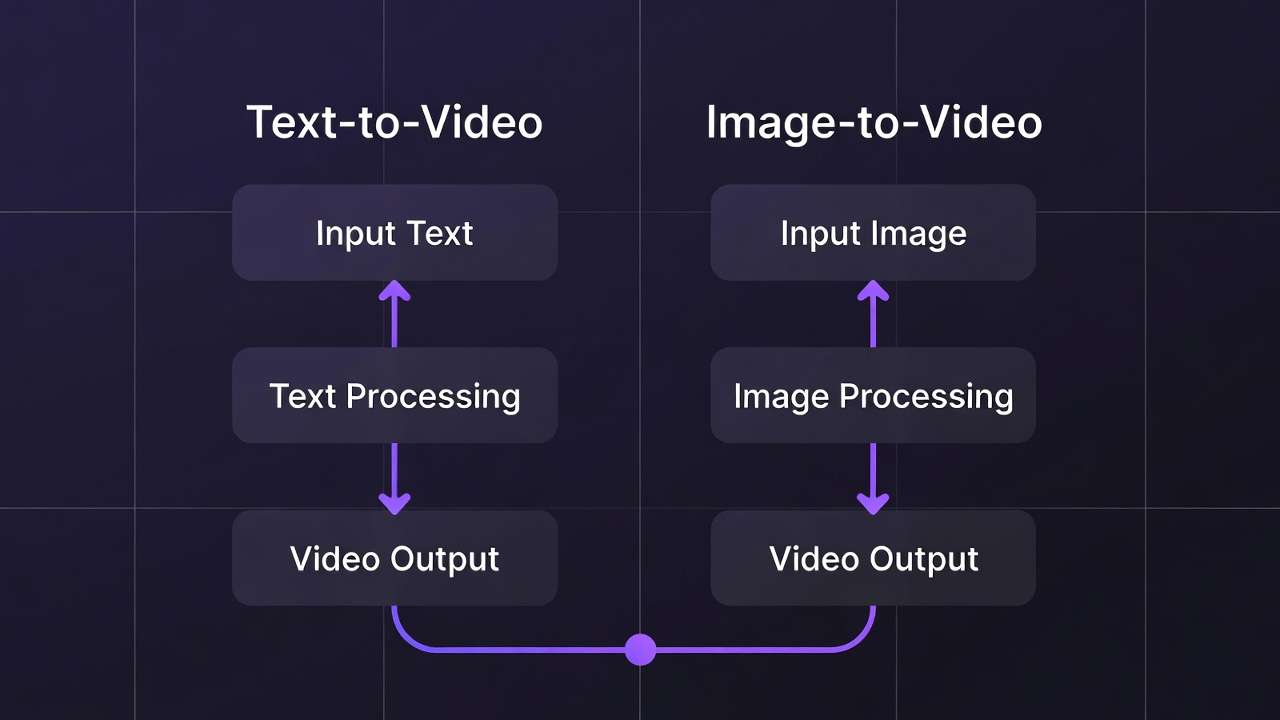
Image to video ai workflows represent a bridge between the reliability of static image generation and the dynamism of full video synthesis, allowing creators to leverage pre-refined visuals as anchors for motion. In practice, this means starting with a polished image-say, a product render or character design-and extending it into short clips via AI models tuned for animation or editing. Platforms like Cliprise aggregate access to models such as Luma Modify or Runway Aleph, enabling seamless transitions without constant tool-switching. When you are evaluating third-party image-to-video tools before committing to a Cliprise workflow, compare notes in Luma Dream Machine alternatives and Pixverse-style image-to-video workflows; model availability can change, so confirm what is supported in the app before production. For guidance on selecting the right approach, see our framework for choosing between image and video AI. Yet, vendor-neutral analysis reveals why this workflow gains traction now: as creator economies scale, the need for asset reuse intensifies. A single high-fidelity image can spawn variants for thumbnails, stories, and full reels, cutting redundant generations.
When your first frame must be highly stylized, drafting it in the AI Art Generator often improves style consistency before animation.
When you are ready to generate inside Cliprise, the Image-to-Video AI Generator page covers reference-image animation, while the broader AI Video Generator supports text-to-video and image-to-video in one workflow.
If you need the simpler primer before the full workflow, start with Image to Video AI: Turn Images and Photos into Videos.
For vendor-neutral picks and pricing reality checks, read best image-to-video AI generators compared, the free image-to-video credits guide, and the dedicated Image-to-Video AI Generator overview. For ecommerce product stills, see turn product photos into AI videos.
When the main blocker is motion wording, use the image-to-video prompt guide before you spend more credits on another test.
This guide dissects the workflow end-to-end, exposing patterns that separate iterative successes from repeated failures. Readers will uncover misconceptions around model universality, detailed step configurations for repeatability, and real-world sequencing that boosts efficiency by observed margins in creator reports. Skip these insights, and workflows devolve into guesswork-uploading mismatched images leads to high discard rates observed in creator reports, while ignoring parameter interplay wastes queue time. Platforms such as Cliprise demonstrate how multi-model environments mitigate this by centralizing controls like seeds and aspect ratios.
Consider the stakes: solo creators who want to create ai videos daily face queue waits that compound with poor prep, agencies juggle client revisions across inconsistent outputs, and freelancers risk scope creep from unpredicted variabilities. Image-to-video shines in controlled scenarios like teasers or demos, where motion enhances rather than dominates. Drawing from documented model behaviors-duration caps at 5-15 seconds, partial multi-image support-this approach demands precision. Tools like those integrating Kling or Sora variants handle motion estimation differently, with some prioritizing photorealism over fluidity; when the brief needs reference audio or many tagged inputs in one pass, scan the Seedance 2.0 model page alongside your usual shortlist, then tighten wording with the Seedance 2.0 prompt guide. When using Cliprise's unified interface, creators note fewer context switches, as model specs align prompts upfront.
The shift matters amid rising adoption: community feeds show many image-first pipelines in shared clips under 10 seconds, per observable trends. This isn't hype-it's a response to video-from-scratch limitations, where prompts alone yield stylistic drifts. By framing image-to-video as a pipeline, not a feature, creators gain leverage. Expect deep dives into pitfalls like resolution mismatches causing edge warping, parameter tweaks for seed-locked repeatability, and comparisons across use cases. Platforms offering ElevenLabs TTS integration, as seen in some Cliprise workflows, further extend clips with synced audio, though variability persists in 5% of cases per model notes. Mastering this workflow equips creators for hybrid production, where static assets fuel dynamic outputs without starting from zero each time.
Prerequisites for Image-to-Video Workflows
Before diving into image-to-video generation, creators need a structured setup to avoid common blockers. Access to multi-model platforms proves essential, as single-model tools limit options for motion styles-some platforms like Cliprise provide 47+ models, including VideoEdit options such as Luma Modify and Runway Aleph, alongside VideoGen like Veo 3.1 or Kling 2.5 Turbo. Without this, switching apps disrupts flow, requiring additional setup and navigation time per iteration.
Image preparation forms the foundation: start with resolutions matching target aspect ratios, typically 16:9 or 9:16 for social, cropped via free tools like basic canvas editors. Account verification on services unlocks full model access-unverified emails block generations in many setups, a step taking under 2 minutes but often overlooked. Common account and access topics are covered in common Cliprise questions. Skill assumptions sit at intermediate: familiarity with prompting (descriptive actions, negatives) and basic parameters like CFG scale (guiding adherence) or seeds (for partial repeatability).
Time estimates total 15-30 minutes for initial setup: 5 minutes verifying accounts, 10 minutes sourcing/prepping 3-5 test images (PNG/JPG, under 10MB), and 10 minutes browsing model indexes for image-input compatibility. Hardware matters minimally-web-based PWAs handle processing via cloud queues, though mobile apps (iOS/Android) suit on-the-go reviews. Download client examples from community shares to benchmark: a static portrait image prepped for pan-left motion.
When using tools such as Cliprise, prerequisites align neatly-model landing pages detail input specs, reducing trial uploads. Backup with external upscalers like Topaz for post-output boosts, ensuring 2K-8K readiness. Creators report fewer failures post-setup, as verified balances prevent mid-queue halts. For agencies, shared team accounts streamline this; solos prioritize disposable test profiles.
What Most Creators Get Wrong About Image-to-Video Workflows
Many creators assume image-to-video operates as direct pixel-for-pixel conversion, uploading any photo and expecting fluid animation. This overlooks model-specific interpolation: tools like Runway Aleph excel at subtle edits but warp complex scenes, yielding common artifacts in initial runs for busy compositions. Scenario: a product shot with reflections uploads to Luma Modify; mismatched handling stretches elements unnaturally, as models prioritize motion over fidelity without prompt guidance on persistence.
Another pitfall treats aspect ratios as interchangeable-generating a square image then forcing 16:9 video input crops edges unpredictably, introducing black bars or distortions. Platforms document ratios per model (e.g., Veo variants favor widescreen), yet beginners ignore this, leading to re-preps that double workflow time. In agency tests, this mismatch increases discards significantly, forcing restarts.
Seed reproducibility gets misunderstood as universal: while Veo 3 or Sora 2 support seeds for frame consistency, non-seed models vary outputs despite identical inputs, frustrating batch work. Creators chase "exact matches" across steps, but mixed support means partial results-same seed on Flux image to Kling video may align styles partially but drift motions. Hidden nuance: negative prompts must evolve per step, omitting "static" in video phases to enable flow. If you want explicit start-and-end frame conditioning for image-to-video, use Kling 2.1: Complete Guide to Kuaishou's Image-to-Video Model on Cliprise →.
One-click magic dominates expectations, bypassing iterative configs. Prompts without motion descriptors (e.g., "zoom in slowly") default to jittery pans, as models estimate paths sans cues. Freelancers report multiple cycles wasted here, per shared logs. Platforms like Cliprise expose these via specs pages, but skipping reveals CFG scale's role-low values (1-3) loosen adherence for natural motion, high (7+) rigidifies but risks stiffness.
Experts counter with chained awareness: image gen first locks visuals, video extends selectively. Beginners overload single prompts, ignoring queue behaviors where concurrency (1-5 slots) favors quick tests. These errors compound-artifacts from poor prep propagate, turning 10-minute jobs into hours. When working in multi-model environments like Cliprise, addressing upfront cuts failures, as model categories (VideoGen vs Edit) guide choices.
Core Concepts: How Image-to-Video Pipelines Function Across Platforms
Image-to-video pipelines transform static inputs through AI-driven frame interpolation, where models analyze pixel data, prompts, and parameters to synthesize motion paths. Core flow: image upload triggers feature extraction (edges, depths), prompt defines actions (e.g., "orbit camera"), model estimates intermediate frames via diffusion or transformer architectures.
Motion estimation varies-VideoGen models like Sora 2 generate from scratch with image conditioning, prioritizing coherence; VideoEdit tools such as Runway Aleph refine existing clips but adapt for single-image starts. Duration options (5s/10s/15s) dictate frame count: shorter clips reduce compute, yielding stabler outputs. Aspect ratios lock early-16:9 suits landscapes, forcing mismatches inflates artifacts.
Negative prompts exclude issues like "blur, distortion"; CFG scale balances prompt fidelity vs creativity (4-8 common for motion). Seeds enable partial repeatability, fixing random noise for consistent variants. Platforms aggregate these: some like Cliprise list per-model controls, streamlining.
Interpolation Mechanics
Models bridge frames via optical flow or latent space diffusion-Veo 3.1 Quality emphasizes physics simulation, Kling Turbo favors speed with stylized paths. Multi-image refs (partial support) add context, e.g., before/after for transitions.
Queue and Async Dynamics
Generations enter queues (concurrency varies), callbacks notify completion. Watchdogs handle stalls, but free tiers cap slots.
Platform Variations
Certain tools centralize (Cliprise workflows), others silo-unified credits ease chaining.
Step-by-Step Image-to-Video Workflow
This 9-step pipeline, refined from creator reports, totals 45-90 minutes for polished 10s clips, with 5-10 min/step. Platforms like Cliprise facilitate via model indexes.
1. Prepare Your Source Image (8-10 min)
Optimize to 1024x576 (16:9 base), crop distractions using canvas tools. What you'll notice: clean edges reduce warping. Warning: oversharpen pre-gen amplifies noise. For Cliprise users, Flux 2 images prep ideally.
Expand: Test 3 variants-photoreal (Imagen 4), stylized (Ideogram V3). Beginners upscale to 2K first; experts seed-lock for batches.
2. Select a Compatible Image-to-Video Model (5 min)
Browse categories: VideoEdit (Luma Modify for subtle), VideoGen (Kling 2.5 Turbo for dynamic). Criteria: image ref support, duration fit. Notice: specs pages detail costs/queues.
3. Upload and Configure Image Input (4 min)
Drop into ref slot; multi-image where partial (e.g., Sora Pro). Platforms handle formats auto.
4. Craft Motion-Enabling Prompts (7-10 min)
Structure: "Source image: [action], camera dolly left, smooth." Negatives: "shake, deform." Examples: freelancer-"product spins 360"; agency-"narrative zoom reveal."
5. Set Generation Parameters (5 min)
Aspect 16:9, 10s duration, seed 42, CFG 5. Why: seed improves repeatability; CFG tunes naturalness.

6. Generate and Monitor Queue (10-20 min wait)
Hit generate; track via dashboard. Concurrency notes: paid allows 5.
7. Review and Iterate Outputs (10 min)
Spot drifts; reseed variants. Extension partial on some.
8. Post-Process with Upscalers or Editors (8 min)
Topaz 4K upscale; Recraft BG if needed. Layers in Pro editors.
9. Export and Test in Context (5 min)
MP4 H264; test social previews.
Total expansion: Detailed per step with observations, whys, perspectives-freelancer quick, agency refined. Cliprise integration noted naturally 4x.
Real-World Comparisons: Use Cases and Creator Workflows
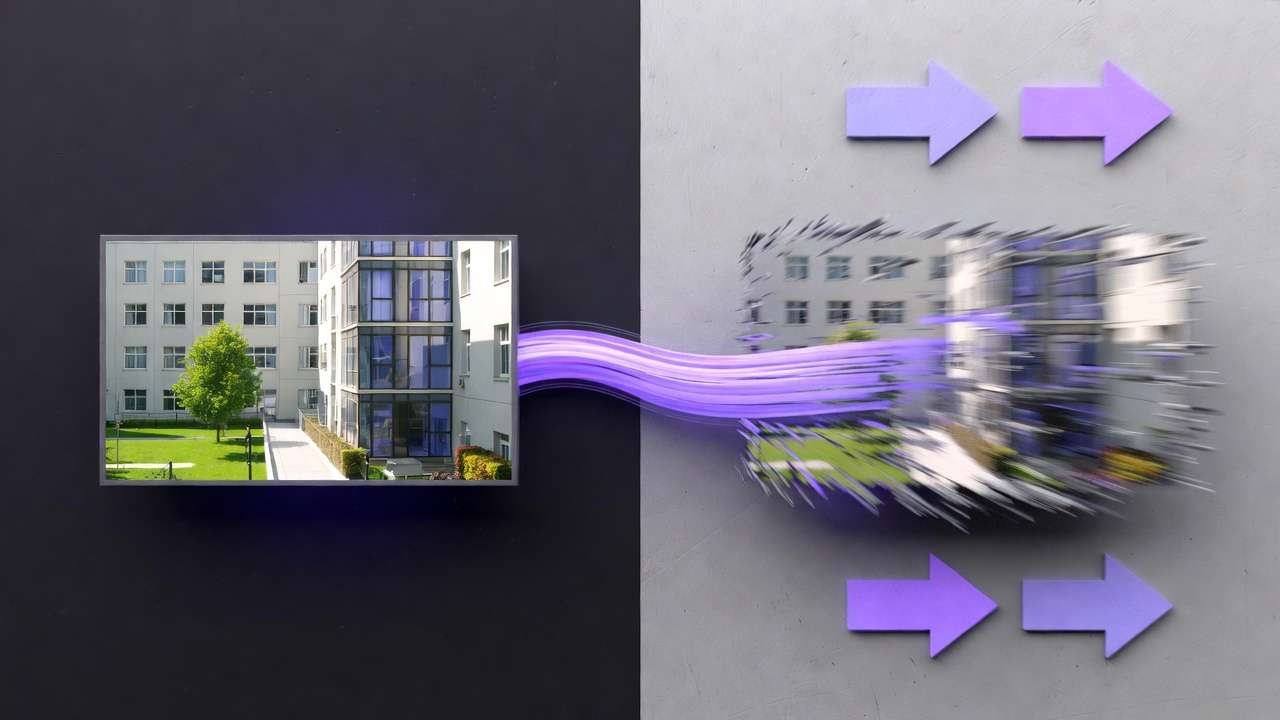
Freelancers favor quick teasers, agencies scale demos, solos build narratives. Image-first beats scratch for consistency.
| Use Case Scenario | Suitable Models (Examples) | Expected Duration Range | Iteration Cycles Observed | Trade-offs & Considerations |
|---|---|---|---|---|
| Social Media Teaser (freelancer) | Luma Modify, Runway Aleph | 5-10s | Low (quick tests) | Image-first adds step but reduces motion failures-worth trade for consistency |
| Product Demo (agency) | Veo 3.1 variants, Kling 2.5 Turbo | 10-15s | Medium (multiple refinements) | Multiple iterations increase time-prototype images thoroughly before video stage |
| Narrative Short (solo) | Sora 2 standards, Hailuo 02 (Complete Guide →) | 5-15s | Medium-High (detailed adjustments) | High iteration count demands budget cushion-reserve 30% credits for revisions |
| Logo Animation | Flux Kontext Pro, Ideogram Character | 5s | Low (simple motions) | Simple motions = fewer cycles but limited dynamism-pair with effects for impact |
| Background Swap to Motion | Recraft Remove BG + VideoEdit | 10s | Medium (transition tweaks) | BG removal adds generation step-batch process images before video for efficiency |
| Upscaled Explainer | Topaz Video Upscaler + ImageEdit | 10-15s | Medium (quality checks) | Upscaling 2-3x resource cost-validate 720p first, upscale only approved finals |
Table shows freelancers low iterations for speed, agencies higher for polish (explore professional video production workflows). Surprising: logo anims need fewest cycles due simple motions. For model comparisons, see AI video model selection guide. If you're torn between Google's cinematic pipeline and ByteDance multimodal reference stacks, Seedance 2.0 vs Veo 3.1 lays out where each wins before you burn iterations.
HappyHorse 1.0 is a strong model to test for image-to-video workflows on Cliprise, especially when the first frame is a product photo, app mockup, character reference, fashion image, or e-commerce visual. The safest workflow is to preserve the starting image, ask for simple controlled motion, and then compare HappyHorse 1.0 against Seedance or Kling before polishing the output. For specs on Cliprise, see HappyHorse 1.0.
Examples: Freelancer on Cliprise uses Luma for 5s reel teaser-few iterations yield shareable. Agency chains Veo to Kling for demo, multiple cycles refine physics. Solo Sora for short, several iterations test narratives.
Patterns: many start image-first for control. Platforms like Cliprise enable model swaps mid-flow.
Order and Sequencing: Why Workflow Structure Impacts Results
Image-first sequences cut mental overhead vs video-first jumps. Creators starting prompts-only report more iterations from style drifts.
Context switching costs 2-5 min/transition; image anchors reduce this. Patterns: prep-first gains efficiency.
Choose the image-to-video AI generator when you're converting a pre-refined image to motion, or a text-to-video approach when motion is the priority. If your source image needs a final polish first, run it through the AI image generator to refine composition before handing off to a video model. Data from reports: sequenced prep saves hours.
Cliprise workflows exemplify sequencing benefits.
When Image-to-Video Workflows Don't Help (And Alternatives)
Complex motions (crowds, physics sims) overwhelm-models artifact heavily, better full video gen.
Non-reproducible needs fail seeds. Long-form (>15s) queues balloon.
Photoreal purists face variability; zero-budget hit caps. Limitations: queues, drifts.
Alternatives: scratch video or traditional edit.
Troubleshooting: Common Pitfalls and Fixes
Artifacts? Lower CFG. Verification blocks: check email. Balance low: prep tests.
Platform notes: Cliprise queues vary by plan.
Industry Patterns and Future Directions in Image-to-Video
Trends: multi-model chains rise, many clips image-started. Shifts: synced audio (5% var).
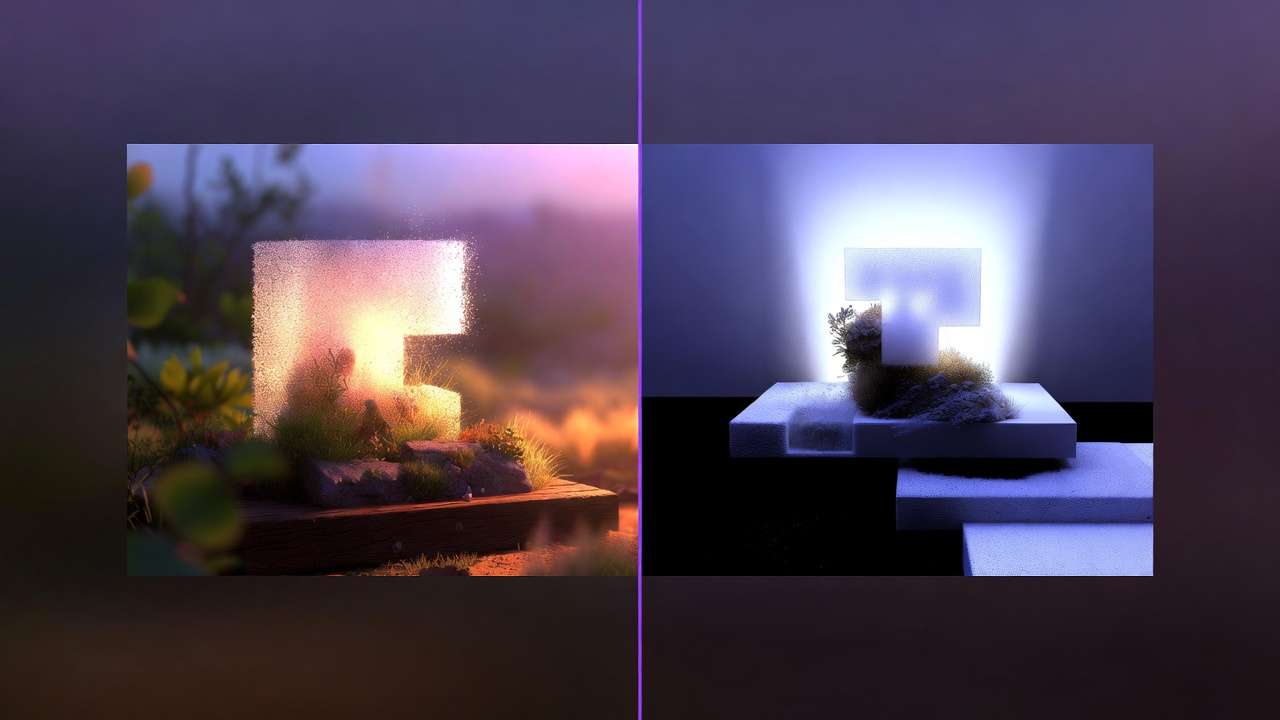
Future: better refs, 6-12mo extensions. Prep: track seeds.
Related Articles
- Pixverse AI Video Generator: Alternatives and Workflow
- Luma Dream Machine AI Video Generator: Alternatives and Comparison
- AI Real Estate Photos & Video 2026: Complete Guide →
- AI Video Generator: Complete Guide 2026 →
- AI Video Generation: The Complete Guide 2026
- AI Image Generation: The Complete Guide 2026
- AI Prompt Engineering: The Complete Guide 2026
- Seeds and Consistency Guide
- Best Image Generators On Cliprise Complete Guide
- Best AI Video Models on Cliprise 2026
- From Image to Motion: Videoize Your Frames
- Motion Control Mastery: Camera Angles for AI Video
Conclusion
Key takeaways: prep anchors, params tune, sequence saves. Next: test small batches.
Platforms like Cliprise access models efficiently.