Part of the Mobile AI Content Creation: Complete Guide 2026 pillar series.
Prompting on Mobile: A Different Challenge
Writing effective AI prompts on desktop is straightforward - physical keyboards enable fast, detailed typing. Mobile prompting requires different strategies because typing long, detailed descriptions on touchscreens is slower and more tedious.

This guide teaches mobile-optimized prompting techniques that produce professional results without the friction of extensive mobile typing.
The Three Mobile Prompting Approaches
Approach 1: Concise Power Prompts
Strategy: Focus on the most impactful keywords, eliminating fluff while maintaining specificity.
When to use: Quick generations, experimentation, models that interpret natural language well (Imagen 4, Veo)
Structure:
[Subject] + [Action/Setting] + [Style/Mood] + [Technical keywords]
Example:
Elderly jazz musician playing saxophone, dimly lit club, warm amber lights, smoke, cinematic grain, intimate
This prompt is mobile-friendly: specific enough for great results, short enough to type quickly.
Pros:
- Fast to type on mobile
- Easy to edit and iterate
- Reduces typing fatigue
- Perfect for testing ideas
Cons:
- Less control over fine details
- May require multiple iterations
- Some models need more guidance
Approach 2: Voice Dictation for Detail
Strategy: Use mobile voice-to-text to dictate long, detailed prompts naturally without typing.
When to use: Complex scenes, premium models that reward detail (FLUX Pro, Kling Pro), final high-quality outputs
How to do it:
- Tap the prompt field to activate keyboard
- Tap the microphone icon on your keyboard
- Speak your prompt naturally with pauses for punctuation
- Review transcription and make minor edits
- Generate
Example dictation:
"Close-up portrait of an elderly African American jazz musician comma eyes closed in concentration comma playing a brass saxophone in a dimly lit New Orleans club comma warm amber stage lights creating dramatic shadows comma wisps of smoke drifting through spotlight beams comma shallow depth of field comma cinematic film grain comma intimate and soulful atmosphere comma photorealistic"
Voice-to-text transcribes: (with your edits for punctuation)
Close-up portrait of an elderly African American jazz musician, eyes closed in concentration, playing a brass saxophone in a dimly lit New Orleans club, warm amber stage lights creating dramatic shadows, wisps of smoke drifting through spotlight beams, shallow depth of field, cinematic film grain, intimate and soulful atmosphere, photorealistic
Pros:
- Faster than typing long prompts
- Natural, conversational input
- Enables desktop-level detail on mobile
- Less fatiguing than extended typing
Cons:
- Requires quiet environment
- May need transcription corrections
- Punctuation requires saying "comma" or "period"
- Less precise than typing for technical terms
Pro tip: Speak clearly and pause briefly after each comma or period. Voice recognition improves with consistent pacing.
Approach 3: Template Library Strategy
Strategy: Maintain a personal library of proven prompt templates in your device's notes app, adapting them for new projects.
When to use: Recurring creative needs, professional workflows, series content, efficient iteration
How to build your library:
- Create a note titled "Cliprise Prompt Templates"
- Save successful prompts with brief descriptions
- Categorize by type (portraits, landscapes, product shots, cinematic video)
- Copy and adapt when needed
Sample template collection:
Portrait Template:
[Age/description] [subject] in [setting], [lighting description], [mood keywords], [style keywords], [technical details]

Example: Young woman in urban environment, golden hour backlight, confident expression, fashion photography style, shallow depth of field
Landscape Template:
[Scene type] at [time of day], [weather/atmosphere], [camera angle], [lighting], [mood], [technical style]

Example: Mountain landscape at sunrise, light fog in valleys, wide aerial shot, warm golden light, epic and serene, cinematic vista
Cinematic Video Template:
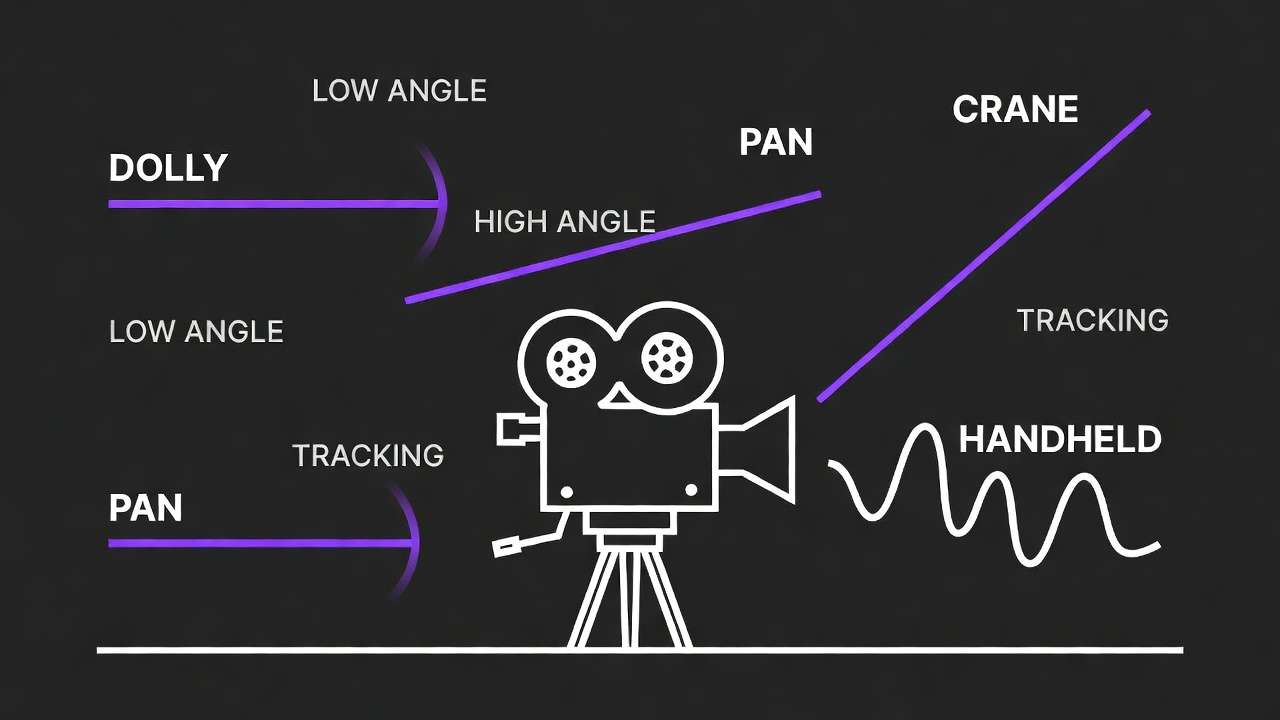
[Camera movement] of [subject/scene], [action description], [lighting], [atmosphere], [pacing keywords], [style]

Example: Slow tracking shot of vintage car driving through desert, dust clouds behind, sunset light, cinematic and nostalgic
How to use templates:
- Copy template from notes app
- Paste into Cliprise prompt field
- Replace bracketed sections with specifics for your project
- Generate
Pros:
- Minimal typing required
- Consistent quality across generations
- Fast iteration with proven structures
- Professional workflow efficiency
Cons:
- Requires upfront template creation
- Less spontaneous/creative
- Templates need occasional updates
- Context-switching between apps
Pro tip: Create templates during desktop sessions or when you have time, then leverage them for fast mobile generation.
Mobile-Specific Prompting Techniques
The Comma-Chain Method
Structure prompts as comma-separated descriptive chains for clarity and mobile-friendly editing:
Subject, action, setting, lighting, mood, style, technical details
Benefits:
- Easy to see structure at a glance on small screens
- Simple to add or remove elements
- Natural voice dictation flow
- AI parses comma-separated keywords effectively
Example:
Steaming coffee cup on wooden table, morning sunlight through window, cozy atmosphere, soft focus background, warm tones, product photography style
Each element is a discrete concept, making mobile editing straightforward.
The Paragraph Method (Voice-Optimized)
For voice dictation, speak in natural sentence structure:
A detailed description written as if you're explaining the scene to someone, using complete sentences that flow naturally when spoken aloud, mentioning all important visual elements in a conversational yet descriptive tone.
Benefits:
- Natural for voice dictation
- Comfortable speaking pattern
- Less robotic than keyword chains
- Works well with advanced language models
Example:
Create a photorealistic image showing an elderly jazz musician with his eyes closed in deep concentration as he plays a gleaming brass saxophone. The scene is set in a dimly lit New Orleans jazz club with warm amber stage lights creating dramatic shadows across his weathered face. Wisps of smoke drift lazily through the spotlight beams. The image should have a shallow depth of field with cinematic film grain, capturing an intimate and soulful atmosphere.
This reads naturally when spoken and provides comprehensive guidance to the AI.
The Hybrid Approach
Combine concise keywords with brief natural language for balance:
[Core keywords], [natural language context], [style keywords]
Example:
Mountain hiker emerging from fog, shot during golden dawn with light filtering through pine branches creating dramatic god rays, wide cinematic composition, epic landscape photography style
First section is keyword-dense, middle expands naturally, end returns to style keywords.
The Negative-Positive Stack
Some models support negative prompting techniques. Structure as:
Positive prompt: What you want
Negative prompt: What you don't want
Example:
Positive:
Professional product photo of luxury watch, studio lighting, black background, high detail, commercial photography
Negative:
blurry, low quality, watermark, text, cluttered background, distorted
Negative prompts refine output by exclusion, reducing iterations needed.
Voice Dictation Best Practices
Speak Punctuation Explicitly
Voice recognition requires you to say punctuation:
- "comma" →,
- "period" → .
- "question mark" → ?
- "new line" → ↵
Example dictation:
"Close-up of red sports car comma sleek design comma city street at night comma neon reflections comma cinematic period"
Use Consistent Pacing
Speak with regular rhythm and brief pauses between phrases. Rushing confuses transcription; speaking too slowly feels unnatural.
Review and Edit Transcription
Voice recognition isn't perfect. Always review transcribed text for:
- Misheard words (especially technical terms)
- Missing punctuation
- Incorrect grammar
- Typos or odd capitalizations
Quick edits ensure accuracy before generating.
Speak in Quiet Environments
Background noise degrades transcription quality. For best results:
- Find quiet spaces
- Disable background music
- Avoid noisy environments (traffic, crowds)
Create Voice-Friendly Prompt Templates
Some keywords are hard to pronounce or commonly misheard. Use voice-friendly alternatives:
Instead of: "chiaroscuro lighting"
Say: "dramatic high contrast lighting"
Instead of: "bokeh"
Say: "soft focus background" or "blurred background"
Build your template library with voice-friendly vocabulary.
Mobile-Optimized Prompt Structures by Medium
Image Prompts on Mobile
Quick Format:
Subject, setting, lighting, mood, style
Example:
Mountain lake reflection, sunset, golden hour, serene, landscape photography
Detailed Format (voice):
A [subject] in [setting] with [lighting description], creating a [mood] atmosphere, shot in [style] with [technical details]
Example:
A crystal-clear mountain lake reflecting snow-capped peaks in still water with golden hour sunlight casting warm tones across the scene, creating a serene and peaceful atmosphere, shot in landscape photography style with wide-angle composition and rich colors
Video Prompts on Mobile
Quick Format:
Camera movement, subject/action, setting, lighting, pacing, style
Example:
Slow pan, ocean waves crashing on beach, golden sunset, smooth motion, cinematic
Detailed Format (voice):
[Camera movement] capturing [subject performing action] in [setting] during [time/lighting], with [pacing description], filmed in [style]
Example:
Slow tracking shot capturing a skateboarder performing tricks through an urban street during golden hour with smooth following motion, filmed in dynamic action cinematography style with natural motion blur
Critical for video: Always describe motion explicitly. Static descriptions produce minimal animation. See our text-to-video vs image-to-video workflow comparison for choosing the right approach.
Audio Prompts on Mobile
Music/SFX Format:
Sound type, tempo/mood, instruments/elements, duration/style
Example:
Ambient electronic music, slow tempo, synth pads and soft percussion, atmospheric and dreamy
Voice/TTS Format:
Just write the text to be spoken naturally
Example:
Welcome to Cliprise, where your creative vision becomes reality through the power of AI generation.
Voice models handle natural text without special formatting.
Using Flowstates and Presets for Mobile Efficiency
Flowstates are predefined style keywords built into Cliprise that enhance prompts automatically. They're perfect for mobile because they eliminate typing long style descriptors.
How Flowstates Work
- Write your basic prompt (subject and action)
- Select a Flowstate preset (Cinematic, Photorealistic, Anime, etc.)
- The system adds appropriate style keywords automatically
- Generate with enhanced prompt
Example:
Your prompt:
Elderly jazz musician playing saxophone in dimly lit club
Select Flowstate: "Cinematic"
Enhanced prompt (automatic):
Elderly jazz musician playing saxophone in dimly lit club, cinematic lighting, film grain, dramatic shadows, depth of field, movie-like atmosphere, professional cinematography
You type less, get better results.
Available Flowstates (vary by model)
- Cinematic - Film-grade lighting, composition, depth
- Photorealistic - Life-like detail, natural lighting
- Anime - Japanese animation aesthetic
- Oil Painting - Classic painted texture
- Cyberpunk - Neon-lit futuristic style
- Fantasy - Magical, otherworldly atmospheres
Experiment with different Flowstates on the same core prompt to see style variations without retyping.
Prompt Enhancer: AI-Assisted Prompting
Some models offer a "Prompt Enhancer" toggle that uses AI to automatically improve your prompt.
How Prompt Enhancer Works
- Write a simple, basic prompt
- Enable Prompt Enhancer toggle
- The AI analyzes your prompt and adds:
- Cinematic and technical keywords
- Lighting and atmosphere descriptions
- Compositional guidance
- Style refinements
- Generate with enhanced prompt
Example:
Your basic prompt:
Sunset over ocean
Enhanced prompt (automatic):
Breathtaking sunset over calm ocean waters, vibrant orange and pink hues reflecting on gentle waves, golden hour lighting creating dramatic sky gradients, wide landscape composition, photorealistic, high detail, serene atmosphere
When to Use Prompt Enhancer
Use it when:
- You're unsure how to add detail
- Typing feels tedious
- You want to learn effective prompt structures
- You're experimenting quickly
Skip it when:
- You have specific, precise vision
- You want full control over every keyword
- Enhanced prompts deviate from your intent
Pro tip: Toggle Prompt Enhancer on and off for the same prompt to compare results. Learn what the enhancer adds, then incorporate those techniques into your own prompts.
Building Your Personal Mobile Prompt Library
What to Save
Successful prompts that:
- Produced excellent results
- Work consistently across generations
- Cover common use cases for your work
- Demonstrate effective structure
Organize by:
- Media type (images, videos, audio)
- Subject matter (portraits, landscapes, products)
- Style (photorealistic, artistic, cinematic)
- Project type (social media, client work, personal)
Where to Store
Notes App (iOS/Android): Create a dedicated note titled "Cliprise Prompts" with sections for each category.
Cloud Notes (Google Keep, Evernote, Notion): Syncs across devices, accessible on desktop and mobile.
Clipboard Managers (iOS Shortcuts, Android Clipboard History): Quick access to frequently used prompts.
Template Format
Structure saved prompts as editable templates:
[Category: Portrait Photography]
[Subject description] in [setting], [lighting type], [mood], [style keywords], [technical details]

Example: Young professional in modern office, natural window light, confident expression, corporate headshot style, shallow depth of field
Bracketed sections indicate where to customize for specific projects.
Common Mobile Prompting Mistakes and Fixes
Mistake 1: Too Vague on Mobile
Problem: "Nice beach scene"
Why it fails: Ambiguous, lacks specific detail, AI has too much interpretive freedom.
Fix: Add at least 3-4 concrete details even in concise prompts.
Better: "Tropical beach at sunset, palm trees, gentle waves, golden light, serene"
Mistake 2: Voice Dictation Without Review
Problem: Dictating prompts and generating without checking transcription.
Why it fails: Voice recognition errors produce unexpected results ("saxophone" → "sacks of phone").
Fix: Always review transcribed text, correct errors, then generate.
Mistake 3: Ignoring Motion in Video Prompts
Problem: "Beautiful mountain landscape" (for video generation)
Why it fails: No motion described, AI generates mostly static video.
Fix: Always include camera movement or action.
Better: "Slow camera pan across mountain landscape, clouds drifting, golden hour"
Mistake 4: Overcomplicating Simple Needs
Problem: Typing 200-word prompt on mobile for a simple social media image.
Why it fails: Time-consuming, tedious, often unnecessary for basic outputs.
Fix: Match prompt length to importance. Simple needs = concise prompts.
Better: "Coffee cup on desk, morning light, cozy, soft focus"
Mistake 5: Not Using Available Tools
Problem: Manually typing long prompts when voice dictation and Flowstates exist.
Why it fails: Wastes time, increases typing fatigue, reduces mobile efficiency.
Fix: Leverage voice input, Flowstates, and Prompt Enhancer for faster workflows.
Advanced: Cross-Device Prompt Workflows
Desktop Planning, Mobile Execution
Strategy:
- Draft detailed prompts on desktop when you have time
- Save to cloud notes (Notion, Google Keep, Evernote)
- Access from mobile when you want to generate on-the-go
- Copy, paste, generate
Benefits:
- Full keyboard for complex prompt creation
- Mobile freedom for generation timing
- Best of both worlds
Mobile Capture, Desktop Refinement
Strategy:
- Generate quick tests on mobile during inspiration moments
- Save successful outputs and basic prompts
- Refine prompts on desktop with additional detail
- Regenerate at higher quality
Benefits:
- Capture ideas immediately when they strike
- Detailed refinement without mobile typing constraints
- Iterative improvement workflow
Related Articles
- Mobile Apps Overview
- Mobile Models Guide
- Perfect Prompts How to Write Cinematic AI Scenes
- advanced prompt engineering techniques
What's Next in Your Mobile Prompting Journey
Now that you've mastered mobile-optimized prompting:
- Apply these techniques with Android AI Art: Complete Mobile Guide for Samsung & Pixel Users
- Optimize your credit spending with efficient prompt iteration
- Troubleshoot prompt-related issues with our mobile FAQ
- Explore Mobile App Tutorial: Generate AI Videos on Your iPhone for cinematic results
Mobile prompting doesn't mean compromised quality. With strategic techniques, voice input, and smart workflows, you'll create professional results from anywhere.
Your portable creative studio awaits. Start prompting with confidence.