Most AI video models force a single decision: you pick the model and accept whatever quality and speed it gives you. Veo 3.1 on Cliprise offers two distinct operating modes - Quality and Fast - designed for different stages of a production workflow rather than different use cases entirely.
Veo 3.1 Quality is the highest-fidelity output Google's video generation model produces. It is slower than Fast mode, costs more credits per generation, and is the right choice for a specific phase of the production process. This guide covers what Quality mode actually does differently, when the trade-off is worth it, and how to use it effectively on Cliprise.
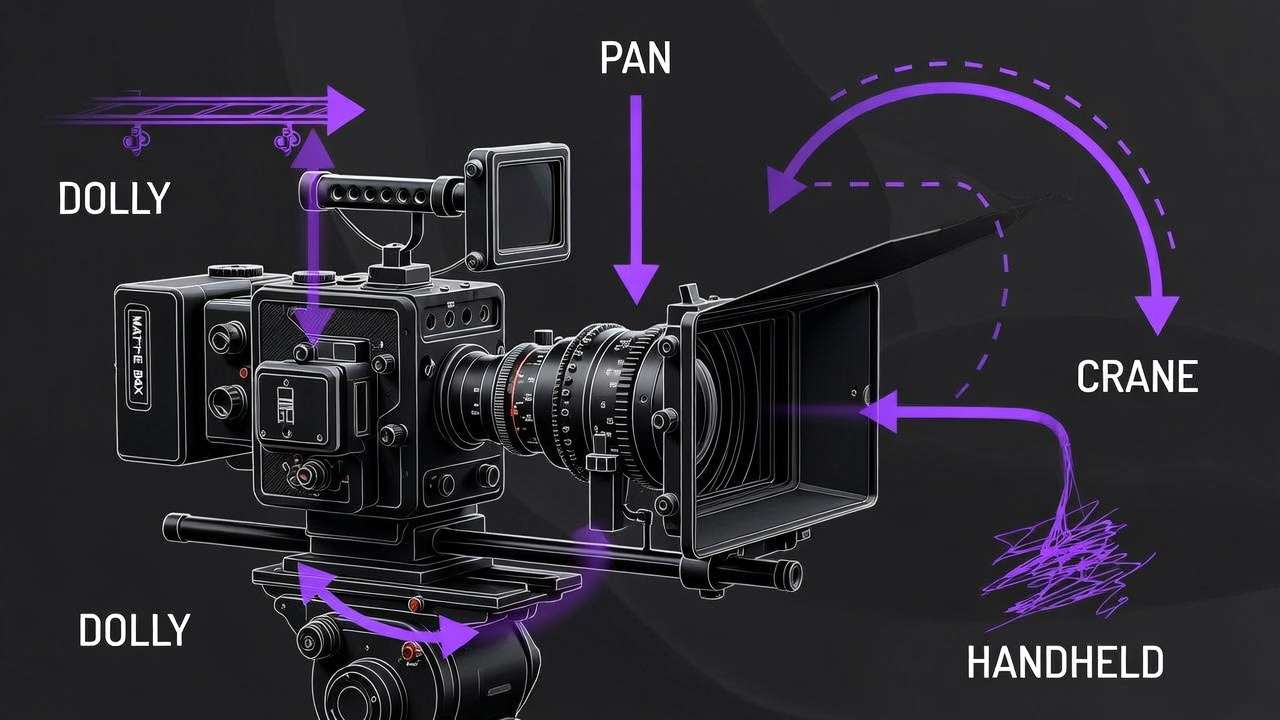
What Veo 3.1 Quality Is
Google released Veo 3.1 in October 2025 as an upgrade to Veo 3, with a significant update on January 13, 2026 adding 4K resolution output and native vertical video support. The model ships in two variants: the Standard (Quality) variant, which maximizes output fidelity, and the Fast variant, which optimizes for generation speed at a modest quality trade-off.
Veo 3.1 Quality runs on the same underlying model architecture as Fast, but allocates more compute to each generation pass. The practical result is visible in three areas: fine texture and detail retention across the full 8-second clip, more accurate physics simulation for motion and environmental elements, and cleaner handling of complex multi-element prompts where the model must coordinate lighting, character movement, and background activity simultaneously.
Technical specifications:
- Resolution: 1080p native, 4K (3840x2160) via AI upscaling
- Duration: up to 8 seconds per clip
- Frame rates: 24fps (cinematic), 30fps (standard), 60fps (smooth motion)
- Aspect ratios: 16:9 landscape, 9:16 vertical (native)
- Audio: spatial audio, 48kHz stereo, lip-sync within 120ms
- Reference images: up to 4 via Ingredients to Video
Quality vs Fast: When Each Makes Sense
The question is not which mode is better - it is which mode matches the current stage of your workflow.
Use Veo 3.1 Quality when:
You are generating a final clip for delivery. If the video is going into a client presentation, a paid ad campaign, a YouTube video, or any context where another person is going to evaluate the output critically, use Quality mode. The additional compute time pays back in output that holds up at full-screen playback.
You are working with complex prompts. Multi-element prompts that specify precise camera movement, character action, environmental detail, and lighting all at once demand more from the model's prompt adherence. Quality mode handles this more reliably than Fast.
You need 4K output. The 4K upscaling is only available in Quality mode. For broadcast applications, cinema pre-rolls, or any large-screen delivery context, Quality mode is the only option.
You are using Ingredients to Video. Reference-image-based generation with character or product consistency requirements produces more reliable results at Quality settings, where the model has more capacity to maintain visual identity across frames.
Use Veo 3.1 Fast when:
You are iterating on prompt direction. If you need to test 10-15 variations of a scene description to find what works, Fast mode gets you results quickly enough to maintain creative momentum. Find the right direction in Fast, then regenerate the winner in Quality.
You are generating B-roll or background clips where absolute quality is secondary to speed and volume. Atmospheric clips, environmental footage, and background visual material that will be secondary in the edit often do not require Quality mode's additional processing.
See Veo 3.1 Fast vs. Quality: Complete Comparison → for a detailed head-to-head.
Spatial Audio: What It Actually Means
Most AI video models generate audio as a flat stereo mix - sounds exist in the video but do not move in space. Veo 3.1 Quality generates spatial audio where sound sources behave like they exist in three-dimensional space relative to their position in the frame.
A person walking from the left side of frame to the right produces audio that pans accordingly through the stereo field. An indoor scene generates reverb appropriate to the room size visible in the frame. Outdoor environments have natural ambient audio falloff. The technical output is 48kHz stereo with AAC encoding.
For most social media content, this level of audio spatialization is beyond what the delivery platform and listener hardware will reproduce. For content delivered on good speakers or headphones - a brand film, a YouTube video watched on a laptop with decent audio, a cinema pre-roll - the spatial audio produces a noticeable difference in production quality.
Working with audio in prompts:
Describe sound explicitly in your prompt if you want specific audio content. Vague prompts produce generic audio. Specific audio descriptions produce better results:
A barista preparing espresso in a morning café,
the sound of the espresso machine extracting,
light background café noise fading into the ambient,
warm morning atmosphere
For dialogue, include it in quotes within your prompt:
A product designer presenting at a whiteboard,
saying "this is the version we're shipping",
confident and direct delivery,
open office environment
The model generates lip-synced speech matching the quoted dialogue, within its 120ms accuracy range.
Ingredients to Video: Character and Object Consistency
The core production problem with AI video generation for brand work is identity drift - characters and objects changing appearance between shots. A person generated in one clip looks different when you generate a new clip of the same character. A product's color, shape, or finish shifts between angles.
Ingredients to Video addresses this. Upload up to four reference images - a character photo, a product image, a location reference, a visual style guide - and Veo 3.1 uses those images as anchors throughout generation. The referenced elements maintain consistent appearance across the clip.
What works well as reference images:
- Product photos on white background - clear, unoccluded view of the product
- Character portraits with good lighting and a visible face
- Location reference images that clearly show the space's character
- Style reference images that establish color palette and aesthetic
What produces inconsistent results:
- References where the subject is partially obscured
- Very low-resolution reference images
- Multiple reference images that conflict in style or lighting direction
Workflow for brand video with product consistency:
- Generate or source a clean product image on a neutral background
- Upload as Reference 1 in Ingredients to Video mode
- Describe the scene where the product appears: placement, environment, lighting, any action
- Generate - the product appears in the scene with its reference appearance maintained
For multi-character scenes, upload separate reference images for each character and assign them in the prompt by referencing "the character from Reference 1" and "the character from Reference 2."
Prompting for Quality Mode
Quality mode does not require different prompting syntax from Fast mode - the same prompt language works across both. But because Quality mode can execute more complex prompts reliably, it is worth using more specific descriptions when generating at Quality settings.
Camera and composition language:
Slow push in toward the subject from a medium shot to a close-up,
smooth dolly movement, subject stays centered in frame,
shallow depth of field, background softly blurred
Static locked-off wide shot of a city intersection at night,
traffic moving through frame, long exposure light trails effect,
high contrast, cinematic
Physics and environmental detail:
Veo 3.1 Quality handles environmental physics - water, fire, smoke, fabric, hair - more accurately than most models. Describe physical elements explicitly when they matter to the shot:
Steam rising from a hot coffee cup in slow motion,
morning window light from the right catching the steam particles,
macro lens feel, shallow depth of field,
soft neutral background
Common mistake: prompt overloading
The most common quality issue is asking for too many distinct actions simultaneously. A prompt that describes a person walking, interacting with an object, speaking, with detailed environmental activity in the background, under specific lighting, with a specific camera movement - all at once - fragments the model's attention and produces weaker results on every element.
Pick the most important element of the shot and build the prompt around it. Secondary elements should support the primary subject, not compete for attention.
Production Workflow on Cliprise
Veo 3.1 Quality integrates into a multi-model workflow on Cliprise alongside the other video models available. A practical approach for commercial video production:
Phase 1 - Direction finding (Veo 3.1 Fast or Kling 2.5 Turbo) Test 8-12 prompt variations quickly. Find the scene direction, camera angle, and composition that works. This phase is about speed, not final quality.
Phase 2 - Quality pass (Veo 3.1 Quality) Take the prompt directions that worked in Phase 1 and regenerate them in Quality mode. This is where you invest the longer generation time for final-delivery clips.
Phase 3 - Post-processing For clips that will be upscaled to 4K for broadcast or large-screen delivery, the Veo 3.1 Quality output is already production-ready. For clips that need background removal or image processing, route through Recraft Remove Background or Topaz Video Upscaler as needed.
Assembly: Edit in CapCut or Premiere. The spatial audio from Veo 3.1 Quality comes through in the exported file - if mixing with your own audio track, mute the generated audio track and keep it as a reference for timing only, or use it directly if it serves the content.
Note
Veo 3.1 Quality is available on Cliprise. Start from the Veo 3.1 Quality model page, then compare it with Veo 3.1 Fast, Kling 3.0, and Seedance 2.0 before checking current pricing.
Related Articles
Veo 3.1 guides:
- Veo 3.1 Fast vs. Quality: Complete Comparison →
- How to Use Veo 3.1: Complete Tutorial →
- Veo 3.1 Complete Tutorial: First Video to Advanced Settings →
- Physics Simulation in Veo 3.1 Quality Mode →
Video model comparisons:
Video generation guides:
- AI Video Generation 2026: Complete Guide →
- Image-to-Video Workflow →
- Motion Control Mastery →
- Best AI Video Models on Cliprise 2026 →
Models on Cliprise: