Veo 3.1 is Google DeepMind's latest google ai video generator - and it occupies a specific, well-defined category at the top of the 2026 model landscape. If you need physics-accurate environmental content, native audio-visual synchronization, or 4K video up to 60 seconds, Veo 3.1 is the model the market has been waiting for since AI video began.
But it's also the most opaque major model in terms of workflow documentation. Most content about Veo 3.1 describes what it produces. Very little explains how to actually use it - the ingredients-to-video reference system, the scene extension workflow, the prompting formula that produces consistent results, and the practical access path that doesn't require setting up a Google Cloud account.
This tutorial covers all of it, step by step.
What Is Veo 3.1?
Veo 3.1 is Google DeepMind's third-generation AI video model, released January 2026. It's built on DeepMind's physics simulation research tradition - the same team and research direction that produced AlphaFold and Gemini.

Key specifications:
- Resolution: Up to 4K
- Generation length: Up to 60+ seconds (via scene extension)
- Input: Text-to-video + ingredients-to-video (up to 3 reference images)
- Native audio: Spatially coherent audio generated simultaneously with video
- Scene extension: Extend existing clips into longer sequences
- Physics accuracy: Best-in-class fluid dynamics, material behavior, crowd motion
What changed from Veo 3.0:
Veo 3.0 established strong physics simulation and 4K output. Veo 3.1 advances on three fronts: the ingredients-to-video system (up from 1 to 3 reference images), improved native audio synchronization that responds more accurately to visual events in the frame, and better character consistency in close-up and medium-shot human content. The physics simulation - already the category leader - is further refined in material behavior rendering.
When Veo 3.1 is the right model:
- Environmental and nature content where physical accuracy matters
- Documentary-style footage with realistic crowd, weather, or natural dynamics
- Any content where audio should feel spatially integrated with the visual
- Long-form content requiring 30-60+ seconds of continuous generation
- 4K delivery requirements alongside physics-intensive content
See Veo 3.1 vs Sora 2 and Sora vs Kling vs Veo for model comparison.
How to Access Veo 3.1
Google Flow (For Creators)
Google Flow is DeepMind's creator-facing platform for Veo 3.1. It provides a visual interface designed for video production rather than API management - timeline controls, reference image upload, scene extension tools.
Access is through Google's creative platform subscription. Pricing varies by region and tier. The interface is the most feature-complete access path for creators who want direct access to all of Veo 3.1's capabilities.
Gemini Advanced ($19.99/mo)
Google's Gemini Advanced subscription includes access to Veo 3.1 generation through the Gemini interface. This is the lowest-cost direct access path but has interface limitations - Gemini is primarily a conversational AI tool, and video generation within it is functional but not as production-oriented as Google Flow.
Suitable for: moderate-volume creation, users who already have Gemini Advanced, creators who don't need a dedicated video production interface.
Google Vids (Enterprise)
Google Vids is Google's enterprise video creation tool, with Veo 3.1 integration for automated video production from documents, presentations, and structured data. Designed for business use cases - training videos, presentations, corporate content.
Access via Google Workspace enterprise tiers.
Vertex AI (For Developers)
Direct API access to Veo 3.1 via Google Cloud's Vertex AI platform. Billed on usage (per second of video generated at resolution-dependent rates). Requires Google Cloud account setup and billing configuration.
The most flexible access path for technical users building production pipelines or integrating Veo 3.1 into custom applications. Not the right path for creators who want a working interface without infrastructure management.
Via Cliprise (Recommended for Most Creators)
Cliprise integrates Veo 3.1 via API - full model access including 4K output, ingredients-to-video, scene extension, and native audio - under the unified Cliprise credit system alongside Sora 2, Kling 3.0, Seedance 2.0, and 43 other models. Compare Veo 3.1 Fast vs Quality for mode selection.
For any creator who:
- Doesn't want to set up Google Cloud billing
- Uses multiple models and wants one subscription
- Is based outside the US and has regional Veo 3.1 access limitations
- Needs Veo 3.1 alongside Kling 3.0 (for 4K production) and Sora 2 (for narrative) in one multi-model workflow
Cliprise is the correct access architecture. Starting at cliprise.app/pricing.
Ingredients-to-Video: The Reference System
Ingredients-to-video is Veo 3.1's visual reference system - allowing you to upload up to 3 reference images that the model uses to anchor specific visual elements in the generation. It's less sophisticated than Seedance 2.0's @tag system, but well-designed for the most common production reference needs.

What Ingredients-to-Video Does
Each uploaded reference image tells the model: "this element should appear in the generated video." The images can represent:
- Character appearance: A photo of a person, establishing how they should look
- Environment: A photo of the location type, establishing visual context
- Product or object: A specific item that should appear accurately in the scene
- Style reference: A visual aesthetic the output should match
Up to 3 images can be combined - for example, character + environment + product in a single generation. For more control, see image reference upload guide.
How to Use Reference Images in Veo 3.1
Step 1: Prepare your reference images
Best practices:
- High resolution (1080p minimum)
- Clear, unambiguous subject - if referencing a character, their face should be clearly visible
- For environment references, choose images that represent the visual character of the location, not just the location type
- For style references, choose images whose treatment (color, contrast, composition) you want replicated - not their content
Step 2: Upload references in generation order
Upload your reference images in priority order. The first image has the strongest influence on the generation. If character consistency is your primary goal, upload the character reference first.
Step 3: Write the prompt with explicit reference connections
Unlike Seedance 2.0's @tag syntax, Veo 3.1 doesn't use explicit reference tags. You connect references to prompt elements through description:
The person from the first reference image, in the environment from the second reference image.
The visual treatment and color palette should match the third reference image.
[Continue with action, camera, and atmosphere description]
The model reads the references and the description together. Being explicit about which image corresponds to which prompt element produces more accurate results than uploading images and assuming the model will connect them correctly.
Reference Combination Examples
Example 1: Character + Environment
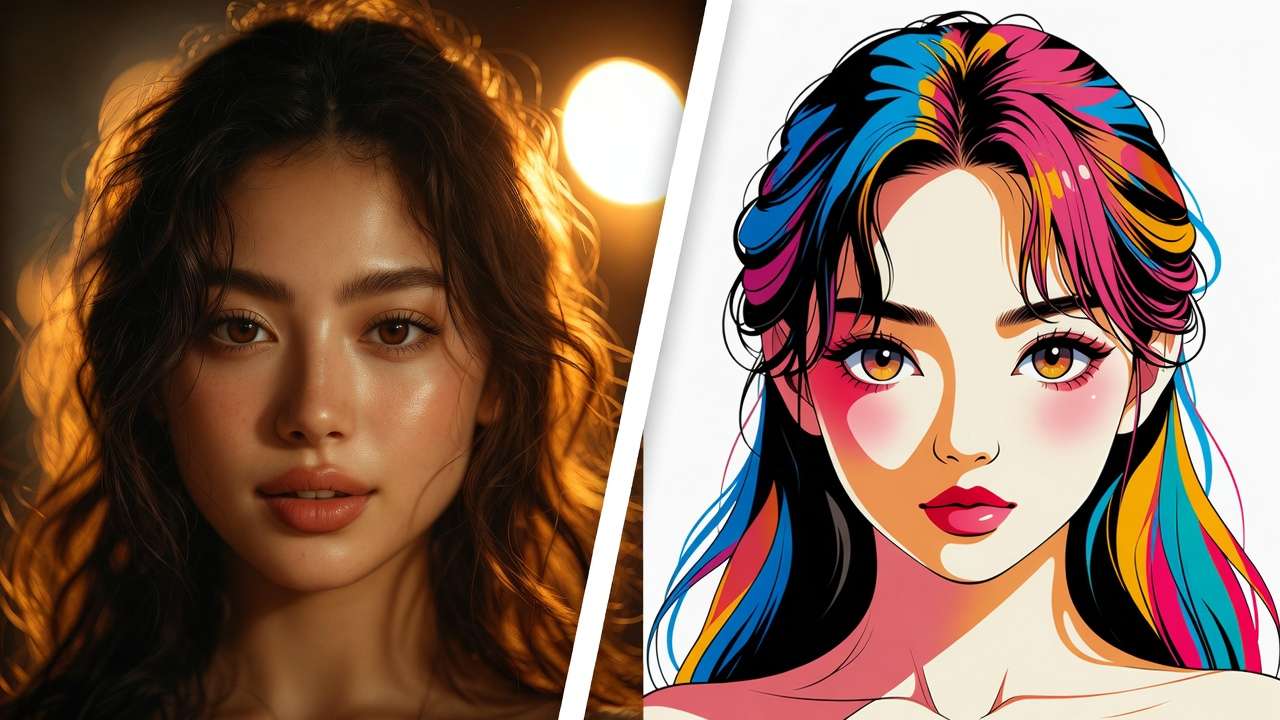
Reference 1: Photo of subject (character anchor) Reference 2: Photo of a coastal cliff at sunset (environment reference)
Prompt: The subject from reference image 1 stands on a coastal cliff at sunset,
matching the environment style of reference image 2.
She faces the ocean, slight wind movement in her hair.
Wide shot, camera at mid-height. Cinematic color grade.
Example 2: Product + Background
Reference 1: Product photo (clean studio shot) Reference 2: Lifestyle environment (coffee shop, outdoor café)
Prompt: The product from reference image 1 placed naturally on a table
in an environment matching reference image 2's aesthetic.
Camera orbits slowly around the product. Natural ambient lighting.
No hands or people in frame. Premium lifestyle context.
Example 3: Style Reference
Reference 1: Character photo Reference 2: Film still with strong visual treatment (high contrast, specific color palette) Reference 3: Environment photo
Prompt: Subject from reference 1 moving through the environment of reference 3.
Visual treatment: match the color grade, contrast, and lighting character of reference 2 -
but apply it to the new subject and environment. Do not reproduce reference 2's content.
Medium tracking shot. Same atmospheric quality.
Common Mistakes with Ingredients-to-Video
Uploading too many reference elements in one image. If your character reference photo has a busy background, the model may read the background as intentional. Use clean, isolated reference shots where possible.
Not describing which reference is which. Veo 3.1 does not label references. If you upload three images without prompt context connecting them to their roles, the model makes its own interpretation. Be explicit.
Expecting pixel-perfect product reproduction. The ingredients-to-video system produces accurate visual anchoring, not exact reproduction. Minor variations in product details are normal - for precise product accuracy across multiple views, generate multiple reference-anchored clips and select the best.
Native Audio Generation
Veo 3.1's native audio is its most technically distinct feature - the model generates spatially coherent audio simultaneously with video output. The audio responds to visual events in the frame rather than being generated independently and layered.
How the Audio-Visual Sync Works
When a car accelerates in the frame, the engine sound builds. When rain appears in the scene, rain sound corresponds to the visible rainfall intensity. When a crowd is at medium distance in the frame, crowd noise is generated at the appropriate volume and texture for that distance.
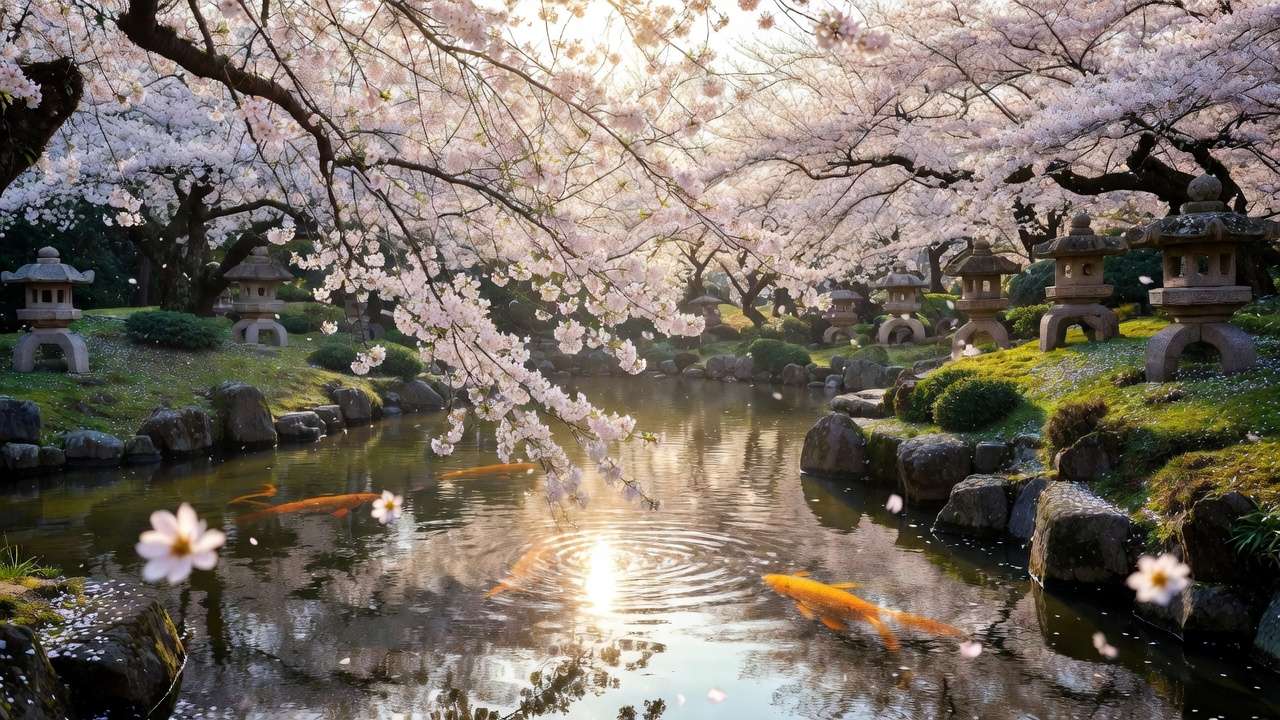
This spatial coherence is the result of DeepMind's approach to audio-visual co-generation - training the model to treat audio as a spatial property of the visual scene, not a separate audio track.
Configuring Audio in Veo 3.1
Auto audio (default): The model generates appropriate audio based on visual content. For most environmental and documentary content, auto audio produces strong results without additional configuration.
Prompted audio: Add audio direction to your prompt for more specific control:
Audio: heavy rain on leaves, thunder in the distance at 15s,
no music. Natural environmental sound throughout.
Lip-sync for multiple subjects: Veo 3.1 supports lip-sync generation for scenes with multiple speaking subjects - a capability that Sora 2 handles less reliably on multi-person scenes. For interviews, dialogue scenes, or group content:
Two speakers in conversation. Subject A (left) speaks first for approximately 8 seconds.
Subject B (right) responds for approximately 6 seconds.
Natural overlapping nods and reactions. No specific dialogue - natural speaking movement.
Post-Processing Considerations
Veo 3.1's native audio is production-ready for most use cases. However:
- Music precision: Veo 3.1 generates music tonally and atmospherically rather than to specific musical structures. For content requiring specific BPM or identifiable musical style, native audio is a starting point and a music production layer is still recommended.
- Voice clarity: Lip-sync generates movement; it does not produce intelligible speech. For content requiring actual voice content, record separately and sync in post.
Scene Extension: Up to 60+ Seconds
Scene extension allows you to take a completed Veo 3.1 generation and extend it - continuing the scene forward in time while maintaining visual consistency with the original clip.
How Scene Extension Works
Step 1: Generate your base clip (up to 30 seconds)
Step 2: Select "Extend Scene" on the completed generation
Step 3: Write the extension prompt - what happens next
Base clip: character walking through forest trail toward a clearing
Extension: character reaches the clearing, pauses to take in the view,
sits down on a fallen log facing the open landscape.
Camera: continues tracking, then slowly widens to reveal the full clearing.
Maintain: same lighting, same character appearance, same visual style
Step 4: Veo 3.1 generates a continuation that preserves:
- Character appearance and clothing
- Environment and lighting consistency
- Camera motion style
- Overall visual tone
Building 60+ Second Sequences
By chaining scene extension across multiple steps, you can build sequences well beyond the native 30-second generation limit:
- Base clip (30 sec) → Extension 1 (30 sec) = 60 sec total
- Base → Extension 1 → Extension 2 = 90 sec total
Each extension generates fresh content that continues from the previous clip's endpoint. The consistency holding across extensions depends on prompt specificity - be more explicit about maintaining visual elements with each extension step, as the model's "memory" of the original clip's details weakens across multiple extensions.
Best practice for long sequences: Extract a frame from the end of each clip and use it as a reference image input for the next extension. This gives the model a visual anchor for the continuation rather than relying on the text description alone.
See video duration limits for platform-specific caps.
Prompting Best Practices for Veo 3.1
Veo 3.1 responds well to the Cinematography + Subject + Action + Context + Style formula, combined with physics-specific language that activates the model's strongest capabilities. See Veo 3 Prompts for examples.
The C.S.A.C.S. Formula
C - Cinematography Lead with camera specification. Veo 3.1 interprets camera language before scene content.
- "Wide establishing shot, static camera"
- "Close-up, slow dolly pull-back"
- "Aerial drone, descending slowly"
S - Subject Who or what is in frame. Physical description, specific and concrete.
- "A dense pine forest at peak fog, trees fading into mist at mid-distance"
- "A woman in her 30s, earth-toned hiking gear, moving confidently"
A - Action What is happening. Motion and change, not state.
- "Waves crash against sea stacks, spray rising 4-6 meters"
- "Hikers navigate across a talus field, careful footwork"
C - Context Environmental conditions and physics elements. This is where Veo 3.1 distinguishes itself.
- "Heavy overcast, soft diffused light, mist reducing visibility beyond 50 meters"
- "Strong crosswind, visible in vegetation and water surface"
S - Style Aesthetic treatment and film reference.
- "Documentary-style, natural color grade, slight grain - BBC Nature aesthetic"
- "70mm epic widescreen, dramatic landscape photography"
Full Prompt Example Using C.S.A.C.S.
Wide establishing shot, static camera on tripod (C).
Dense temperate rainforest, ancient Douglas fir canopy filtering afternoon light (S).
Mist drifting slowly through the understory, barely visible movement (A).
Overcast sky, soft even light with no harsh shadows,
moisture on every surface - water droplets on needles and bark (C).
Nature documentary style, desaturated greens with slight warmth,
David Attenborough-era BBC cinematography (S).
No people, no music. Only ambient forest sound.
Film Reference Language
Veo 3.1 responds accurately to cinematic reference language:
- "70mm IMAX nature documentary" - wide, high-resolution, immersive
- "Handheld observational documentary" - slight motion, naturalistic
- "Drone landscape cinematography" - aerial perspective, sweeping motion
- "Slow-motion high-speed footage" - Phantom camera aesthetic, detailed motion capture
- "Underwater cinematography" - diffused blue-green light, suspended particles
FAQ
What is Veo 3.1? Veo 3.1 is Google DeepMind's third-generation AI video model, released January 2026. It specializes in physics-accurate video generation - particularly fluid dynamics, material behavior, and environmental physics - with 4K output, up to 60+ seconds via scene extension, ingredients-to-video reference system, and native spatially coherent audio generation.
How much does Veo 3.1 cost? Direct access costs vary: Gemini Advanced ($19.99/mo) includes rate-limited access; Google Flow has creator-tier pricing; Vertex AI charges per-second of generated video. Via Cliprise, Veo 3.1 is accessible from $9.99/mo as part of a multi-model subscription.
How do I use ingredients-to-video in Veo 3.1? Upload up to 3 reference images in priority order, then write a prompt that explicitly connects each image to its role in the generation: "The subject from reference image 1, in the environment of reference image 2, with the visual treatment of reference image 3." Explicit prompt-reference connection produces more accurate results than uploading images without descriptive connection.
Does Veo 3.1 generate audio? Yes - Veo 3.1 generates spatially coherent audio simultaneously with video output. The audio responds to visual events in the frame (rain sound matching visible rainfall, crowd noise matching visible crowd density). Audio can be directed via prompt or generated automatically based on visual content.
How do I extend a Veo 3.1 video beyond 30 seconds? Use the Scene Extension feature - select "Extend Scene" on a completed generation, write the continuation prompt, and Veo 3.1 generates a visually consistent continuation. Multiple extensions can chain clips to 60+ seconds. For best consistency, extract the final frame of each clip and use it as a reference image for the next extension.
What is the best prompting method for Veo 3.1? The C.S.A.C.S. formula: Cinematography → Subject → Action → Context → Style. Lead with camera specification, include specific physics-relevant context (weather, material properties, environmental conditions), and use film reference language for style. Veo 3.1 responds particularly well to detailed environmental and physics descriptions.
Where can I access Veo 3.1? Via Google Flow, Gemini Advanced ($19.99/mo), Google Vids (enterprise), Vertex AI (developers), or via Cliprise as part of a multi-model subscription from $9.99/mo. For most creators, Cliprise provides the simplest access alongside other frontier models.
Conclusion
Veo 3.1 is the model that brings cinematic physics simulation to production AI video. Environmental accuracy, native audio-visual sync, 4K output, and scene extension to 60+ seconds make it the right tool for a specific and important category of professional content.
The access question is separate from the quality question. Direct access via Gemini Advanced or Google Flow works - but neither gives you Sora 2 or Kling 3.0 alongside it. Via Cliprise, Veo 3.1 sits within the same unified workflow as every other frontier model, without requiring a separate subscription or technical infrastructure setup.
Use C.S.A.C.S. prompting. Use the ingredients-to-video system with explicit reference-to-prompt connections. Use scene extension for long-form content. Route environmental and physics-intensive briefs here, and route character-driven narrative to Sora 2.
Start using Veo 3.1 on Cliprise → cliprise.app/pricing
Related Articles:
- Veo 3.1 Quality: Complete Guide - 4K, spatial audio, Ingredients to Video
- Veo 3.1 Fast: Complete Guide - speed-optimized iteration workflows
- Veo 3.1 Fast vs. Quality: Complete Comparison
- Veo vs Sora Model Specifications Comparison
- Sora 2 vs Veo 3.1: Which Is Better?
- Sora vs Kling vs Veo: Ultimate 2026 Showdown
- Veo 3.1 Complete Tutorial: Parameters & Settings
- View all Cliprise pricing plans