Every video generation model on Cliprise creates video from scratch - text becomes footage, images become motion. Runway Aleph works differently. It starts with footage you already have and transforms it based on what you describe.
Released by Runway on July 25, 2025, Aleph represents a distinct category: an in-context video editing model. Where generation models create worlds, Aleph modifies the one already in your clip. The same Runway team whose tools appeared in Oscar-winning productions built this specifically for the editing phase of production - not to replace cameras, but to replace the costly VFX work that happens after them. Cliprise's Runway Aleph launch coverage walks through the product story and why editing is a separate paradigm from generation.
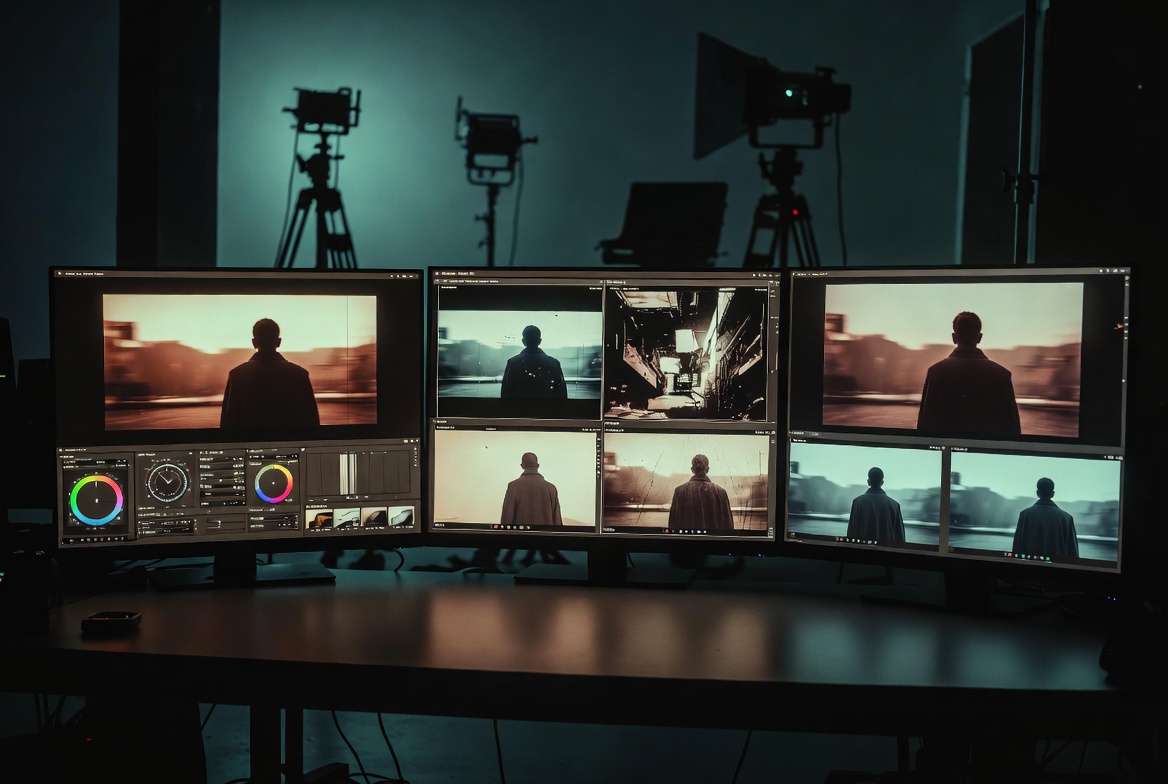
What Runway Aleph Does
Aleph takes an existing video clip and applies edits you describe in text. The model analyzes the footage - understanding its 3D geometry, lighting, depth relationships, and object positions - before making any changes. This spatial understanding is what allows edits to be coherent rather than just visual overlays.
What Aleph can edit:
Objects - add, remove, modify. Add a product to a scene that didn't have one. Remove a person walking through frame. Change what an object looks like - color, material, size. The model fills gaps from removed objects with background that matches the scene context.
Camera angles. Generate a new camera angle from a single-camera shot. From a wide angle, Aleph can reconstruct an over-the-shoulder view, a reverse angle, or a different framing - using the scene's 3D understanding to simulate what a different camera position would see.
Environment. Change the time of day - turn a midday exterior into a sunset or a night scene. Change weather - add rain, fog, snow. Change the season. Move the scene from one environment type to another while keeping the subjects and action intact.
Lighting. Relight a scene with different light direction, quality, or color. Fix a poorly lit shot in post without reshooting. Change from flat overcast to dramatic directional light.
Style. Apply a visual aesthetic to the footage - film grain, color grading, artistic style, period-appropriate treatment.
Scene extension. Continue a clip beyond its natural end, generating additional frames that are temporally consistent with what came before.
The In-Context Approach
What distinguishes Aleph from simpler video filter or style transfer tools is how it analyzes footage before editing it.
When you describe removing an object from a scene, Aleph does not just erase the pixels where the object was. It reconstructs the background as it would look if the object had never been there - matching the floor texture, wall pattern, lighting, and shadow behavior of the surrounding area.
When you request a new camera angle, Aleph does not guess. It reconstructs the scene's 3D geometry from the 2D footage - estimating depth, spatial relationships, and surface normals - then renders what the scene would look like from the requested new viewpoint.
When you request an environmental change, the lighting in the scene is recalculated. Rain behaves according to the light sources. The reflections on the floor match the new sky. Shadows move to the new light direction.
This is why Runway calls it "in-context" - the model understands the context of the scene before making any change to it.
Where Aleph Fits in a Production Workflow
Aleph solves problems that occur after shooting - not before. It belongs in the post-production phase, alongside other editing tools.
Post-production cleanup. A shoot that went well except for one distracting background element - someone walking through frame at the wrong moment, a piece of equipment that should have been moved, signage that cannot be in the final cut. Traditional fix: reshoot. Aleph fix: describe what to remove.
Background and environment updates. A location that does not match the final creative direction - wrong time of day, wrong weather, wrong atmosphere. Aleph changes the environment while keeping the talent and action intact.
Lighting correction. Footage captured with inadequate or incorrect lighting. Aleph relights it without reshooting. For brand content where color accuracy matters, relighting to match other shots in the campaign can produce a more consistent final cut.
Creating alternate versions. A single shoot producing footage that Aleph transforms into multiple market-specific versions - different seasons for different markets, different environments for different audiences, different time-of-day treatments for different platforms.
Pre-visualization. Teams planning complex shots use Aleph to simulate what a different camera angle would look like before committing to setting up that angle on set. Less crew time spent guessing about shot coverage.
Prompting Runway Aleph Effectively
Aleph prompts work differently from generation prompts. You are not creating a scene - you are modifying one that already exists. The prompt describes the change, not the final state.
Effective prompt structure:
Start with an action verb that describes the type of change:
- Add - "Add rain falling from an overcast sky"
- Remove - "Remove the person in the background near the door"
- Change - "Change the jacket to dark navy blue"
- Replace - "Replace the outdoor background with an evening city setting"
- Restyle - "Restyle the footage with a warm vintage film look, add grain"
- Relight - "Relight the scene with soft directional light from the upper left"
Keep prompts simple and specific. Aleph interprets prompts literally. "Remove the person in the red shirt walking from left to right in the background" gives the model clearer instruction than "clean up the background." Specificity about which object you are targeting, and what you want done to it, produces better results.
One primary edit per prompt. While Aleph can handle combined instructions ("Remove the background person and change the lighting to evening"), starting with single-change prompts lets you verify each edit before building complexity.
For style transfer, use image references. When applying a specific color palette or aesthetic from a reference image, upload the image alongside the prompt: "Restyle the video using the color palette from the reference image."
Input Requirements
- Video clip: up to 5 seconds per generation
- File size: maximum 64MB
- Resolution: 720×1280, 960×960, and other supported ratios - the model crops clips that do not match supported dimensions
- No audio generation - Aleph does not add or modify audio; handle audio in your video editor after Aleph processing
For clips longer than 5 seconds: process in 5-second segments with the same prompt applied to each. For maximum consistency across segments, use the same prompt wording throughout.
Runway Aleph vs Other Editing Tools on Cliprise
| Tool | Type | Input | What it edits |
|---|---|---|---|
| Runway Aleph | Video editor | Video clip | Objects, environment, angles, style |
| Flux Kontext | Image editor | Still image | Objects, background, style |
| Recraft Remove Background | Image tool | Still image | Background only |
| Recraft Crisp Upscale | Image upscaler | Still image | Resolution only |
Aleph is the only video-to-video editing tool on Cliprise. Everything else in the editing category operates on still images.
Note
Runway Aleph is on Cliprise alongside Runway Gen-4 Turbo, Kling 3.0, Flux Kontext, and 45+ other models. Try Cliprise Free →
Related Articles
Video editing and post-production:
- AI Video Editing 2026: Upscaling, Color Grading, and Style Transfer →
- Style Transfer: Apply Any Art Style to AI Videos →
- Color Grading AI Videos →
Runway guides:
Image editing (for stills):
Video generation guides:
Models on Cliprise: