Most images are created for one context and then needed in another. A square Instagram post graphic that needs to become a YouTube banner. A landscape product photo that needs to become a vertical Reels clip frame. A portrait that needs to sit in a 16:9 slide presentation.
The standard approaches - cropping (loses content), stretching (distorts), or placing on a solid color background (looks amateurish) - all compromise the image. Ideogram Reframe takes a different approach: it extends the image beyond its existing edges using AI outpainting, generating new content that looks like it belongs in the original composition.
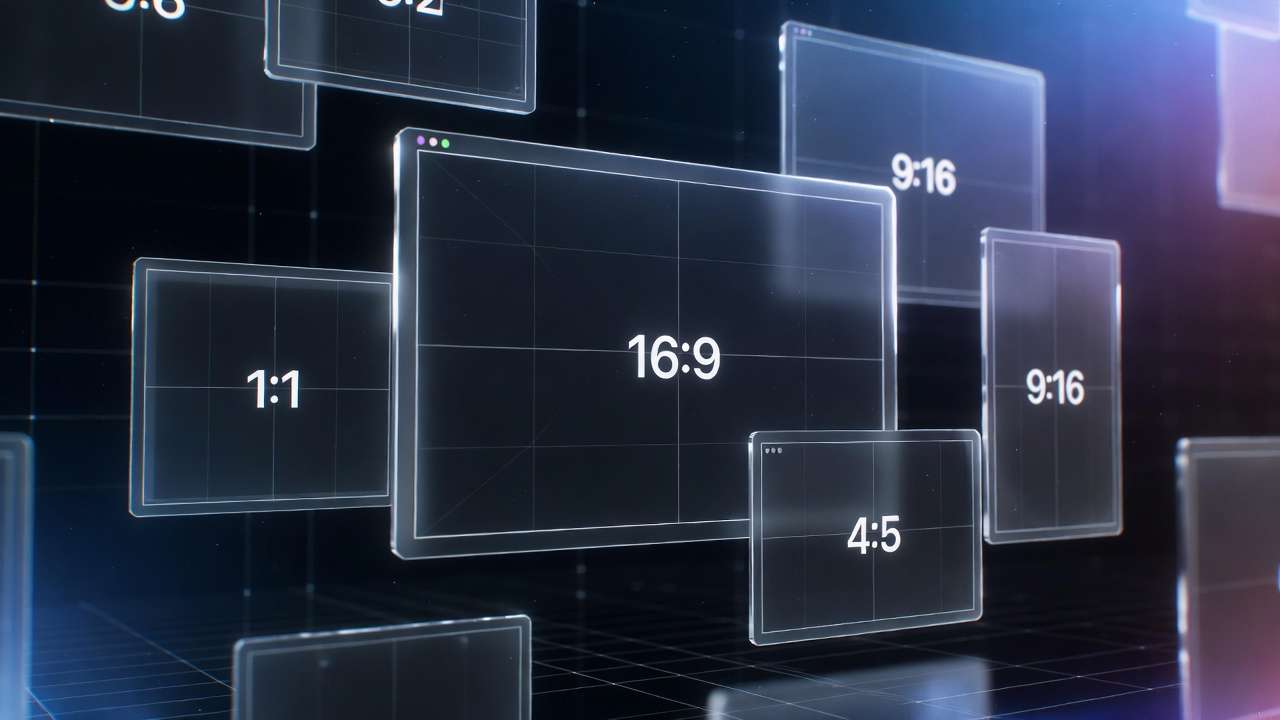
What Ideogram Reframe Does
Ideogram Reframe is a specialized image-to-image model built on Ideogram's V3 architecture. It takes an input image and a target aspect ratio and produces a new image at that aspect ratio - with the original image preserved intact at its original quality, and new content generated seamlessly in the extended areas.
The model analyzes the input image for:
- Visual style and artistic treatment
- Color palette and tone
- Lighting direction and quality
- Subject placement and composition logic
- Environmental context
It then generates extension content that matches all of these characteristics. A studio product photo on white background extends with more white space and appropriate shadow behavior. A sunset landscape extends with more sky and horizon. An interior room extends with more of the same room environment.
Supported aspect ratios:
- 1:1 (square) - Instagram posts, profile images
- 16:9 (landscape) - YouTube thumbnails, website headers, desktop wallpapers
- 9:16 (vertical) - Instagram Reels, TikTok, YouTube Shorts
- 4:3 - standard photo and video format
- 3:4 - portrait orientation
- 4:5 - Instagram feed portrait
Where Reframe Is Useful
Multi-Platform Content Adaptation
The most common use case: one hero image generated for one platform, adapted for others without a new generation.
Generate a product hero image at 1:1. Reframe to 16:9 for YouTube. Reframe to 9:16 for Reels. Reframe to 4:5 for Instagram feed. Same image identity, four platform-ready formats from one generation.
This is significantly better than the alternatives. Cropping loses the product or key visual elements. Stretching distorts proportions. Padding with solid color breaks the visual quality. Reframe maintains the image integrity while generating coherent extensions.
Expanding Tight Compositions
Sometimes an image is well composed but too tightly framed for its intended use - a portrait where the subject fills the frame but a YouTube thumbnail needs headroom above, or a product shot that needs more breathing room around the subject for text overlay.
Reframe with an optional prompt guiding what the expanded area should contain:
Expand this portrait to 16:9, adding a clean light grey
studio background with soft gradient and space above the head
for text overlay
The model extends the image in the required directions while maintaining the original portrait quality.
Converting Still Photography to Video Frame Formats
Product photography shot in studio formats (often square or 4:3) needs to adapt to 16:9 or 9:16 for video thumbnail use. Reframe converts these without the visible compromise of letterboxing or stretching.
For use as a starting frame in image-to-video generation: generate the reframed image at the target video aspect ratio, then feed into Kling 3.0, Veo 3.1, or Hailuo 02 for image-to-video animation. The video begins from the reframed composition.
Presentation and Document Adaptation
Images generated for one document format - a square social graphic, a portrait presentation slide - that need to fit a different document format. Reframe adapts to standard document proportions without manual editing.
How to Use Reframe on Cliprise
-
Upload your source image. Any image - a generated Cliprise output, a photo, an illustration. The model accepts JPEG, PNG, and WebP.
-
Select the target aspect ratio. Choose the format you need the image to become.
-
Add an optional guidance prompt if you want to direct what appears in the extended areas. Leave blank and the model infers the most logical extension.
-
Generate. The model produces a new image at the target aspect ratio with the original preserved and extensions added.
-
Review the extension. Check the seam between original content and extended content. For most images with clear environmental context, the extension is seamless. For images with unusual or complex boundaries - highly detailed patterns, complex hair at the frame edge, transparent objects at the edge - there may be visible artifacts where the original meets the extension.
Prompting for Better Extensions
Without a prompt, Reframe infers from the image. With a prompt, you guide the extended area's content directly.
Effective prompt patterns:
For adding negative space for text:
Extend to 16:9, adding clean empty space on the left side
matching the existing background style, suitable for text overlay
For environmental extension:
Expand to 9:16 vertical, continue the existing background
environment naturally downward and upward, same lighting
For studio/commercial extension:
Extend to landscape 16:9, continue the white studio background
with soft shadows, no additional objects
For atmospheric content:
Expand to 16:9, extend the existing landscape - more sky above
and more ground below - matching the existing golden hour lighting
Reframe vs Other Adaptation Methods
| Method | Quality | Content | Time |
|---|---|---|---|
| Ideogram Reframe | Original preserved, AI extension | Generates new content | Seconds |
| Crop and resize | Loses content | No new content | Instant |
| Stretch/distort | Proportions distorted | No new content | Instant |
| Solid color padding | Original preserved, blank borders | No new content | Instant |
| Generative fill in Photoshop | Similar to Reframe | Generates new content | Varies |
Reframe is the right tool when you need the full image quality preserved and the extended area to look like it belongs. For simple aspect ratio adaptations where blank borders or minimal cropping are acceptable, standard resize tools are faster.
Note
Ideogram Reframe is on Cliprise. Start from the Ideogram Reframe model page, then compare it with Ideogram v3, Ideogram Character, and Flux 2 before checking current pricing.
Related Articles
Ideogram guides:
- Ideogram v3: Text Rendering in AI Images →
- Ideogram Character: Complete Guide →
- Ideogram v3 Character Consistency Tutorial →
Image editing tools:
Multi-platform content workflows:
- AI Social Media Content 2026 →
- AI YouTube Thumbnail Generator Guide →
- Social Media Image Sizes 2026 →
Models on Cliprise: