Gemini Omni Flash is Google's multimodal video model for creators who want video generation and video editing to understand more than a text prompt.
In Cliprise, the model appears as Google Omni: a Google DeepMind video route for mixed-input workflows where text, images, audio direction, or video references shape the final clip. That matters because many real creative jobs do not start from a blank prompt. They start from a product photo, a rough clip, a brand reference, a voice idea, or an output that is close but needs one more edit.
Quick takeaway
Use Google Omni when the source material matters. Use Veo 3.1 when the job is mostly a clean text-to-video or image-to-video generation. Cliprise is useful because you can keep both routes in one model workflow instead of committing to one model for every brief.
This guide explains what Google Omni means on Cliprise, how it differs from Veo 3.1 Quality and Veo 3.1 Fast, how to prompt it, and how to decide when another model like Sora 2, Kling 3.0, or Runway Aleph is the better first route.
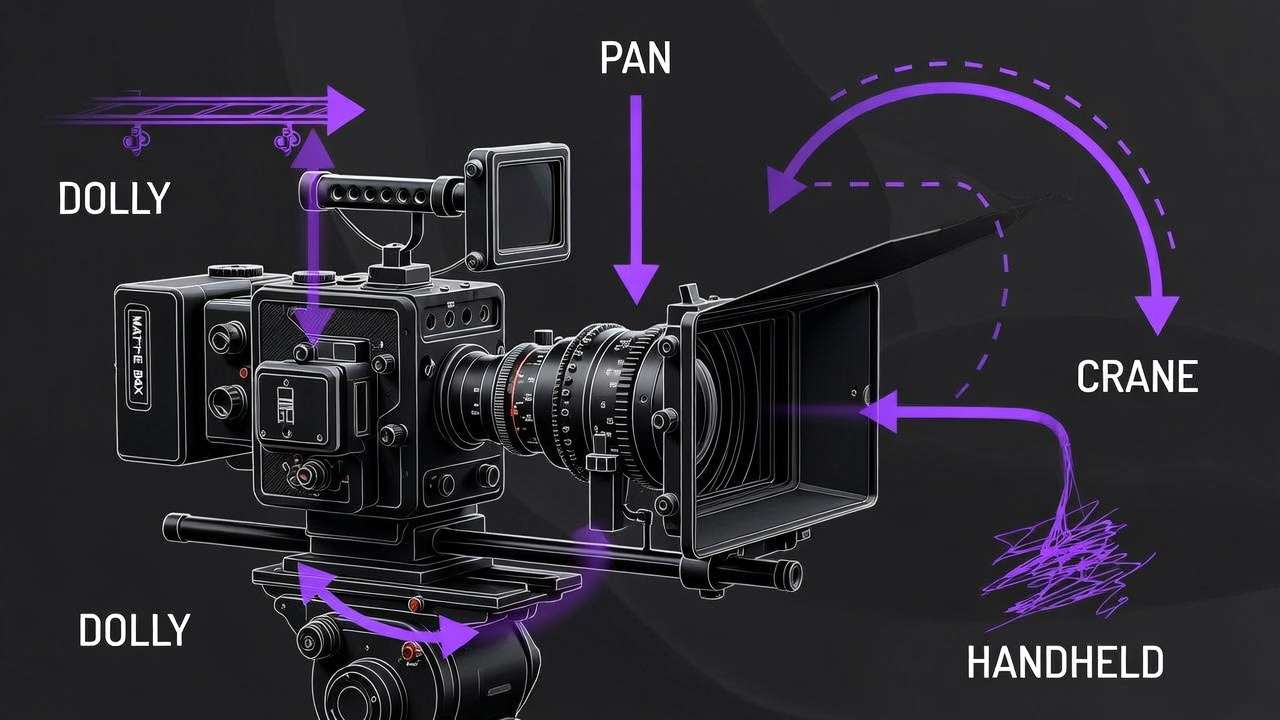
What Google Omni Means on Cliprise
Google Omni is the creator-facing name Cliprise uses for Gemini Omni Flash. Google introduced Gemini Omni as a model family for generating and editing video from different kinds of input, and the first model in that family is Gemini Omni Flash.
The important product distinction is simple:
- Gemini Omni Flash is the official model/entity name.
- Google Omni is the Cliprise display name used in the product interface.
- Veo 3.1 is a separate Google video generation route, not the same model.
Google's own material positions Gemini Omni Flash as a multimodal video model that can use text, images, audio, and video as input, then generate video with audio. The Google announcement emphasizes mixed-input creation and conversational video editing, while the DeepMind model card describes high-quality video output with audio.
For Cliprise users, the practical meaning is not "this replaces every video model." It is more specific: Google Omni gives you a stronger lane for reference-led and edit-led video work inside the same AI video generator where you already compare other models.
Google Omni vs Veo 3.1: The Simple Difference
The easiest way to choose is to look at what starts the job.
| Workflow question | Start with Google Omni | Start with Veo 3.1 |
|---|---|---|
| Do you have a reference image, video, or audio idea? | Yes | Sometimes |
| Do you need to revise an existing generated clip? | Yes | Usually no |
| Is the prompt mostly text-to-video from scratch? | Sometimes | Yes |
| Do you need fast prompt exploration? | Sometimes | Veo 3.1 Fast is often cleaner |
| Do you need a final Google video render? | Compare both | Veo 3.1 Quality is a natural final lane |
Google Omni is reference-first. Veo 3.1 is generation-first.
That does not mean one is "better." It means they answer different production questions. A product marketer with a hero product photo should test Google Omni early. A creator writing a cinematic b-roll prompt from scratch may still move faster with Veo 3.1. A team doing client delivery should compare both before final export.
See the deeper Veo 3.1 Fast vs Quality guide if your decision is mainly about speed, credits, and fidelity within the Veo family.
When to Use Google Omni
Choose Google Omni when the video concept depends on something you already have.
Use case 1: Product photo to short video
You have a clean product photo and want a 5 to 10 second social clip. Google Omni can use the product reference as part of the creative direction, while your prompt controls the environment, camera movement, lighting, and mood.
For example:
Use the uploaded product image as the hero object.
Keep its shape, color, and label placement consistent.
Place it on a brushed metal table in a modern studio.
Slow push-in camera move, soft reflection, premium tech ad lighting.
Add subtle mechanical ambience and a clean final reveal.
Use case 2: Revise an existing AI video
You generated a clip that is nearly right. The composition works, but the background is wrong or the camera feels too energetic. Google Omni is useful when you want to edit through a short instruction instead of starting over.
Keep the subject, camera path, and timing.
Change the background to a bright daylight kitchen.
Make the motion smoother and reduce handheld shake.
Keep the product centered in the final two seconds.
Use case 3: Mixed creative references
You have a moodboard image, a voice/audio idea, and a short prompt. Google Omni is built for the kind of brief where those pieces belong together. That is common for ad concepts, fashion lookbooks, music visuals, and branded social tests.
Success
The best Google Omni prompts separate what must stay fixed from what can change. This prevents the model from treating the whole prompt as open-ended style direction.
When to Use Veo 3.1 Instead
Use Veo 3.1 when the brief is mostly a clean generation prompt and you do not need a reference-led edit.
Veo 3.1 Fast is useful for fast exploration: test angles, scenes, camera language, and broad visual direction before spending more credits. Veo 3.1 Quality is better when a selected idea needs a stronger final pass.
Good Veo-first briefs often look like this:
A mountain biker jumps over a rocky ridge at golden hour.
Cinematic tracking shot from low angle.
Dust particles in backlight, realistic suspension movement,
dramatic landscape, natural ambient sound, premium outdoor ad.
Nothing in this prompt requires a source clip or reference stack. It is a clean text-to-video job. That is where Veo 3.1 can be the more straightforward first route.
For a broader routing view, use Cliprise's AI video generation guide after you understand the Google-specific decision.
Input Workflows: Text, Image, Audio, and Video
Google Omni matters because the input format can change the right workflow.
Text-only prompts
Text-only prompts are still useful when you want fast concept exploration. Write them clearly, with subject, action, camera, environment, lighting, mood, and audio direction.
But if the prompt is text-only, also test Veo 3.1. The best result may come from either route depending on the scene.
Image-led prompts
Image-led prompts work when you have a product photo, a portrait, a character design, a scene keyframe, or a style reference. This overlaps with the image-to-video AI generator workflow, but Google Omni adds a stronger mixed-input/editing angle.
The prompt should tell the model what the image means:
Use the uploaded image as the main product reference.
Preserve the product shape and logo position.
Animate the scene around it with a slow rotating camera.
Do not change the product color.
Audio-led prompts
Audio direction matters when pacing, voice, rhythm, or sound environment changes the scene. If you have a voiceover or musical reference, describe how the video should respond to it.
Avoid vague audio requests like "make it sound good." Use practical instructions:
Match the pacing to a calm voiceover.
Soft room tone, subtle cloth movement, no loud music.
The final two seconds should feel like a clean brand reveal.
Video-led prompts
Video references are useful when timing or motion already exists. Use them when the edit target matters more than inventing a new shot.
Use the uploaded video as the timing and motion reference.
Keep the camera path and subject movement.
Restyle the scene as a neon night city environment.
Make the lighting cooler and more cinematic.
Prompt Formula for Google Omni
A strong Google Omni prompt has six layers.
- Source role: Tell the model what each input is supposed to control.
- Preserve list: State what must stay the same.
- Change list: State what should be transformed.
- Motion and camera: Define movement, pace, and framing.
- Audio direction: Add speech, ambience, sound effects, or silence.
- Delivery intent: Say whether it is for a reel, ad, product demo, or concept pass.
Use this template:
Source role:
Use the uploaded [image/video/audio] as [product reference / motion reference / pacing reference].

Preserve:
Keep [identity, shape, color, camera path, timing, expression].

Change:
Transform [background, lighting, style, environment, mood] into [specific target].

Motion and camera:
[Camera move], [subject movement], [pacing], [framing].

Audio:
[Ambience, dialogue, sound effect, music mood, silence].

Delivery:
Create a [duration/aspect ratio if available in app] clip for [ad, reel, landing page, concept review].
This prompt structure is intentionally boring. That is a good thing. The goal is not poetic language; the goal is giving the model clear control boundaries.
Step-by-Step Workflow in Cliprise
Step 1: Decide if the job is reference-first
Before opening the generator, ask one question:
Would the output be wrong if the model ignored the source material?
If yes, start with Google Omni. If no, start with Veo 3.1, Sora 2, Kling 3.0, or another generation-first model.
Step 2: Prepare clean inputs
Clean inputs reduce ambiguity. Use product photos with the object visible, short source videos with only the motion you need, and audio files where the signal is not buried under noise.
For product work, use the image-to-video workflow guide to structure the still-image phase before generating video.
Step 3: Generate a short first pass
Do not try to solve a final campaign in one prompt. Generate a short test and judge four things:
- Did the model understand the reference?
- Is the motion believable?
- Does the audio direction fit the visual?
- Is the output close enough to revise?
Step 4: Revise or reroute
If the output is close, revise it in Google Omni with a direct edit prompt. If the output misunderstood the scene, reroute the same brief to Veo 3.1 or another model.
This is where Cliprise helps: you are not locked into one model account or one provider interface. You can compare AI video routes while keeping the project logic in one place.
Step 5: Finish with the right model
Google Omni can be the first route, the edit route, or the final route. But sometimes the final pass should move to Veo 3.1 Quality, Kling 3.0, or Sora 2. The winning workflow is not loyalty to one model. It is routing by brief.
Comparison: Google Omni, Veo 3.1, Sora 2, Kling 3.0
| Model | Best first use | Watch-outs |
|---|---|---|
| Google Omni | Mixed references, conversational edits, source-led video | Exact presets and credits should be checked inside the app |
| Veo 3.1 Fast | Fast Google video prompt testing | Use Quality when final fidelity matters |
| Veo 3.1 Quality | Final Google video renders and higher-fidelity scenes | More expensive than Fast, so test first |
| Sora 2 | Cinematic narrative exploration and creative concepts | Model fit depends heavily on prompt style |
| Kling 3.0 | Motion-first clips, social visuals, high-fidelity movement | Compare with other models before assuming it is best for every scene |
This is why multi-model access matters. A single model can be excellent and still be wrong for a specific creative job.
Common Mistakes to Avoid
Mistake 1: Treating Google Omni as just another text-to-video model.
If you only type a broad prompt, you are not using the model's main advantage. Give it source context when the job calls for it.
Mistake 2: Asking for too many changes at once.
Revision prompts should be direct. Change the background, smooth the camera, adjust lighting, or preserve a product detail. Do not ask for ten unrelated changes in one pass.
Mistake 3: Forgetting to say what must stay fixed.
For reference-led work, preservation instructions matter as much as creative instructions.
Mistake 4: Guessing pricing from article copy.
Cliprise uses credits, and exact model credit usage can depend on current presets. Check the app and pricing page before quoting a production budget to a client.
Mistake 5: Staying on the wrong model after a bad first result.
If Google Omni misunderstands the reference, try a cleaner prompt or source. If the task is not reference-led, move to Veo 3.1, Sora 2, or Kling instead of forcing the model.
QA Checklist Before Export
Before exporting a Google Omni result, review it like a producer, not like someone impressed that AI made a video.
- Reference fidelity: Does the product, character, or source motion still match the input?
- Motion quality: Does movement look intentional rather than drifting?
- Continuity: Do objects, faces, and lighting remain stable across the clip?
- Audio fit: Does sound support the scene without distracting from it?
- Text and logos: Are small labels, text, and brand marks acceptable for the use case?
- Platform fit: Does the aspect ratio and pacing fit TikTok, Reels, YouTube, ads, or landing-page video?
- Model fit: Would Veo 3.1 Quality, Sora 2, Kling 3.0, or Runway Aleph handle the final pass better?
Warning
Do not skip QA because the first output looks exciting. AI video errors often appear in small motion details, audio timing, labels, hands, reflections, and continuity between frames.
A Practical Google Omni Workflow for Product Video
Here is a simple production pattern for a product marketing clip.
1. Generate or upload the product reference.
Use a real product photo, a clean AI product mockup, or an approved campaign asset. If you need to create the still first, use Cliprise image models such as Flux 2, Google Imagen 4, or Gemini 3 Pro.
2. Write the preservation list.
Example:
Preserve the bottle shape, cap color, label placement, and matte finish.
Do not change the brand colors.
3. Add motion and camera.
Example:
Slow dolly forward, gentle turntable rotation, shallow depth of field,
premium skincare campaign look, clean studio reflection.
4. Add audio direction.
Example:
Soft studio ambience, subtle glass movement, no voiceover, no music drop.
5. Generate, then revise one thing at a time.
First revise composition. Then lighting. Then pacing. Then final polish. This is slower than trying everything at once, but it produces cleaner decision-making and fewer wasted credits.
6. Compare the final idea.
If the concept works but the output is not final-grade, run a comparable prompt through Veo 3.1 Quality or Kling 3.0. The winning final model is the one that best matches the shot, not the one you started with.
Related Cliprise Pages
- Google Omni model page
- AI video generator
- Image-to-video AI generator
- Veo 3.1 Quality
- Veo 3.1 Fast
- Veo 3.1 Fast vs Quality guide
- Image-to-video workflow guide
Final Takeaway
Google Omni is best understood as a reference-first Google video model inside Cliprise. If your creative job starts from mixed source material, an existing clip, or a result that needs targeted edits, start with Google Omni. If your job starts from a clean prompt and needs Google video generation, compare against Veo 3.1 Fast and Veo 3.1 Quality.
The strongest workflow is not picking one model forever. It is using Cliprise to route the brief: reference-first to Google Omni, generation-first to Veo 3.1, cinematic exploration to Sora 2, motion-heavy clips to Kling, and editing-heavy source footage to Runway Aleph.
Use Cliprise to create your first Google Omni video from a prompt, image, audio idea, or reference clip, then compare it against the other video routes before you commit credits to final delivery.