An AI avatar video is a video where a portrait image is animated with an audio file - producing a video of that person delivering your narration with natural lip sync and body language. You provide the face and the voice; the AI handles the animation.
This guide covers the complete workflow from nothing to a finished talking head video, in three steps.
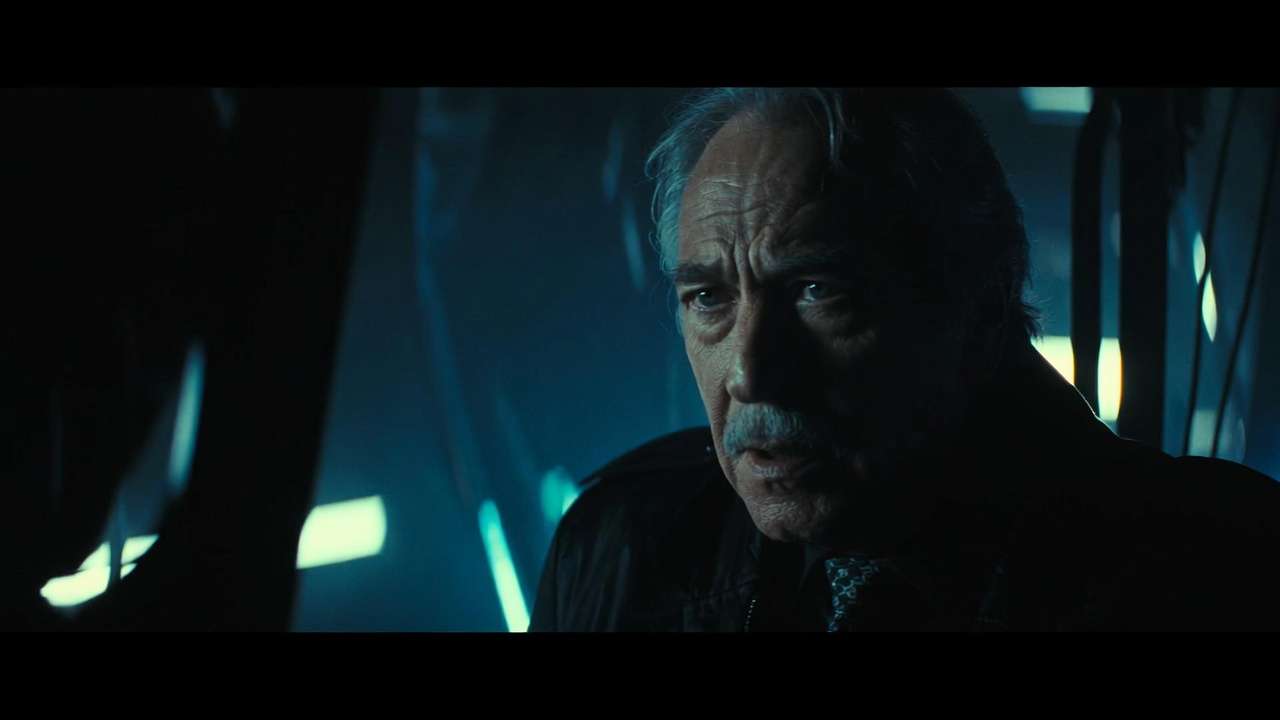
Step 1: Get Your Source Portrait
You have two options.
Option A - Use an AI-generated portrait. Generate a professional headshot with Flux 2 on Cliprise. Use a prompt like:
Professional headshot of a [woman/man] in [demographic description],
confident direct gaze, slight natural expression,
wearing [professional attire],
clean background, soft studio lighting,
sharp focus on face, high detail
Generate 3-4 variants, pick the one that looks most professional and has clear, well-lit facial features.
Option B - Use a real photograph. Upload a clean portrait photo. Requirements: face clearly visible, front-facing or slight angle, good lighting, nothing covering the face.
What makes a good source image for avatar generation:
- Face fills a significant portion of the frame
- Clear, consistent lighting - no harsh shadows on facial features
- Neutral or natural expression (the animation starts from your expression)
- No heavy accessories that obscure facial features
Step 2: Prepare Your Audio
The audio drives the lip sync, gestures, and emotional expression. Clean audio produces accurate results. Noisy audio produces degraded sync.
Option A - Generate with ElevenLabs TTS. Write your script and generate narration using ElevenLabs TTS on Cliprise. Select a voice style that fits your content. The output is clean, unprocessed audio - ideal for avatar input. See AI Voice Generator Guide →
Option B - Record your own voice. Record in a quiet room. Smartphone recordings in quiet spaces work well. Do not add music, effects, or processing - the model needs the raw voice signal. Export as WAV for best quality.
Critically: do not add background music before generation. Mix music in CapCut after you have the avatar video. Music mixed into the audio input confuses the lip sync model.
Step 3: Generate the Avatar Video
For clips under 30 seconds: OmniHuman
- Go to Video Gen on Cliprise
- Select ByteDance OmniHuman
- Upload your portrait image
- Upload your audio file
- Generate
Output: a video of your portrait person delivering the audio with natural lip movements, facial expressions, and gestures. Duration: up to 30 seconds.
OmniHuman handles full-body images as well as portraits - if you use a full-body image, the character's body language and gestures animate to match the audio.
For clips up to 1 minute, multilingual, or 48fps: Kling Avatar API
- Go to Video Gen on Cliprise
- Select Kling AI Avatar API
- Upload portrait image
- Upload audio file
- Optionally add a text prompt describing the presentation style: "professional and confident, warm eye contact, measured delivery"
- Generate
Output: presenter video at 1080p, 48fps, up to 1 minute. Supports English, Japanese, Korean, and Chinese lip sync.
Step 4: Post-Production in CapCut
The avatar video clip is the core element. In CapCut, add:
Background. Place the talking head on a branded background - an office environment, a plain colored backdrop, or a relevant visual environment. Lower the avatar clip onto a background layer.
Background music. Add subtle instrumental music at 15-20% volume under the narration. This is where your music goes - not in the avatar input.
Lower thirds. Add your name, title, or company name as a text overlay at the bottom of the frame.
Cut-aways. For longer content, cut away from the talking head periodically to show product footage, slides, or relevant B-roll. This is how professional educational and marketing video is structured.
Captions. Add auto-captions in CapCut, or generate an SRT file from your audio using ElevenLabs Speech-to-Text on Cliprise.
Note
OmniHuman and Kling Avatar API are both on Cliprise alongside ElevenLabs TTS and Flux 2 - the complete avatar video workflow from one subscription. Try Cliprise Free →
Related Articles
- ByteDance OmniHuman: Complete Guide →
- Kling AI Avatar API: Complete Guide →
- AI Avatar Generator 2026 →
- How to Create AI Talking Head Videos for YouTube →
- AI Avatar vs Real Person: When to Use Which →
- AI Voice Generator Guide →
- AI Portrait & Headshot Generator →
Models on Cliprise: