Topaz Image Upscale: Complete Guide to Professional AI Image Enhancement
Topaz Image Upscale is the professional-grade tool to ai enhance photo assets on Cliprise for photographic and photorealistic content. This guide covers when and how to use it effectively-including upscaling factor selection, content type routing, integration with AI generation workflows, and the important distinction from Recraft Crisp Upscale.

What Topaz Image Upscale Does (and Doesn't Do)
Topaz Image Upscale applies genuine detail recovery, not sharpening. The distinction matters:
Sharpening increases the contrast of edges already present in the image, making it appear sharper at the cost of introducing halos and artifacts. It does not add new information.
Detail recovery (what Topaz does) uses a GAN-based super-resolution model trained on photographic content to reconstruct plausible detail from learned priors about how photographic subjects look at higher resolution. The model adds genuine information based on what material surfaces, lighting, and photographic content actually look like.
For professional delivery contexts - print, large-format display, client review - this ai photo editor difference is visible and significant.
Choosing the Right Upscaling Factor
Topaz Image Upscale supports 2×, 4×, and 6× upscaling.
2× - Web to display
Use 2× when you need to move from standard web resolution to larger display sizing without full print resolution requirements. A 1024×1024 image becomes 2048×2048.
Common use cases: Enlarging for large-screen web display, improving resolution for social media at display sizes, minor resolution enhancement for quality improvement without print requirements.
4× - Web to print
The most commonly used factor for professional delivery workflows. A 512×512 AI-generated image becomes 2048×2048 at 4×, and a 1024×1024 image becomes 4096×4096-adequate for most print applications at standard viewing distances.
Common use cases: Print production from AI-generated images, product photography for catalog print, editorial photography for magazine layouts, advertising production for standard print formats.
6× - Web to large-format print
Use 6× for large-format applications where viewing distance is short relative to print size, or where the highest possible output resolution is required. A 1024×1024 input becomes 6144×6144; a 2048×2048 input becomes 12288×12288.
Common use cases: Billboard and large-format outdoor advertising, exhibition printing, large-format fine art prints, archival reproduction from legacy photography.
Content Types: Where Topaz Excels
Topaz Image Upscale is optimized for photographic and photorealistic content. The model's training distribution gives it strong priors for:
Photography: Portrait, product, landscape, architectural, lifestyle, fashion-all photographic content benefits from Topaz's texture recovery approach. The model correctly reconstructs material surfaces, skin, fabric, and environmental detail.
AI-generated photorealistic images: Outputs from Gemini 3 Pro, Imagen 4, Seedream 4.5, FLUX.2, and other photorealistic generation models all benefit from Topaz upscaling. AI-generated images at 512-1024px can be delivered at 2048-4096px print-ready resolution.
Dedicated AI image processing mode: The model includes a specific processing path calibrated for diffusion model output artifacts-the softness, minor inconsistencies, and characteristic patterns that AI-generated images have versus camera photography. Use this mode for AI-generated inputs.
Content Types: Where Not to Use Topaz
Topaz Image Upscale produces poor results on graphic design and illustrative content:
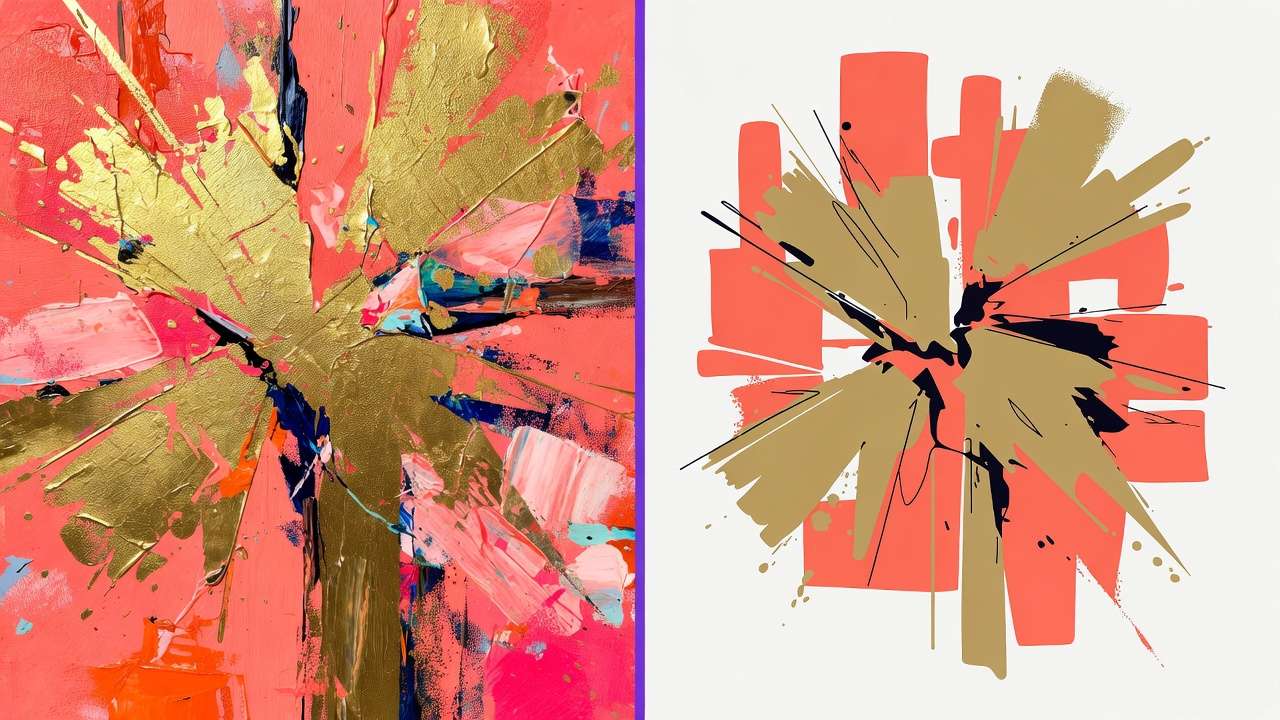
Logos and brand marks: The model's texture recovery priors apply grain and organic texture to what should be flat, clean color regions. A clean logo background becomes textured; sharp vector-style edges get softness applied incorrectly.
Line art and illustration: Similar to logos-flat-color regions get texture hallucination; crisp lines get softened.
Typography: Text elements that should be crisp and legible become textured and degraded.
For this content type, use Recraft Crisp Upscale instead-its edge-sharpening architecture is designed specifically for this category. For workflow details and production examples, see Recraft Crisp Upscale: Complete Guide.
The routing rule: photographic and photorealistic content → Topaz; graphic design and illustration → Recraft Crisp.
Integration with AI Generation Workflows
The standard Cliprise workflow for AI-generated image production:
1. Generate at standard resolution with a high-quality generation model
2. Review and select the strongest outputs
3. Upscale selected outputs with Topaz Image Upscale to delivery resolution
4. Deliver print-ready outputs to clients or production environments
This pipeline produces professional-delivery outputs from generation models without external software, multiple vendor accounts, or manual file transfer between platforms.
Example pipeline:
- Generate product image with Imagen 4 at 1024×1024
- Select best output
- Topaz Image Upscale at 4× → 4096×4096
- Deliver to print production at 300 DPI = 13.65" × 13.65" print-ready
For any AI-generated image that leaves your control-going to a client, being published, being sent to a print vendor-run it through Topaz Image Upscale first if the destination requires resolution above what the generation model natively produces.
Noise Reduction: The Integrated Benefit
Topaz Image Upscale includes concurrent noise reduction as part of the upscaling process. This means:
- JPEG compression artifacts are removed during upscaling
- Sensor noise from photography is reduced
- Diffusion model artifacts in AI-generated images are cleaned
- No separate denoising step is required before or after upscaling
For legacy photography being digitized or restored, and for AI-generated images that were initially generated with visible artifacts, this integrated noise reduction removes a separate processing step.
Batch Processing via API
For workflows processing multiple images, Topaz Image Upscale is accessible via the Cliprise API. Batch processing recommendations:
- Submit images in the largest feasible batch size for your upscaling factor to reduce per-image overhead
- Use consistent upscaling factors within a batch for predictable processing time estimates
- For production pipelines with mixed content types, pre-sort photographic and graphic design content and route to the correct upscaler before submitting batches
Comparison with Topaz Video Upscaler
Topaz Video Upscaler applies the same Topaz quality standard to video content-processing frame sequences rather than individual images. The two models are complementary, not overlapping:
- Topaz Image Upscale → individual images, photographs, AI-generated static images
- Topaz Video Upscaler → video clips, motion content, AI-generated video sequences
For production workflows that generate both static and video content, both models are typically needed.
Summary
Topaz Image Upscale is a professional post-processing tool that bridges the gap between AI generation resolution and delivery-quality resolution. Used correctly-on photographic and photorealistic content, at the appropriate upscaling factor-it produces print-ready outputs from web-resolution inputs without introducing artifacts.

The critical routing decision: photographic or AI-generated photorealistic content goes to Topaz Image Upscale; graphic design and illustration content goes to Recraft Crisp Upscale. Applying the wrong model produces visible artifacts. Applying the right model produces professional outputs.
Related News:
Related:
- Topaz Image Upscale vs Recraft Crisp Upscale comparison →
- AI image upscaling 4K to 8K guide →
- Upscaling and polishing guide →
Start from the Topaz Image Upscale model page, then compare adjacent enhancement routes like Recraft Crisp Upscale when the asset is more illustrative than photographic.