Introduction: Kling 3.0 for Production Creators
Kling 3.0 launched on February 4th, 2026, and made one technical claim that immediately got the industry's attention: native 4K/60fps AI video generation.
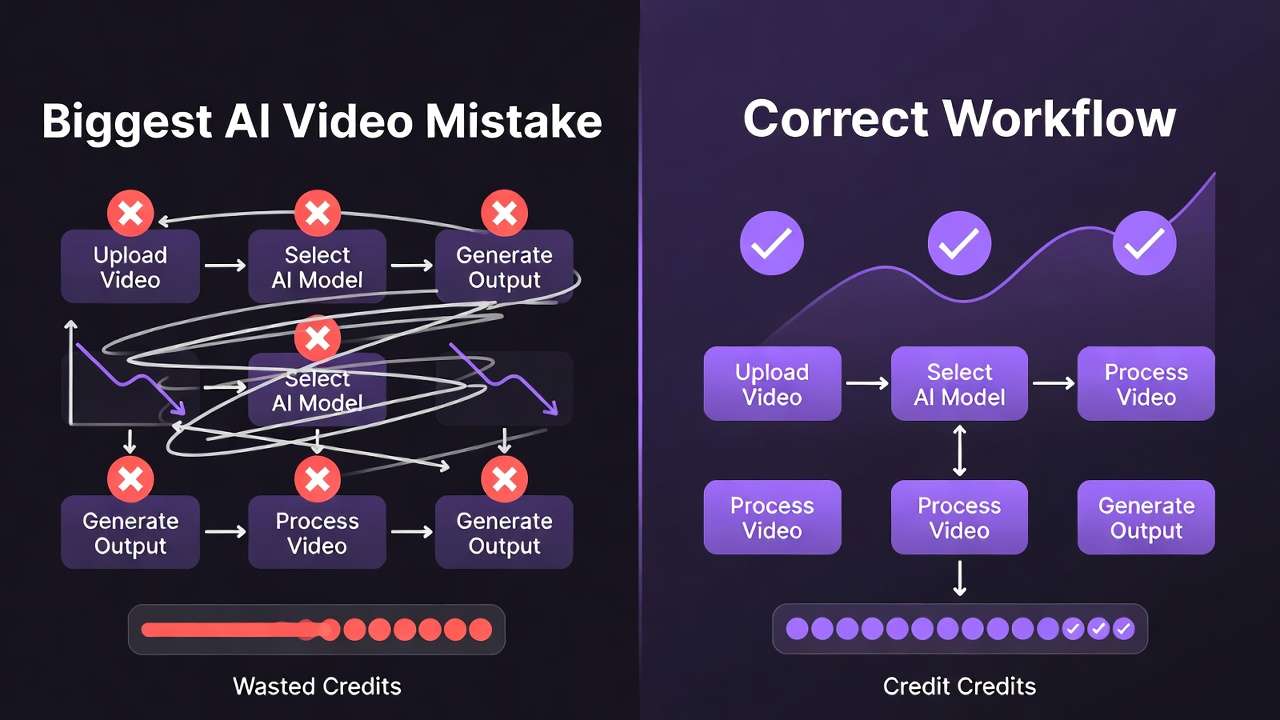
Not upscaled. Not interpolated. Native.
The previous ceiling for AI video resolution was 1080p at standard frame rates. Kling 3.0 cleared that ceiling and introduced the Video 3.0 Omni engine - Kuaishou's unified architecture for text-to-video, image-to-video, video extension, and multi-shot storytelling from a single model.
For creators who create ai videos for advertising, product demos, and lifestyle content where 4K delivery is either expected or required, Kling 3.0 is the direct answer. This tutorial covers the complete workflow - access, text-to-video, image-to-video, the F.O.R.M.S. prompting framework, advanced features, and where Kling 3.0 fits in the broader 2026 model landscape.
What Is Kling 3.0?
Kling 3.0 is Kuaishou's third major AI video model iteration, built on the Video 3.0 Omni engine. It handles text-to-video, image-to-video, video extension, and multi-shot production from a unified model architecture.
Key specifications:
- Resolution: 4K/60fps (native - not upscaled)
- Generation length: Up to 15 seconds (multi-shot up to 6 cuts)
- Input modes: Text-to-video, image-to-video, video extension
- Native audio: Audio generation and lip-sync built in
- Multi-shot: Scene sequencing across multiple shots from one prompt
- Canvas Agent: Spatial composition control
What changed from Kling 2.6: 4K/60fps native resolution (the defining upgrade), the Omni engine unifying all generation modes, improved character consistency, native audio and lip-sync, and Canvas Agent for spatial control. For details, see Kling 3.0 vs Kling 2.6.
How to Access Kling 3.0
Via Cliprise (recommended): Full model access including 4K/60fps, all generation modes, native audio - under the unified credit system alongside Sora 2, Veo 3.1, Seedance 2.0, and 44+ other models. Cliprise models → Kling 3.0
Via Kling AI direct: klingai.com - subscription plans with Kling-specific credits. Native interface for Canvas Agent and scene extension.
Via mobile app: Available on iOS and Android. Simplified interface; advanced parameters accessible but limited for complex multi-shot workflows.
Text-to-Video Workflow
Step 1: Select Text-to-Video Mode
In the Kling 3.0 interface, select "Text to Video" from the generation mode selector. No image reference required.
Step 2: Write the Prompt Using F.O.R.M.S.
The F.O.R.M.S. framework is the most effective prompt structure for Kling 3.0:
| Letter | Element | Example (bad → good) |
|---|---|---|
| F | Focus (subject) | "a woman" → "A woman in her late 30s, dark shoulder-length hair, navy blazer, confident expression" |
| O | Outcome (action) | "she's walking" → "walks through a glass-walled office corridor, purposeful stride, glancing at phone" |
| R | Realism (style) | "looks good" → "photorealistic, shot on RED camera, shallow depth of field, film grain" |
| M | Motion (camera) | (omitted) → "smooth tracking shot at chest height, lateral movement left-to-right" |
| S | Setting (environment) | "in an office" → "modern tech company HQ, floor-to-ceiling windows, city view at midday, natural light from right" |
Full F.O.R.M.S. prompt example:
A woman in her late 30s, dark shoulder-length hair, navy blazer, confident expression (F).
Walks through a glass-walled office corridor, purposeful stride, glancing at phone (O).
Photorealistic, shot on RED camera, shallow depth of field, slight film grain (R).
Smooth tracking shot at chest height, lateral movement left-to-right (M).
Modern tech company HQ, floor-to-ceiling windows, city view at midday, natural light from right (S).
Step 3: Add Negative Prompts
blurry, low quality, watermark, text overlay, distorted faces,
unnatural motion, jerky movement, inconsistent lighting,
duplicate subjects, extra limbs
Add content-specific negatives - e.g., "multiple people" for solo subject briefs, "indoor, artificial lighting" for outdoor scenes.
Step 4: Configure Settings
- Aspect ratio: 16:9 (landscape), 9:16 (vertical), 1:1 (square)
- Duration: 5-15 seconds. Start with 10s for testing.
- Quality: 4K for production, 1080p for draft (faster, lower credit cost).
- Motion intensity: Lower for slow, controlled movement; higher for dynamic content.
Step 5: Generate and Review
Generation: 30-120 seconds depending on resolution and server load. Review: subject match, motion accuracy, camera behavior, environment correctness.
Step 6: Iterate
Small adjustments outperform full rewrites. If one element is wrong, edit that element only and regenerate.
Image-to-Video Workflow
Step 1: Select "Image to Video" mode.
Step 2: Upload reference image - 1080p minimum, 4K preferred; clean subject, good lighting.
Step 3: Write animation prompt (motion and continuation, not starting state):
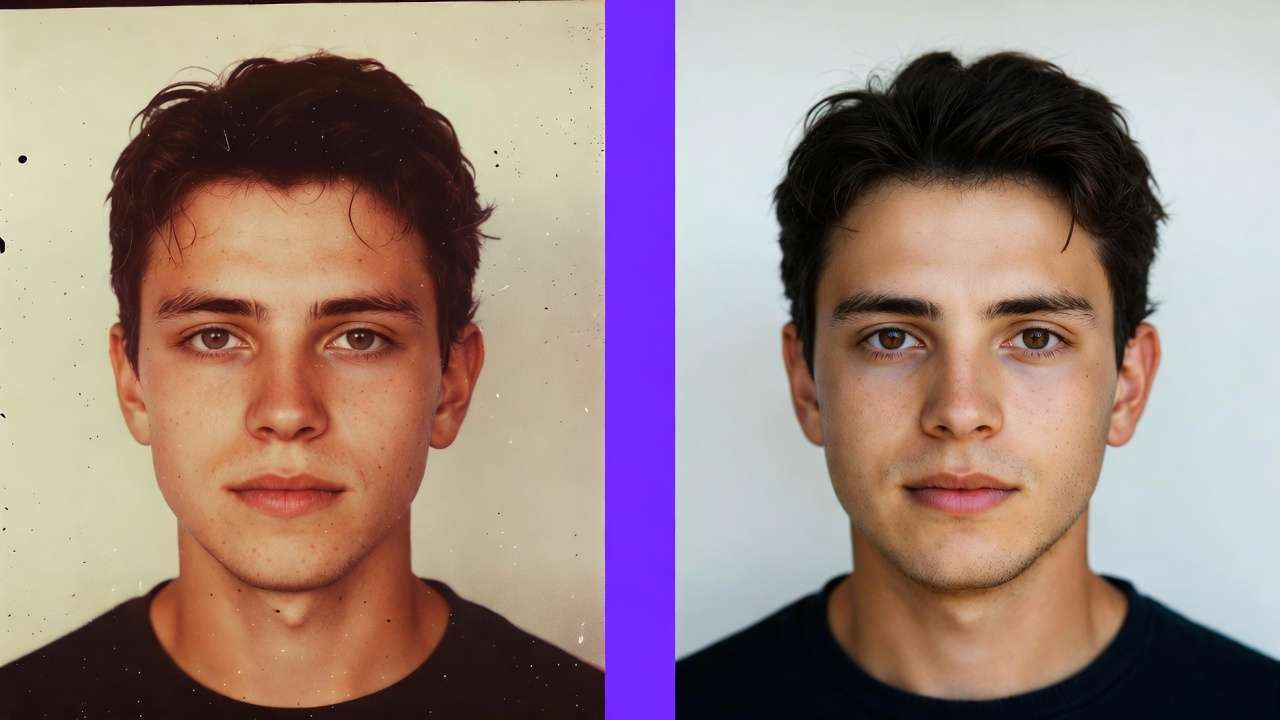
[Reference: product on marble surface]
Camera slowly orbits the product clockwise - 270-degree arc over 15 seconds.
Dramatic studio lighting maintained throughout. Slight reflective surface shimmer on the marble.
Product remains static - only camera moves. Clean, premium aesthetic.
Step 4: Set motion controls - subject motion intensity (0-10), camera motion type, motion smoothness. For product video: low subject (0-2), controlled orbit. For character: medium (4-6), tracking.
Advanced Features
Multi-Shot Storytelling
Describe multiple shots in sequence and generate with visual consistency:
SHOT 1 (0-4s): Wide establishing - [environment], camera static
SHOT 2 (4-9s): Medium - [subject action], camera tracking
SHOT 3 (9-15s): Close-up - [detail], camera slow push-in
Maintain: consistent subject appearance, consistent lighting throughout
Native Audio & Lip-Sync
Auto audio: Model generates ambient and music from visual content and prompt tone (cinematic, energetic, melancholy).
Lip-sync: Describe dialogue in the prompt. For precise lip-sync to a specific track, Seedance 2.0's @Audio1 reference is more reliable.
Video Extension (Scene Extension)
Upload an existing clip, describe what happens next. Kling 3.0 maintains subject appearance, environment, camera style, and consistency.
Canvas Agent
Spatial composition control - specify where elements sit in the frame. Use when: brand guidelines require placement, multiple subjects need precise spatial relationship, compositional rules matter.
Frame Extraction
Export frames as still images - for character/environment references, thumbnails, or consistent image libraries.
Best Practices
Six elements in every prompt: Subject + Movement + Scene + Camera + Lighting + Atmosphere.
Common mistakes and fixes:
| Problem | Fix |
|---|---|
| Subject inconsistent | Add physical specificity: "early 40s, grey stubble, charcoal suit, silver watch" |
| Jerky camera | Use camera vocabulary: "smooth dolly push-in," "gentle arc left-to-right" |
| Consistency loss in final 10s | Reduce duration or simplify; use multi-shot with shorter segments |
| Wrong lighting | Name the setup: "Rembrandt lighting," "soft box studio," "golden hour backlight" |
Kling 3.0 vs Kling 2.6: Upgrade Summary
| Feature | Kling 2.6 | Kling 3.0 |
|---|---|---|
| Max resolution | 1080p | 4K/60fps |
| Native audio | Limited | Full + lip-sync |
| Multi-shot | Basic | Advanced sequencing |
| Canvas Agent | No | Yes |
| Max duration | 10 sec | 15 sec |
Upgrade if: 4K delivery, native audio, or multi-shot sequencing is required.
Stay on 2.6 if: High-volume 1080p content and cost/speed favor 2.6. Full comparison →
Frequently Asked Questions
What is Kling 3.0?
Kuaishou's third-generation AI video model, Video 3.0 Omni engine, native 4K/60fps, native audio, multi-shot, video extension up to 15 seconds.

How do I use Kling 3.0 for free?
Limited free tier via klingai.com and some aggregators - daily limits, 1080p cap, watermarks. 4K production requires a paid plan.
What is the maximum resolution?
4K/60fps - native, not upscaled. Current AI video ceiling in 2026.
Does Kling 3.0 support audio?
Yes. Native ambient, music, lip-sync. Configurable separately.
How do I write a good prompt?
Use F.O.R.M.S.: Focus, Outcome, Realism, Motion, Setting. Add negative prompts. Be specific.
Can Kling 3.0 extend video?
Yes - Scene Extension. Upload clip, describe what happens next, model continues with consistency.
Where can I access Kling 3.0?
Cliprise (unified credits), klingai.com, or mobile apps.
Conclusion
Kling 3.0 is the production throughput model of 2026. Native 4K/60fps directly changes what AI video can deliver to professional workflows. For advertising, e-commerce, and content teams where 4K and speed matter, Kling 3.0 is the right primary model. Master F.O.R.M.S., use multi-shot for scene structure, and access it alongside Sora 2 and Veo 3.1 via Cliprise for briefs where those models fit better.
Related Articles: